Skip to content

How to Quickly Determine the Ideal Robot Model and Working Range

This function is valid for:

TMflow Software version: 2.24 or above

TMflow Simulator only


Purpose #

  • Provides the function to build a virtual scene using CAD files.
  • Provides the function to validate the robot’s reach and program within the environment.


Functions Related to TMscene #

Import& Export:      Import CAD files to TMscene.

Tool Wizard:           Create tool center point with CAD files.


Functions in TMscene #

Scene creation:      Build up a scene with CAD files.

Change view:           Operations to change views of the virtual scene.

Collision check:       Visualize and prevent collision of your project.

Point edit:              Visualize robot points quickly in virtual scene.


How to Use #

  1. Import CAD files into the TMflow simulator.

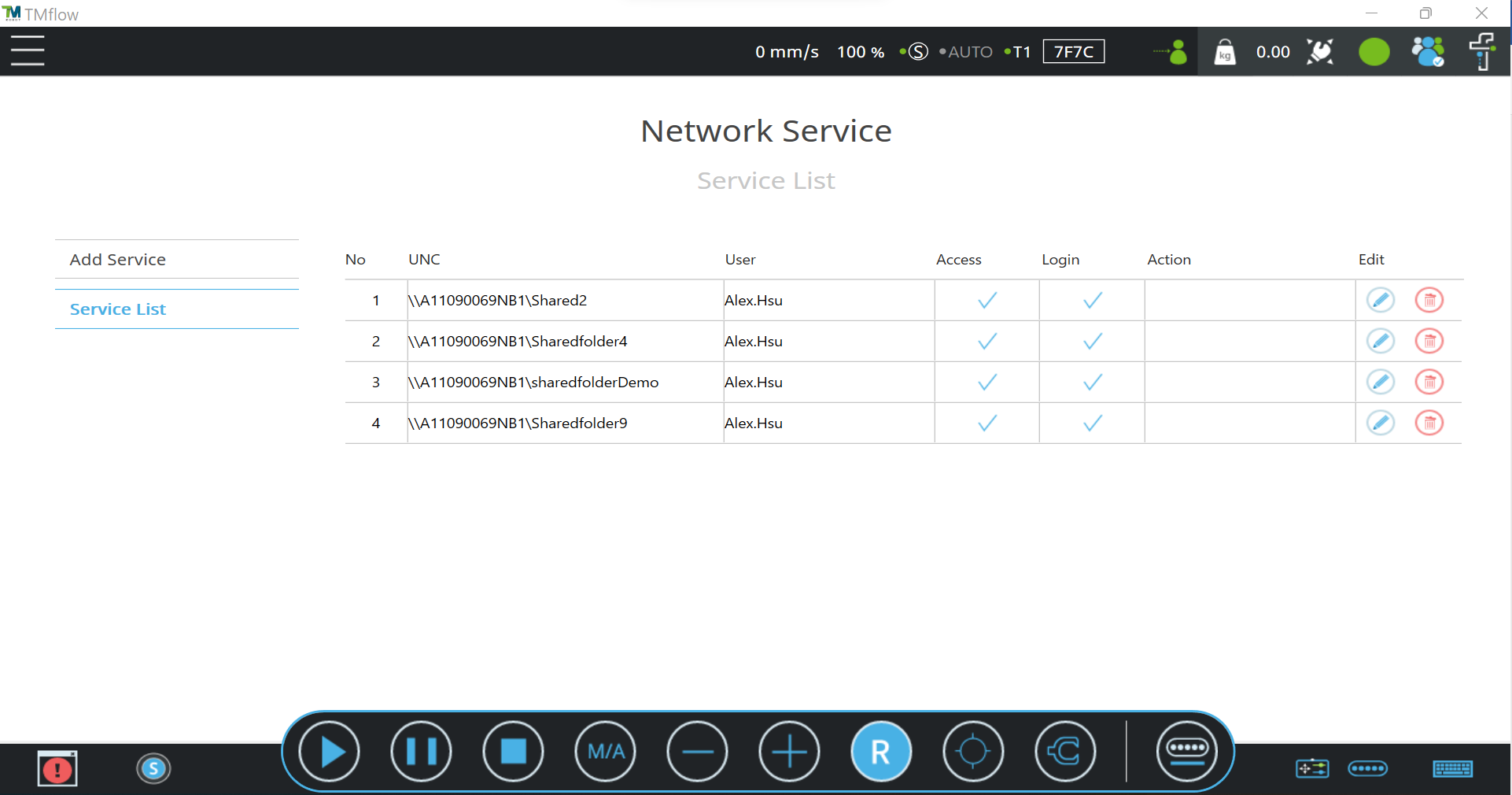
a. Create a shared folder or use a USB drive

Please refer to Chapters 5.6.2.1 or 5.6.2.4 in the “Software Manual TMflow_SW2.24” to create the folder path in the shared folder or on the USB drive.

The demo below illustrates how to add a shared folder as a service.


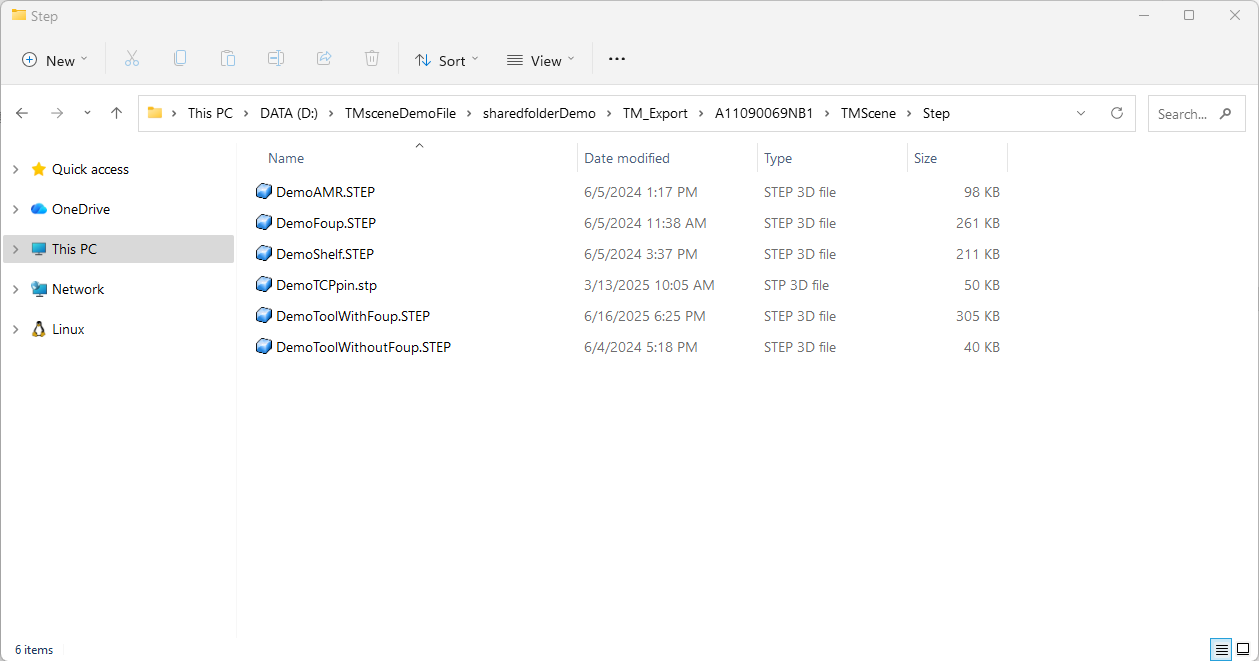
b. Place the CAD files into the newly created folder within the shared folder.

The example path is shown below:, the path is D:\TMsceneDemoFile\sharedfolderDemo (shared folder name)\TM_Export\A11090069NB1 (Device name)\TMScene\Step


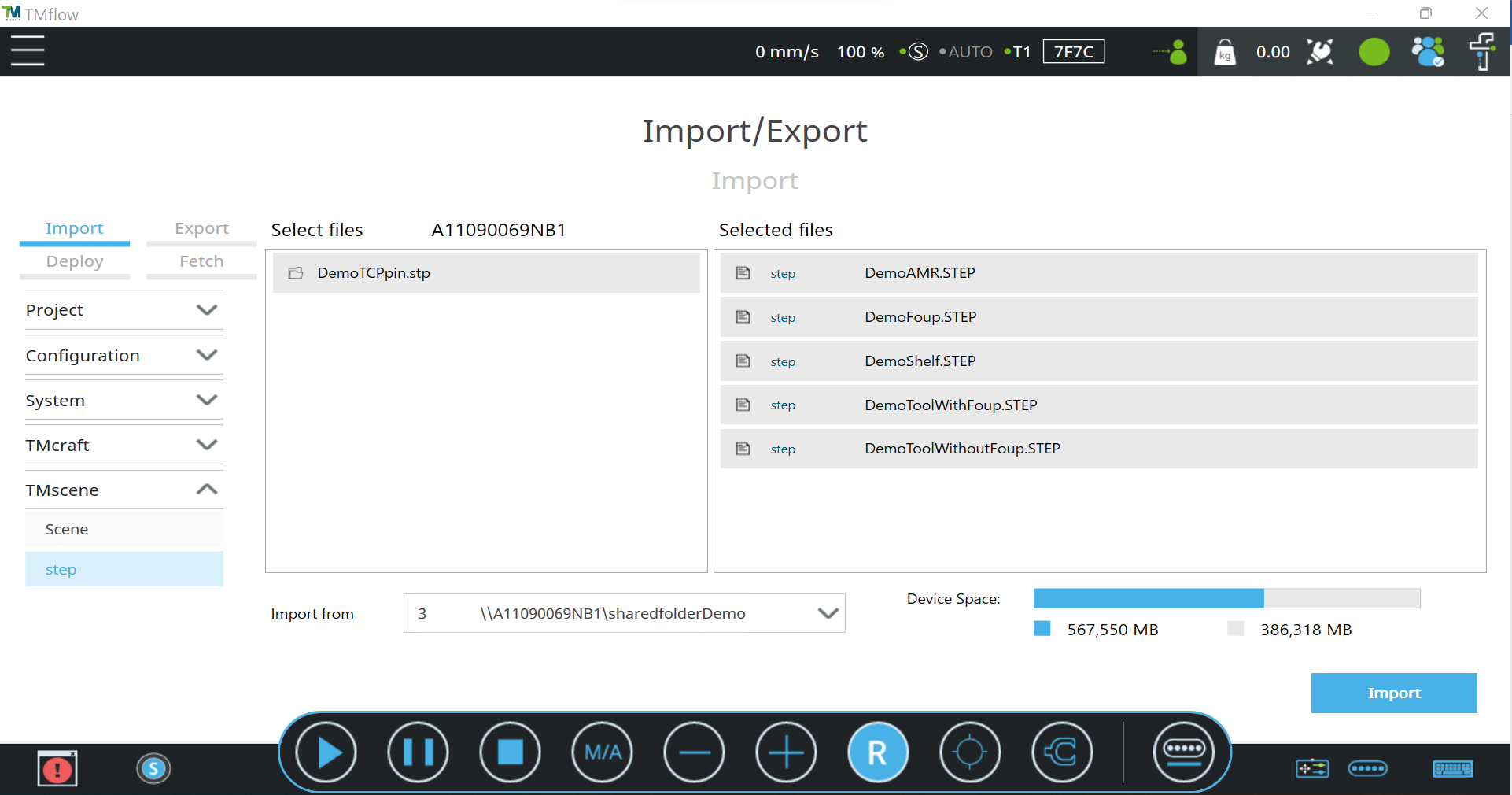
c. Import CAD files via the Import/Export interface in the TMflow

Import the files into TMflow.


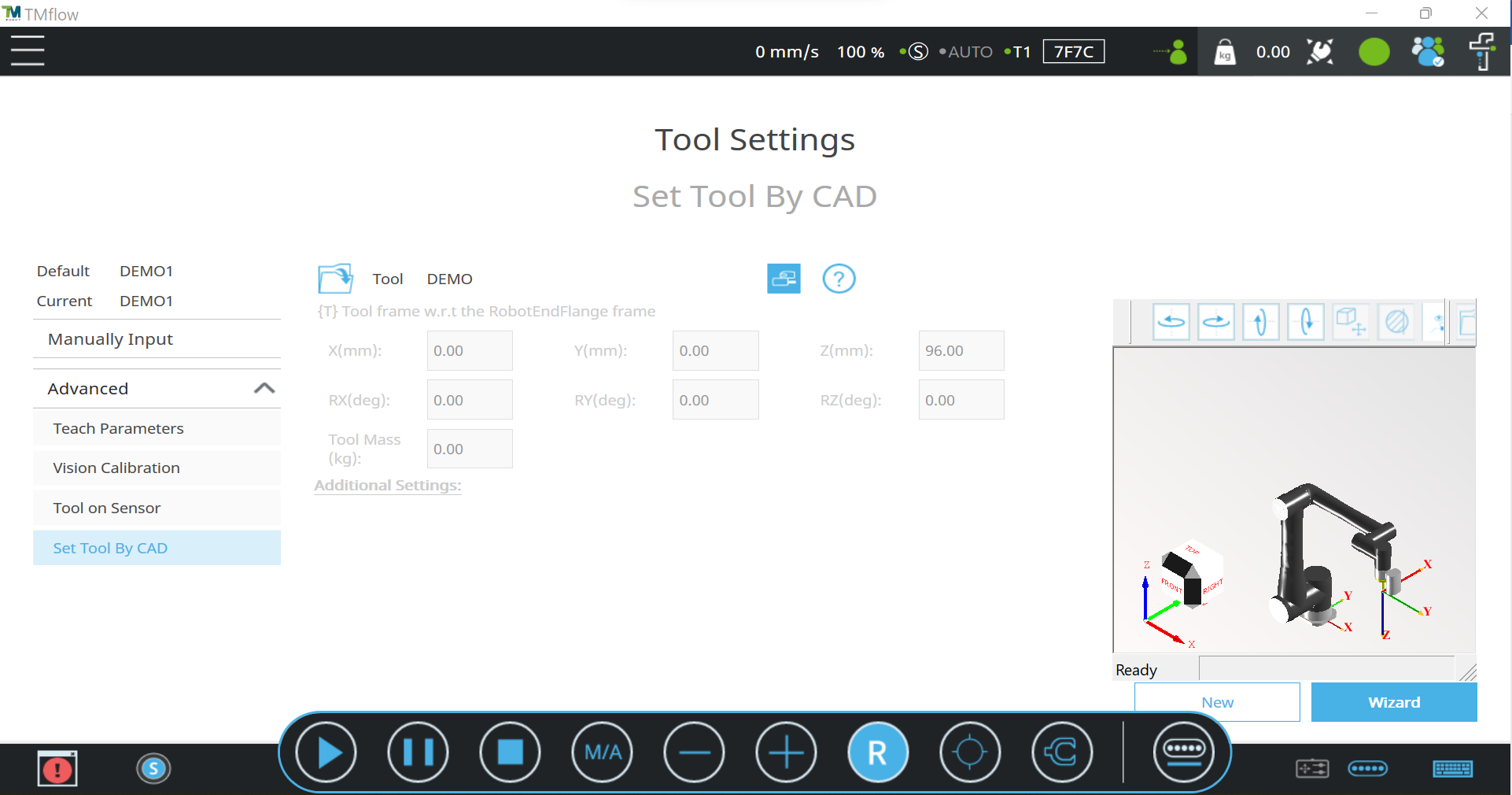
2. Set Tool by CAD

Tool wizard in Tool setting (Menu > Configuration > Tool Setting > Set Tool By CAD) allows users to define the Tool Center Point (TCP) using an imported CAD file.


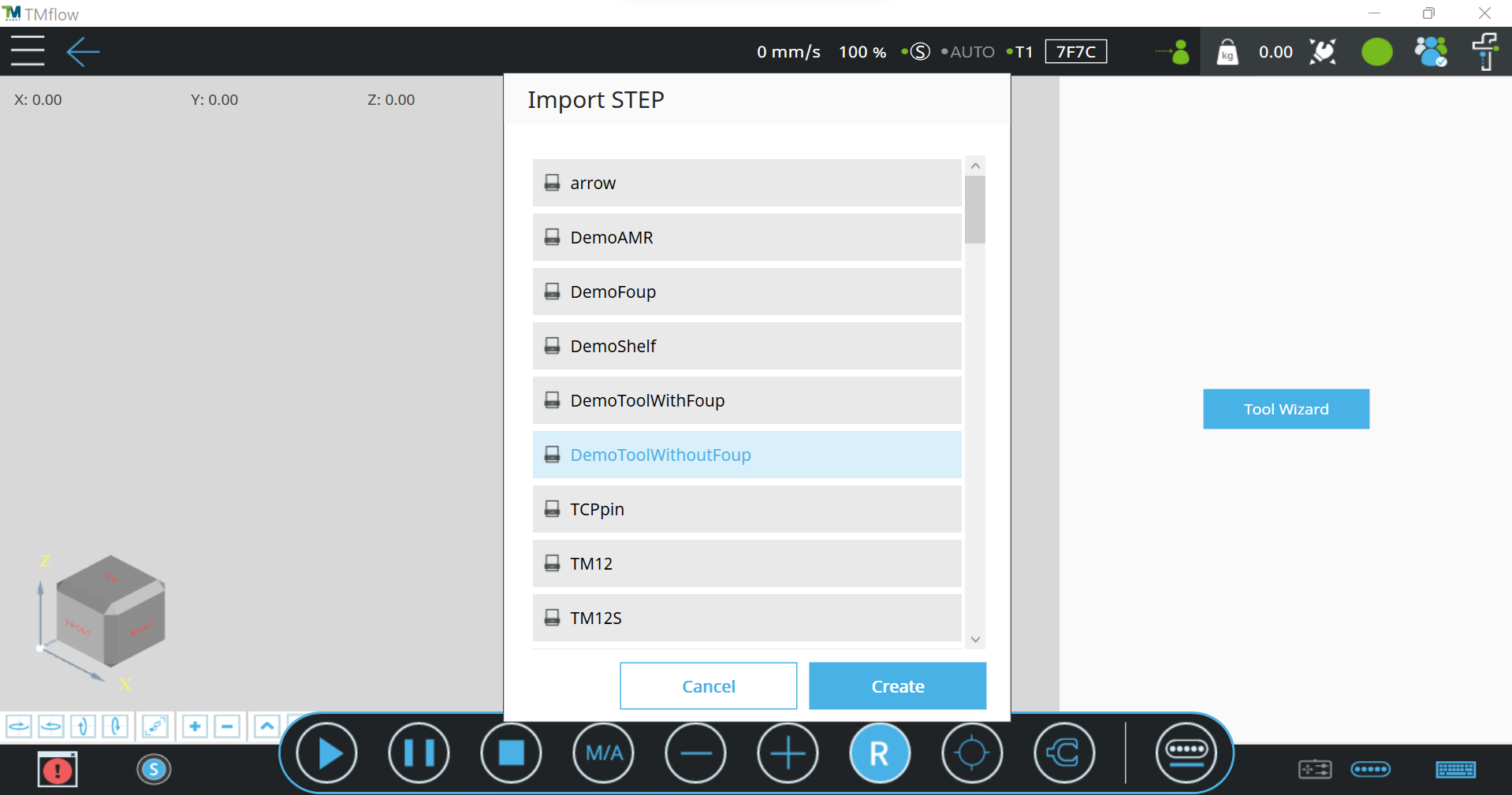
a. Select CAD

Select a step file as the tool


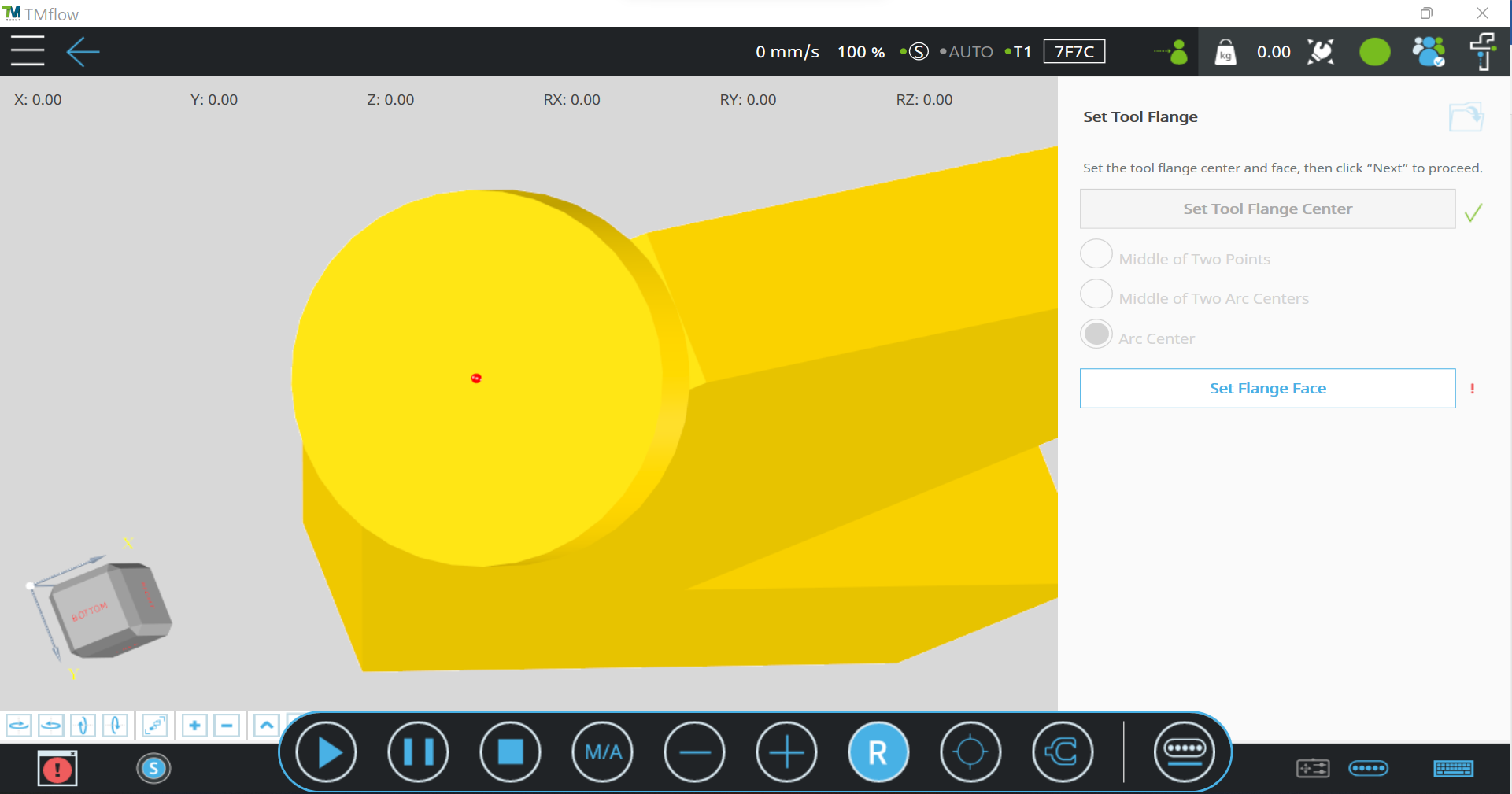
b. Set Tool Flange

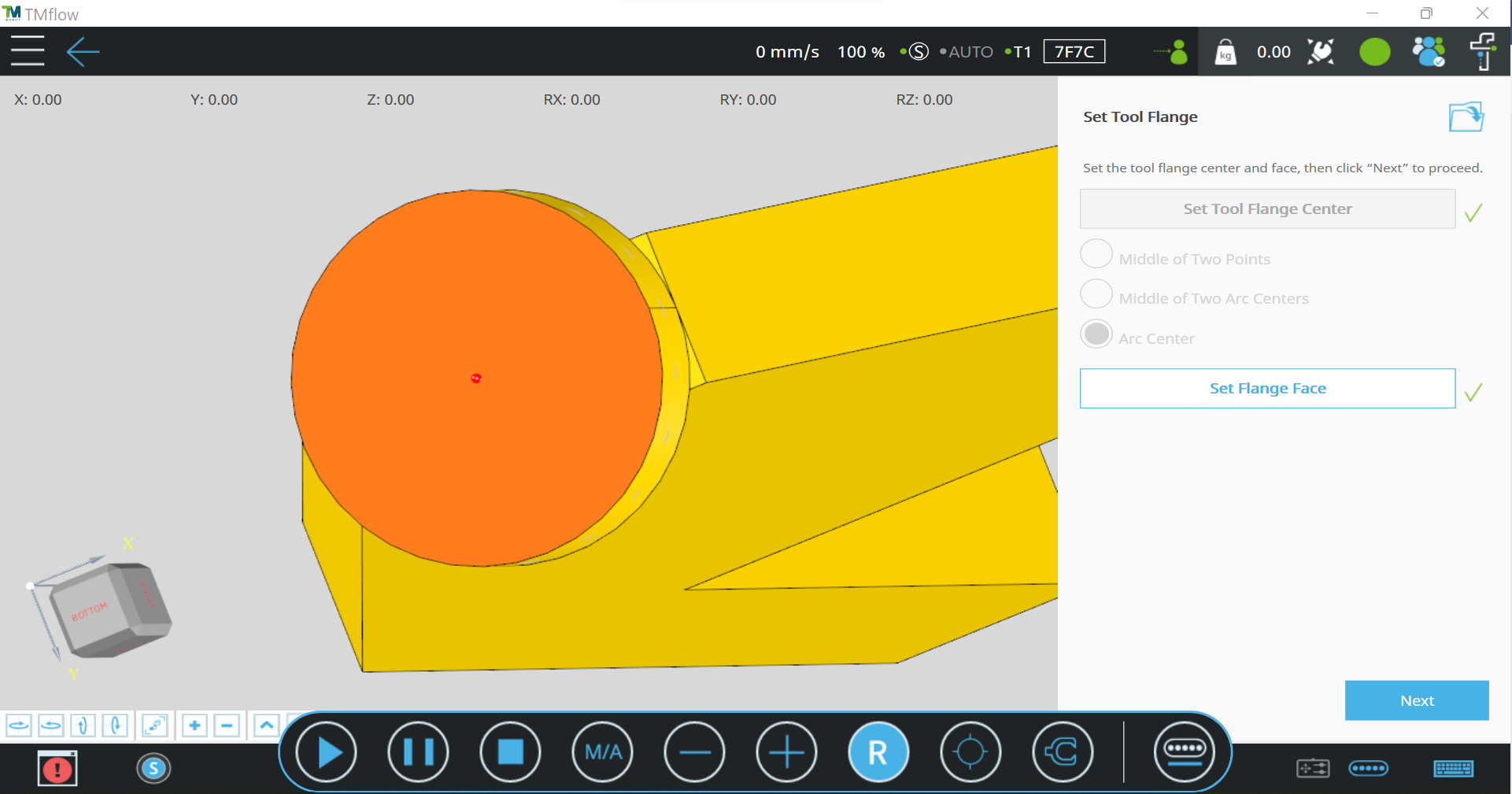
First, select the flange center on the CAD model. There are three methods for selection: Midpoint of Two Points, Midpoint of Two Arc Centers, and Arc Center. The demo illustrates the “Arc Center” method.


Then, select the flange face on the CAD model.


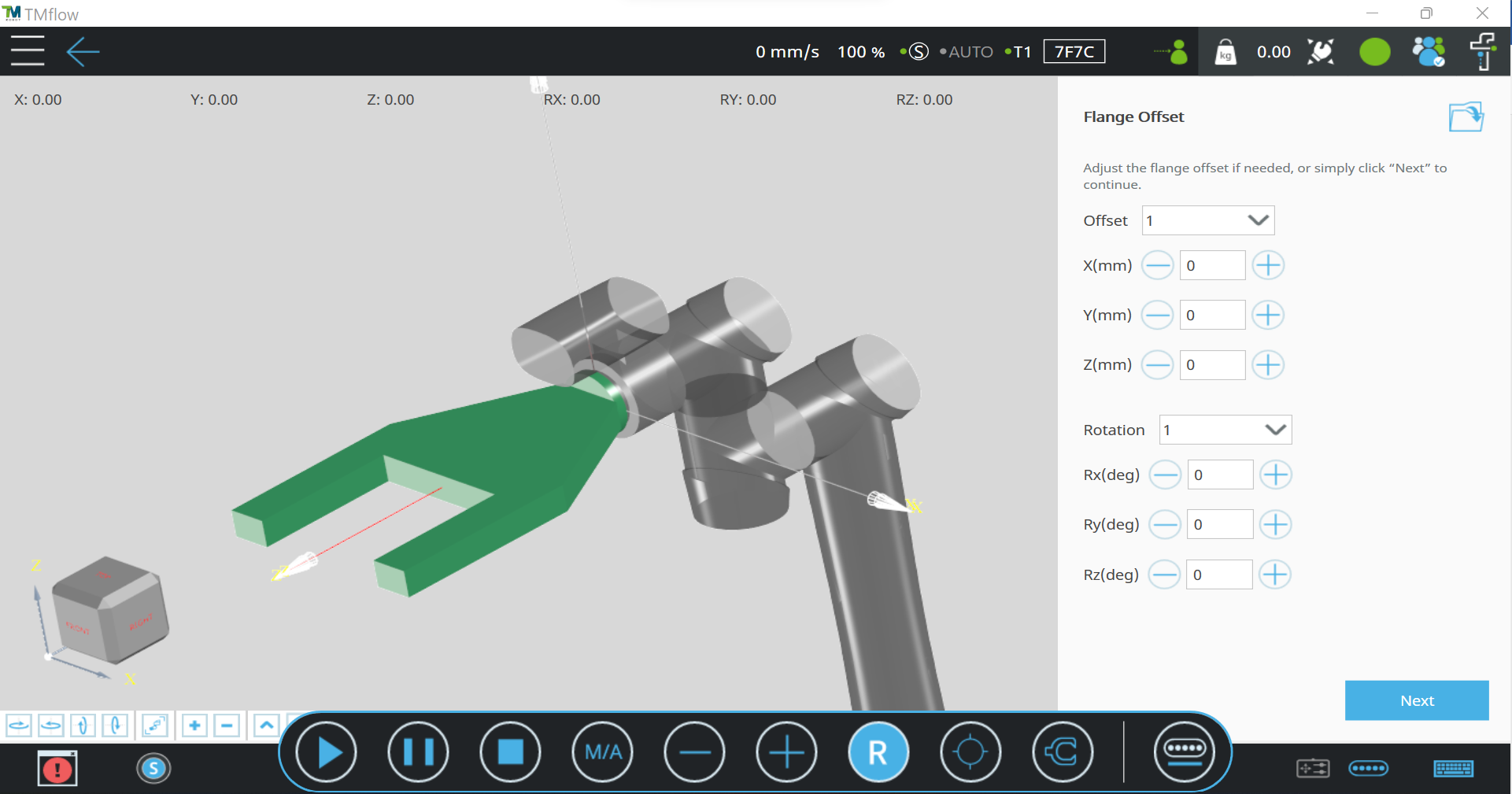
c. Flange Offset

If the CAD model is attached to the robot in the wrong orientation or an adapter is required to connect the tool and the flange, you can configure the offset and rotation in this step. Otherwise, click “Next” to continue. The demo didn’t use any offset.


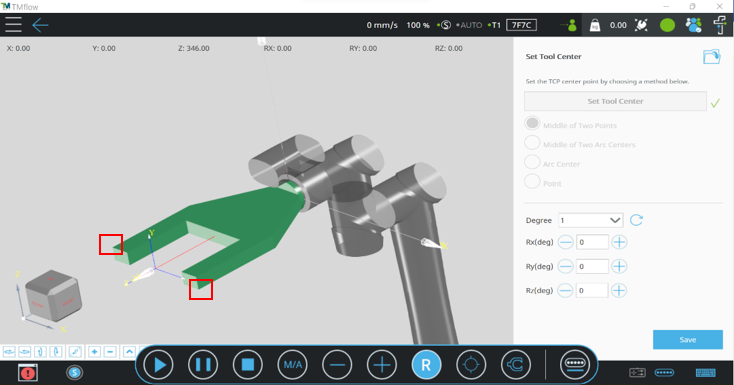
d. Set Tool Center

Select the tool center point on the CAD model. There are four selection methods available. The demo illustrates the “Midpoint of Two Points” method. After selecting the tool center point, you can also rotate the coordinate system. The demo didn’t use any rotation. Save the tool setting once everything is complete. The CAD model will be visualized on the robot once it is switched to this current tool.


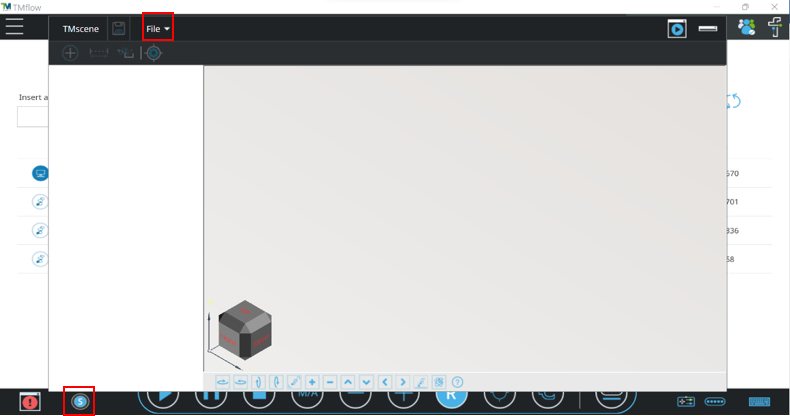
3. Build Your Scene

Click the icon at the bottom-left of the TMflow Simulator to launch TMscene. Options to create or open a scene can be found under the “File” menu at the top-left of the TMscene window.


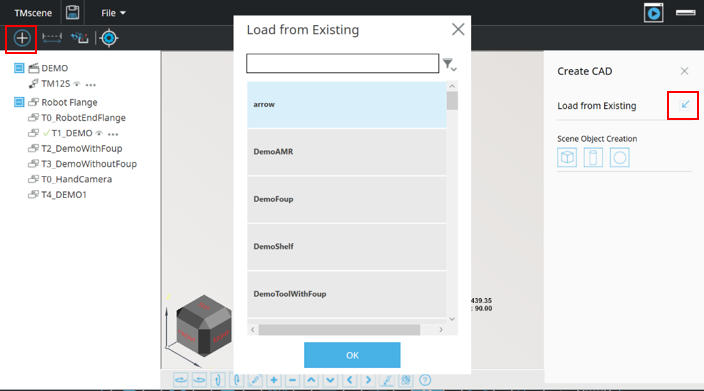
a. Add CAD File to the Virtual Scene

Selected CAD files will be created at the origin of the scene. Additionally, geometric shapes such as cubes, cylinders, and spheres can be created directly within TMscene.


b. Lay Out Your Scene

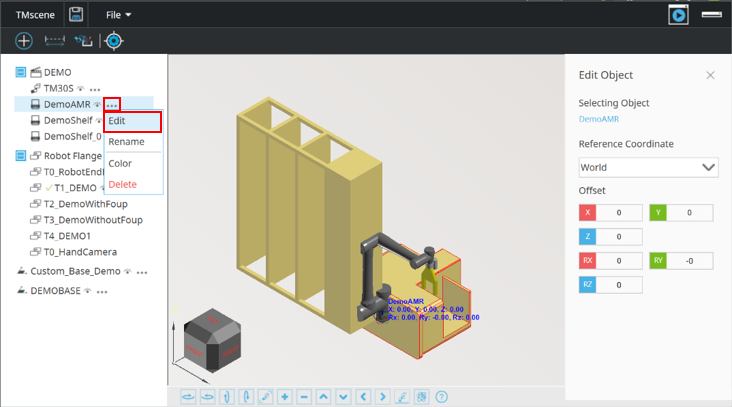
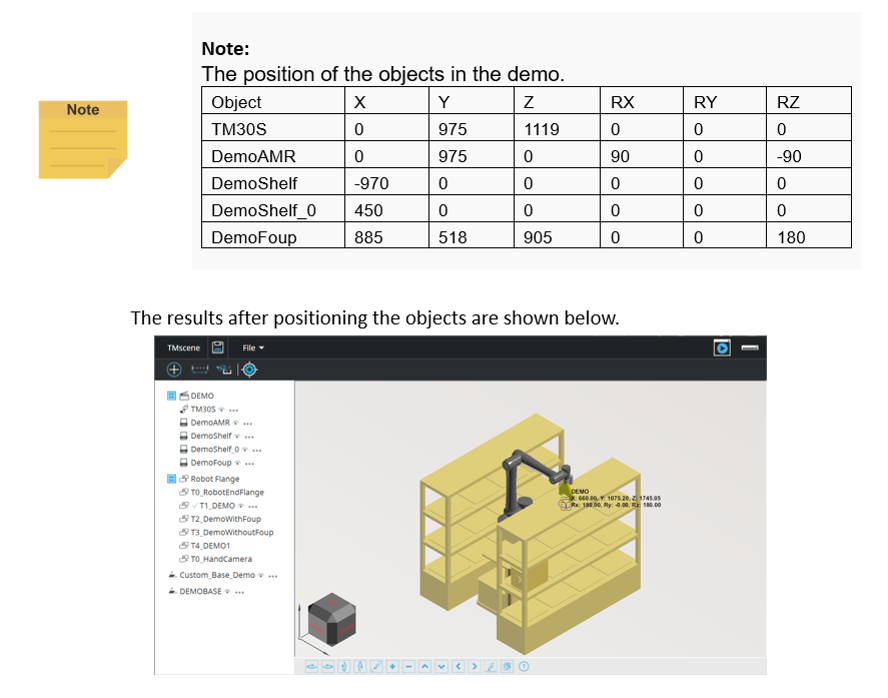
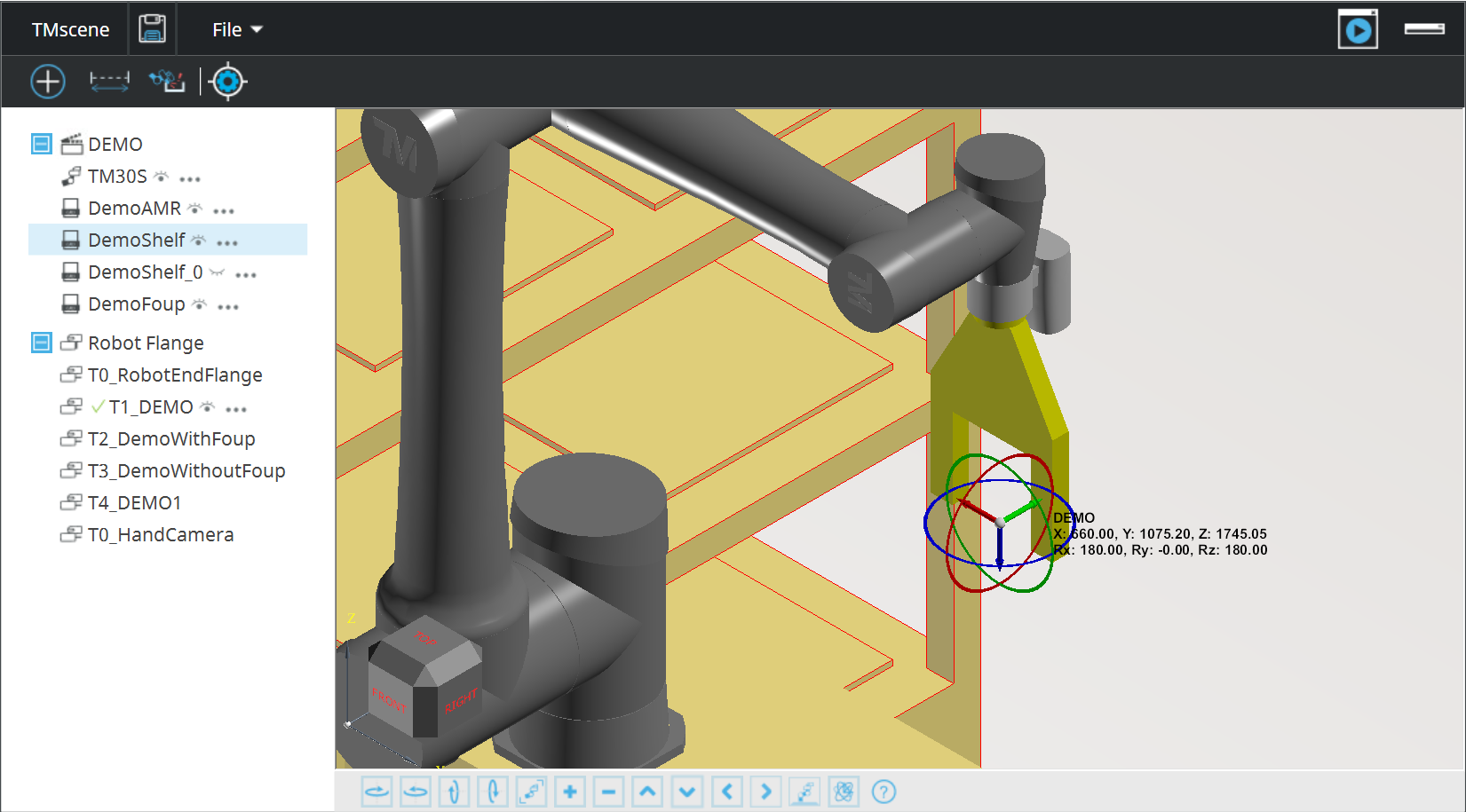
To move an object in TMscene, select Edit from the object menu. A control interface will appear on the right side of the window, and a drag ball will be displayed at the object’s origin. You can use the drag ball to move the object manually or input the coordinates directly into the interface for precise positioning.

c. Color the Object

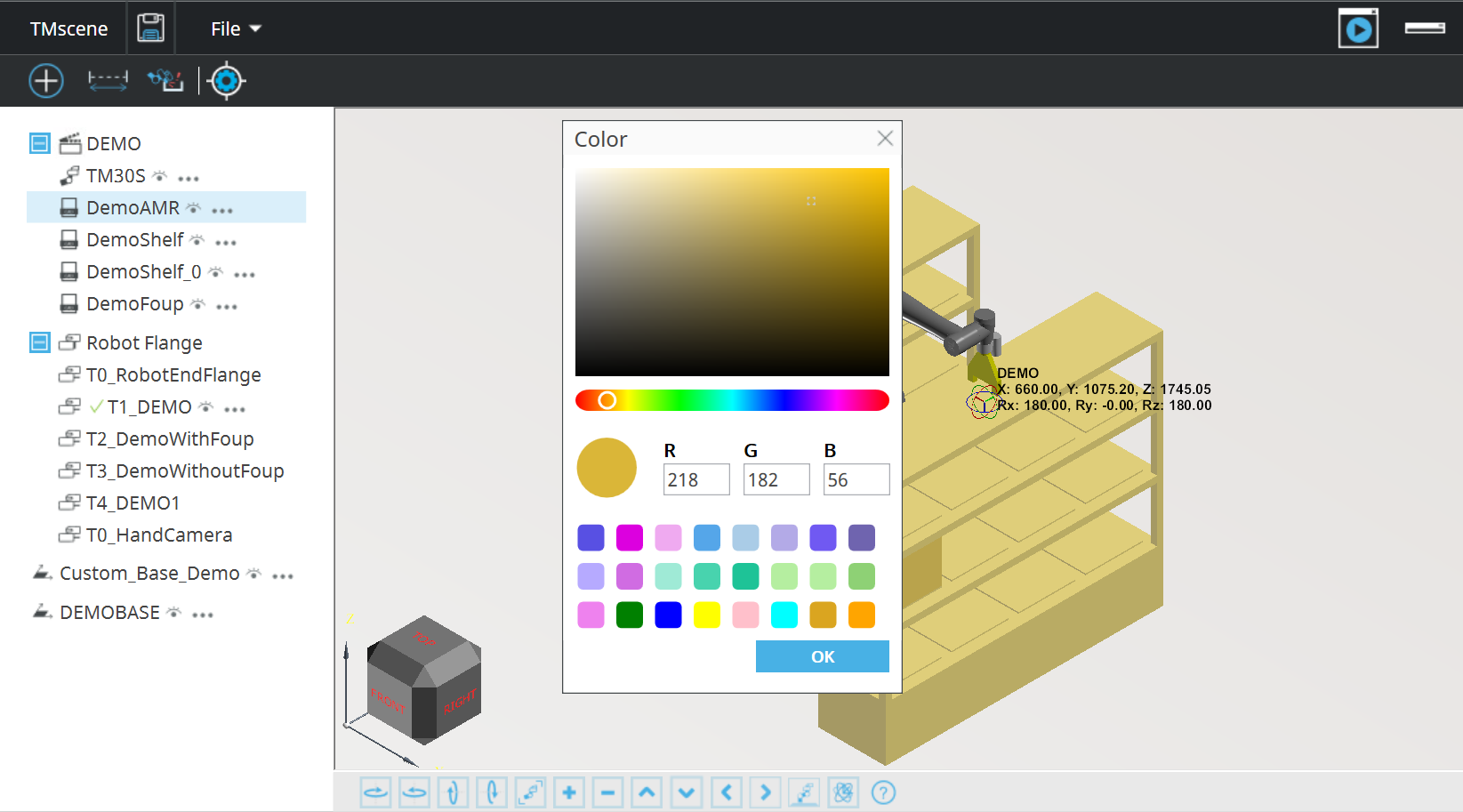
Change the color of the object using the “Color” option in the object menu.


4. Program Your Robot Project

After the virtual scene is built, the robot project is ready for programming.

a. Robot Control

In addition to the standard function of controlling the virtual robot by jogging via the controller in the TMflow Simulator, there are two additional ways to control the virtual robot:

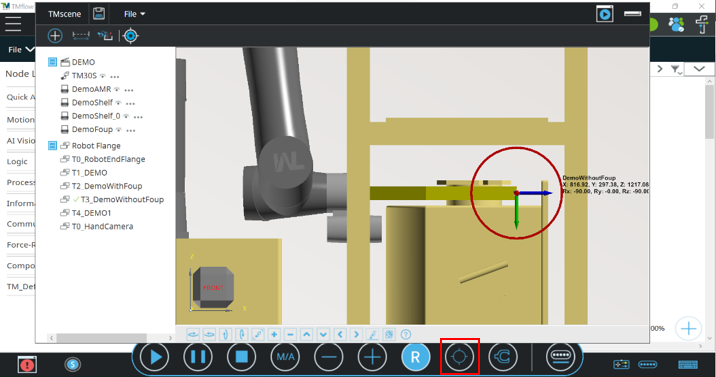
First, you can drag the robot directly within TMscene. The drag ball will appear when FreeBot mode is enabled in the TMflow interface.


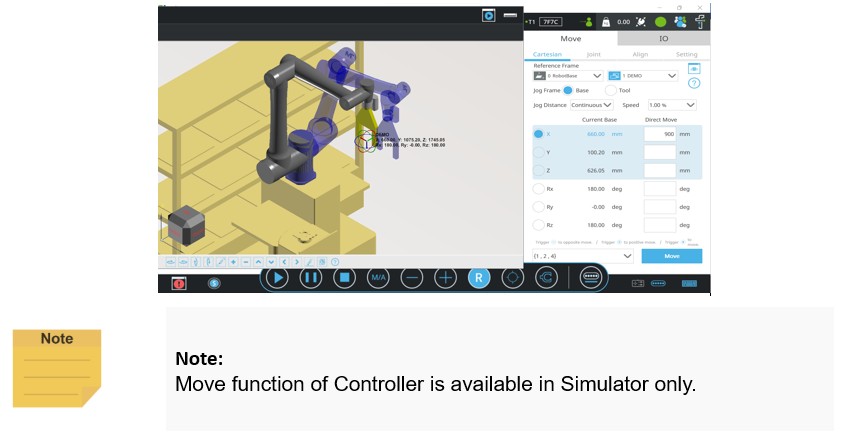
Second, there is a new robot control function within the Controller in the TMflow Simulator. As you key in the coordinate values, a “shadow robot” will appear in TMscene to visualize the robot’s pose at the desired target point. Clicking the Move button will then cause the robot to jump to that position. Additionally, the robot configuration (e.g., flip/non-flip) can also be configured within the interface.

b. Teaching Points

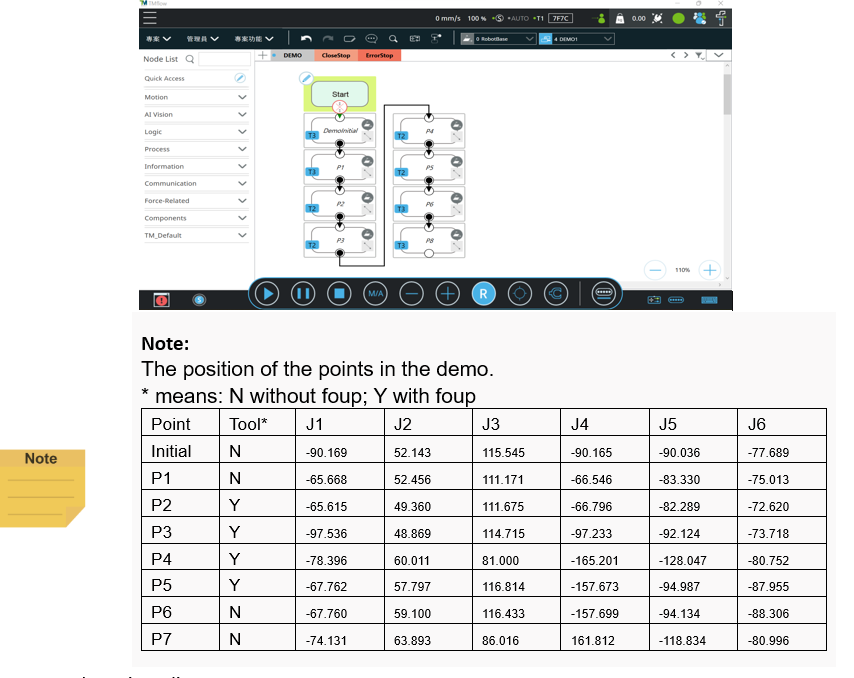
Combine the two methods mentioned above to move the robot to your desired position. You can then teach these points in the TMflow project once the robot has been moved to the correct position.


c. Project Edit

Place point nodes in order and set all nodes to line mode.


d. Point Edit

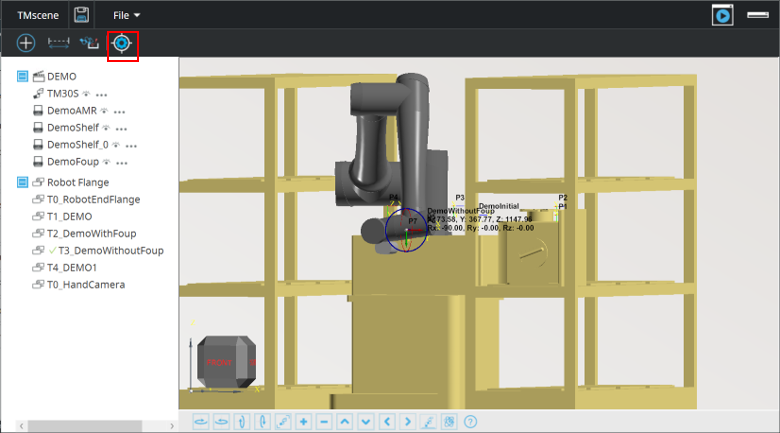
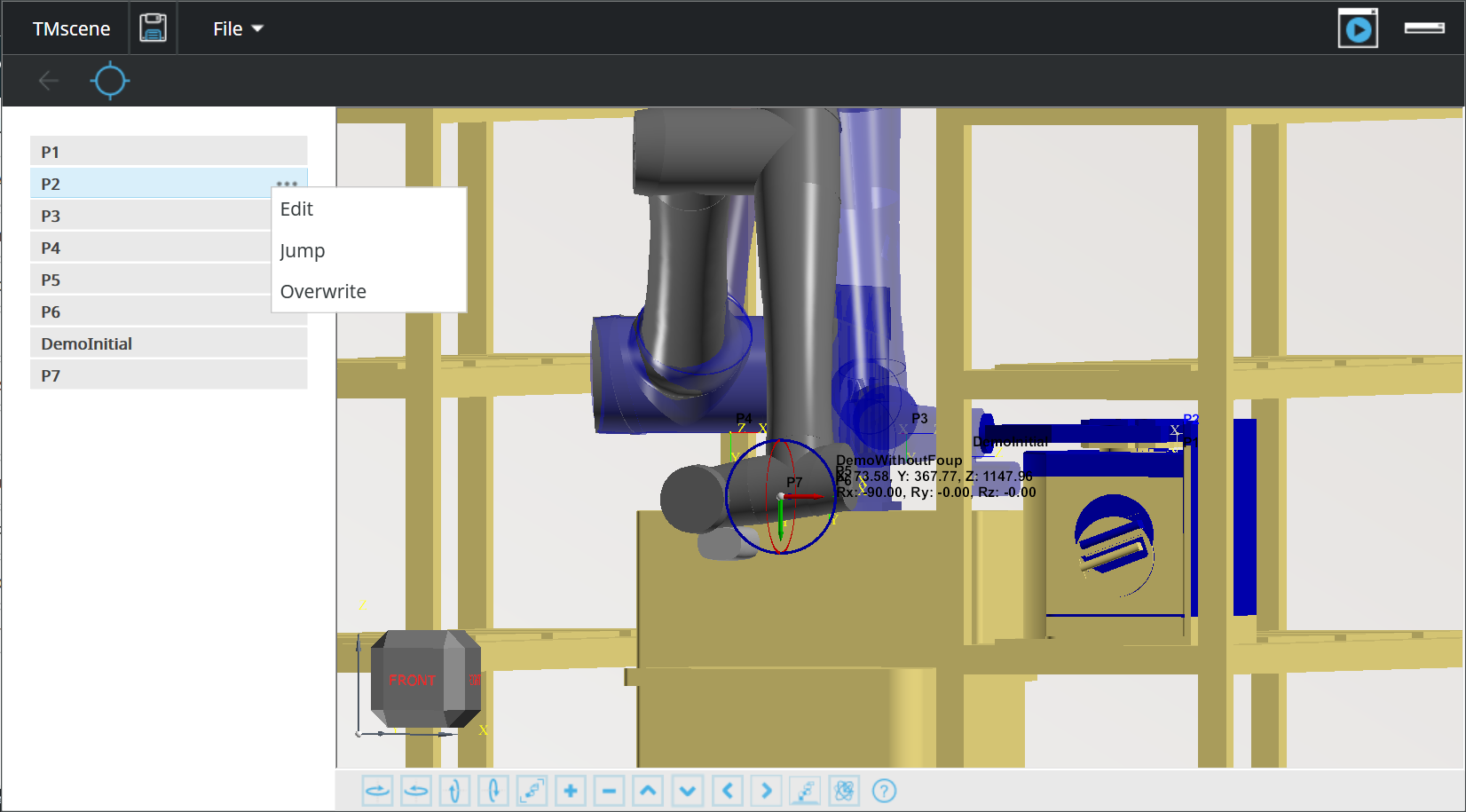
In Point Edit mode, you can visualize the robot’s position for each individual point. Use the control interface to enter this mode and review your programmed points.


The point list from the TMflow project will be displayed on the left side of the TMscene window. A shadow robot will appear when a point is selected to preview the pose. Using the “Jump” function in the point menu will move the robot to the corresponding position.


5. Collision Settings

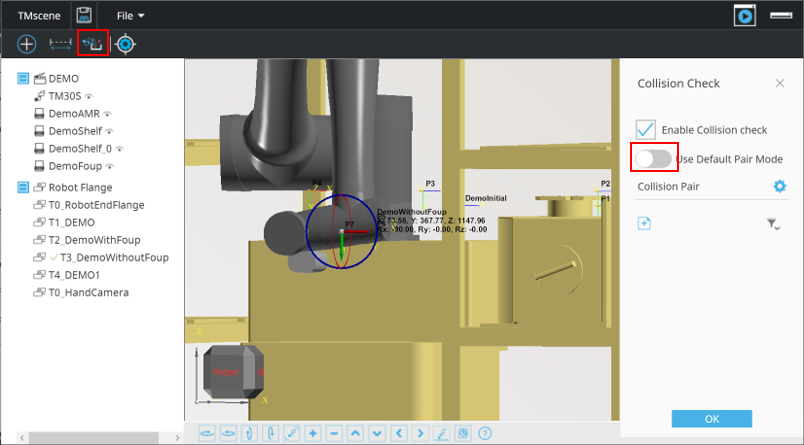
To ensure that the project and the robot are collision-free, please use the Collision Check function.


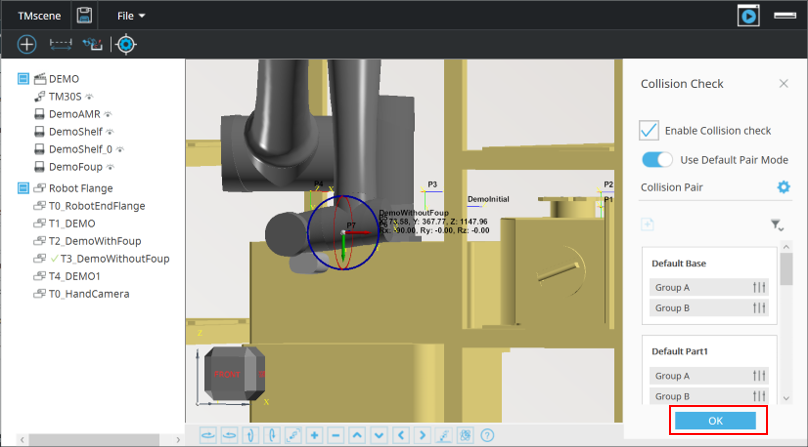
In this article, we recommend using the Default Pair Mode. Once you activate Default Pair Mode and click the “OK” button, all potential collisions will be detected. For more advanced configurations, please refer to the TMflow manual to learn more about manual settings.


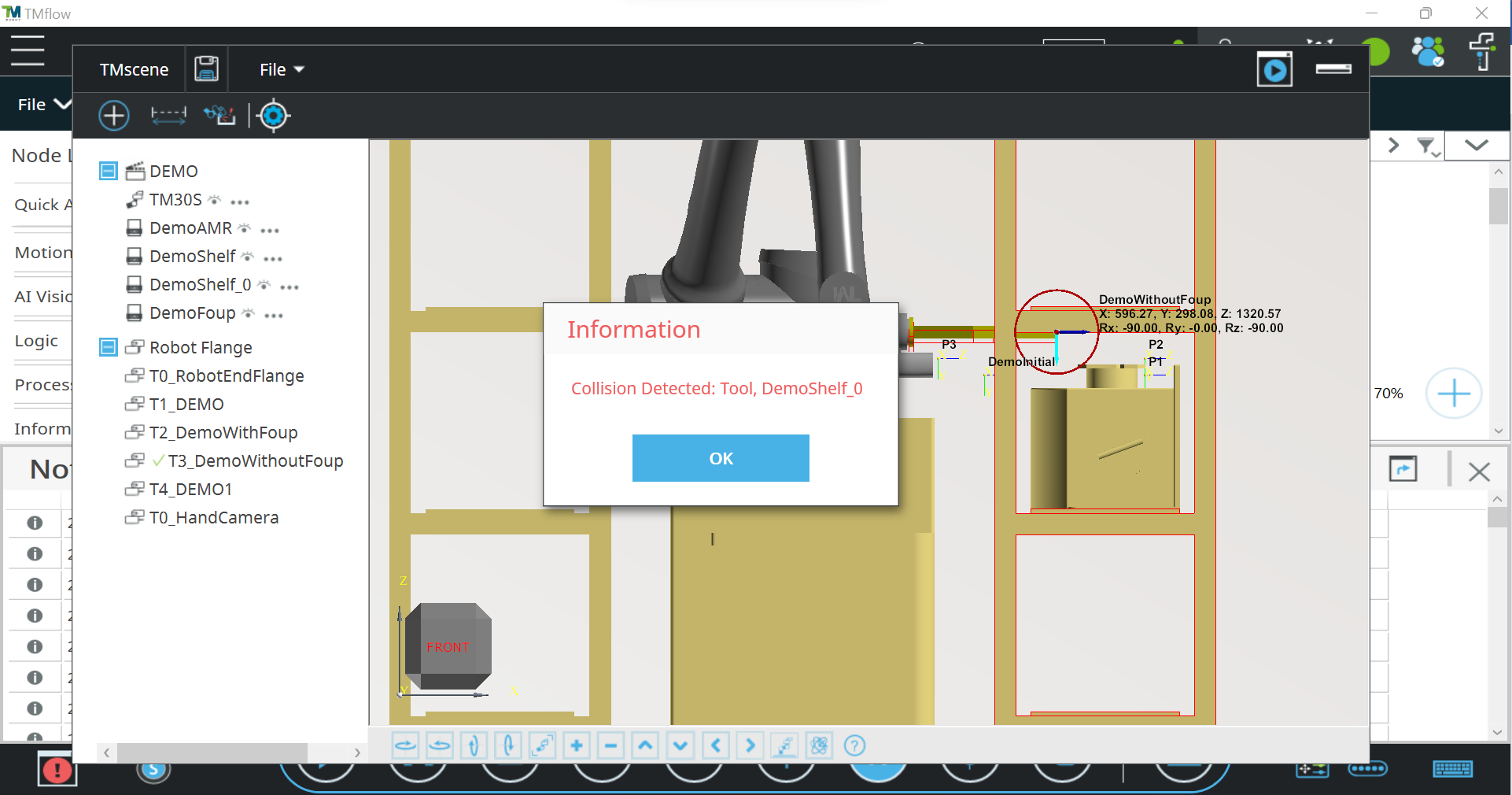
Any detected collision will automatically stop the project and highlight the colliding objects in a pop-up alert.


Powered by BetterDocs