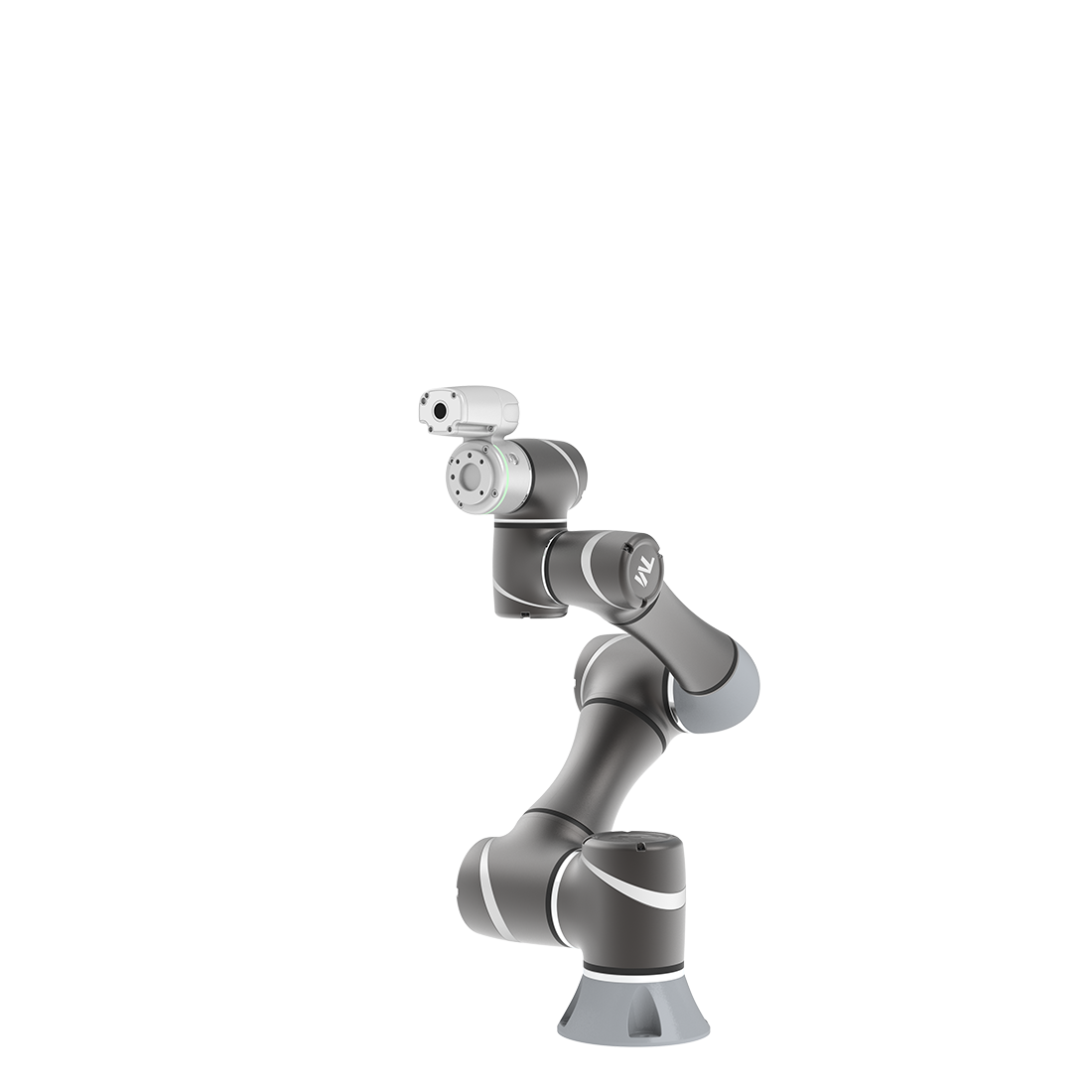
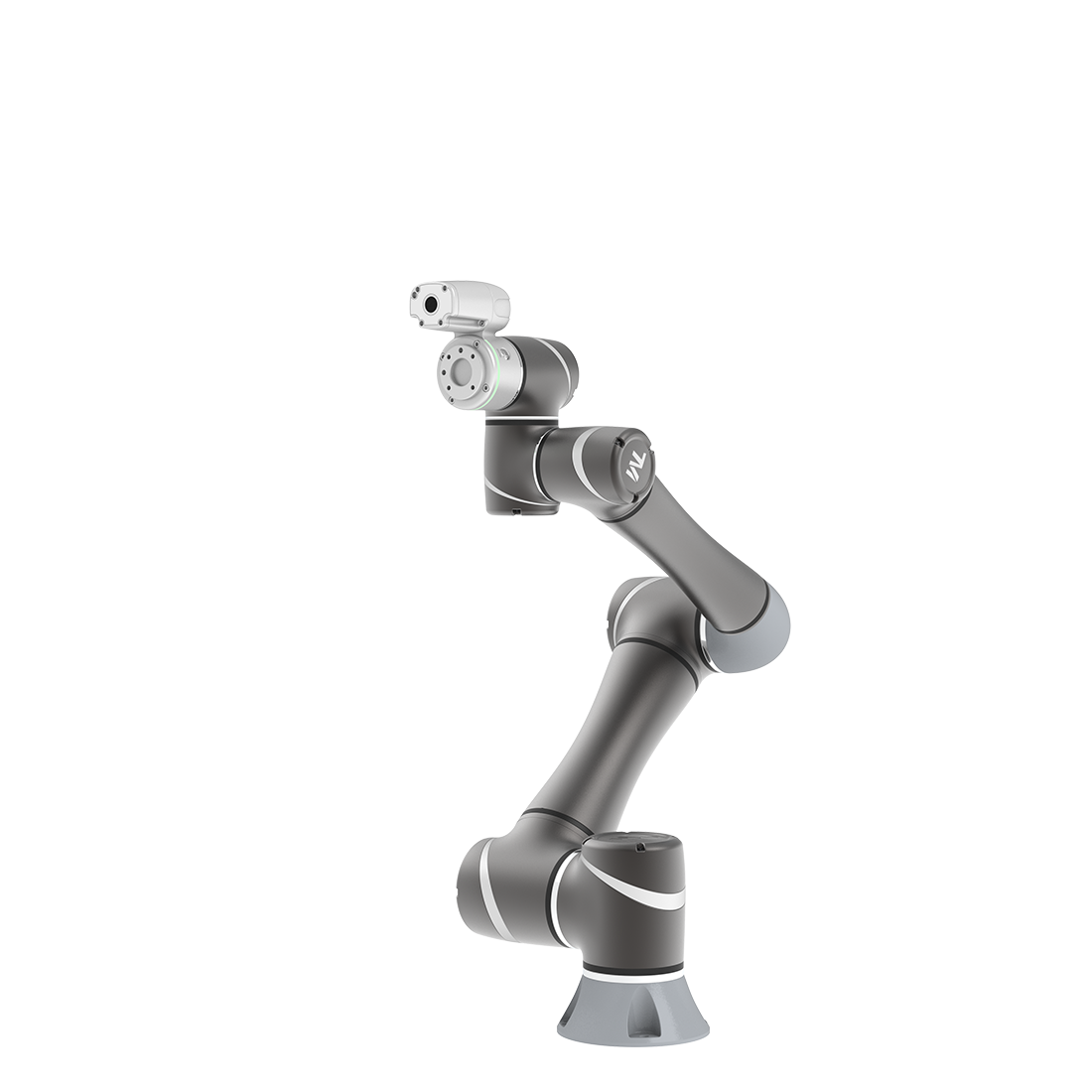
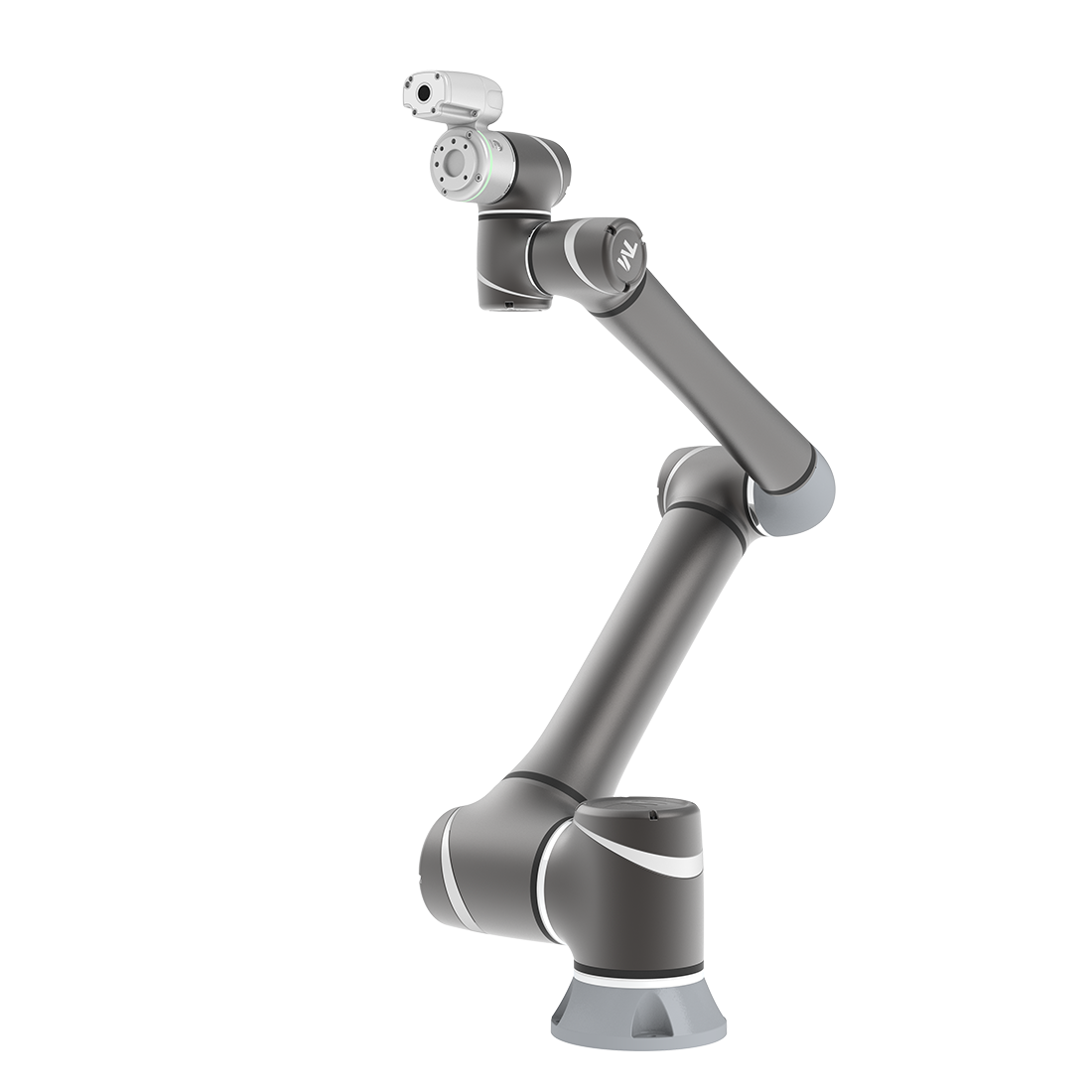
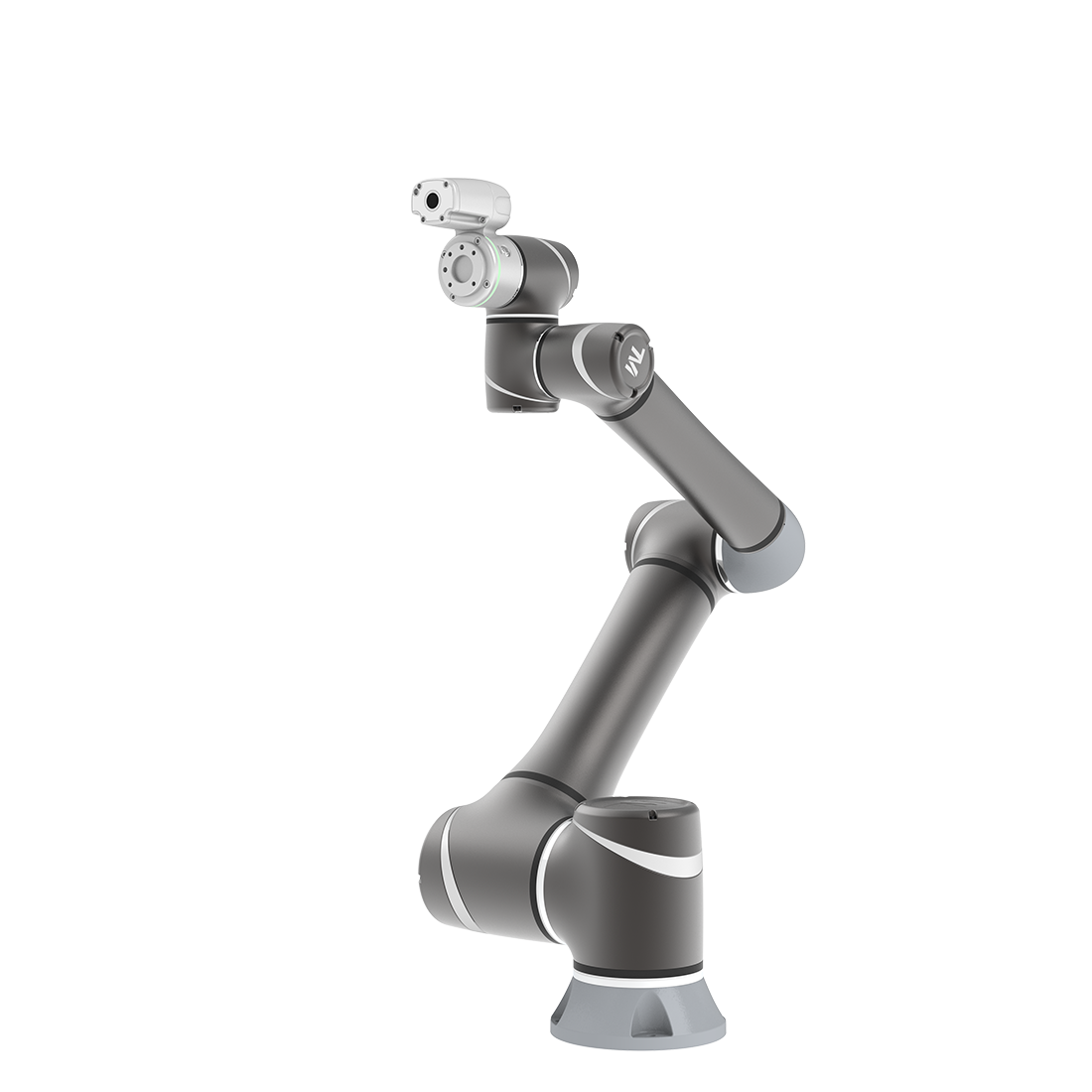
Speed up your flying trigger inspection setup
Updated on 2026 / 10 / 01
Examples are valid for:
TMflow Software version: 2.26 or above.
TM Robot Hardware version: None
Other specific requirements: TMflow Simulator Only
Note that older or newer software versions may have different results.
Purpose
Provides the function to speed up flying trigger inspection application teaching process in virtual world.
Note:
The Demo in the following article shows a case of teaching a robot appearance inspection points.
https://www.youtube.com/watch?v=oyWMPPv1sYM&feature=youtu.be
Reference Technical Documents in This Application
| Flying trigger set up: | How To Use Flying Trigger Node - Take server inspection as example |
| EIH Calibration: | External 2D Camera as EIH Camera Calibration Workflow |
| Basic Operation: | How to Quickly Determine the Ideal Robot Model and Working Range |
How to Use
Design coordinate on CAD for Sim-Real calibration(skip to Chapter4 if you want to test simulator function only)
In the Demo case, we’re going to build a robot appearance flying trigger inspection. Due to the Sim to real difference, a positioning process is required before the inspection application. The method that we did are shown in the following step:a. Design the positioning point
As shown in the figure, we designed the output coordinate of the robot object from vision job is on the screw. In order to set the object to corresponded position quickly in virtual world, we re-defined the CAD origin coordinate to the same position.
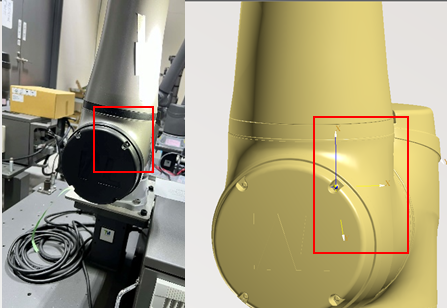
In this demo application, we use three vision bases from 3D vision system to generate a base in order to minimum the positioning error. The features of three vision bases are shown below. Figure from left to right represents the origin, the X axis direction and a point on XY plane.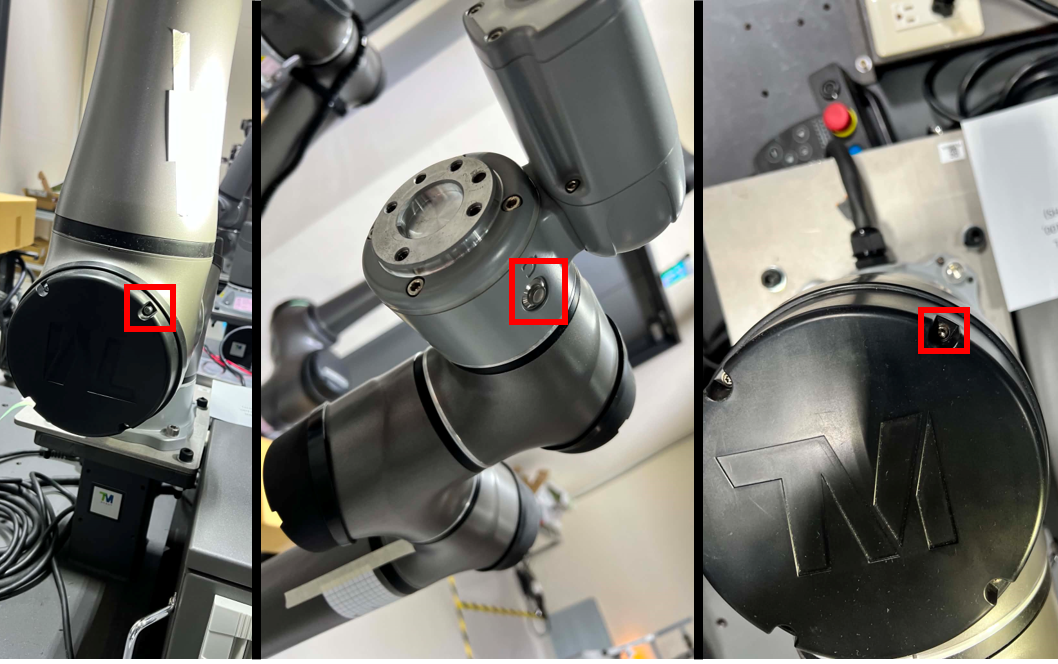
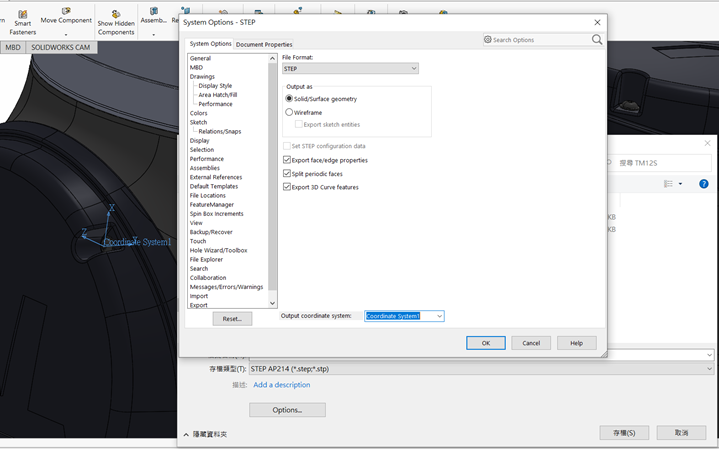
b. How to re-defined the CAD origin
Any CAD software is capable to export or save as a new file with specific coordinate is able to complete this step. We used Solidworks software in this Demo case.
Calibrate camera to EIH camera(skip to Chapter4 if you want to test simulator function only)
In this demo case, we use a basler camera in order to do flying trigger inspection application. To calibrate camera’s parameter and eye in hand camera position is a must do in this process. Please refer to technical document “External 2D Camera as EIH Camera Calibration Workflow” to see how to do it.
Define FOV (skip to Chapter4 if you want to test simulator function only)
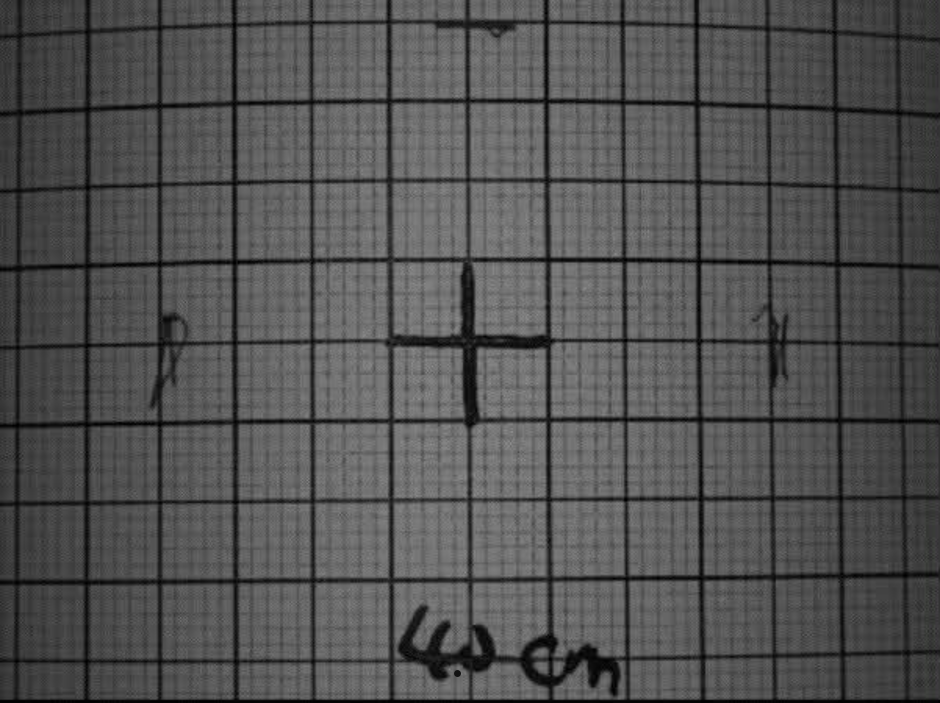
After the camera is calibrated, we need to define the FOV of the camera in order to visualize the FOV of each points. Visualizing those FOVs can let users quickly determine the area that’s missing or overlaps too much.
Tune your camera to have a clear focus to where you need to inspect to determine the area of the FOV. In this demo, the FOV area is defined to 40x40 mm.
4. Set Virtual Camera
We have calibrated the camera, determined the camera FOV and designed the calibrate coordinate between virtual and real world. The following chapters operates in TMflow simulator which is installed on your PC.
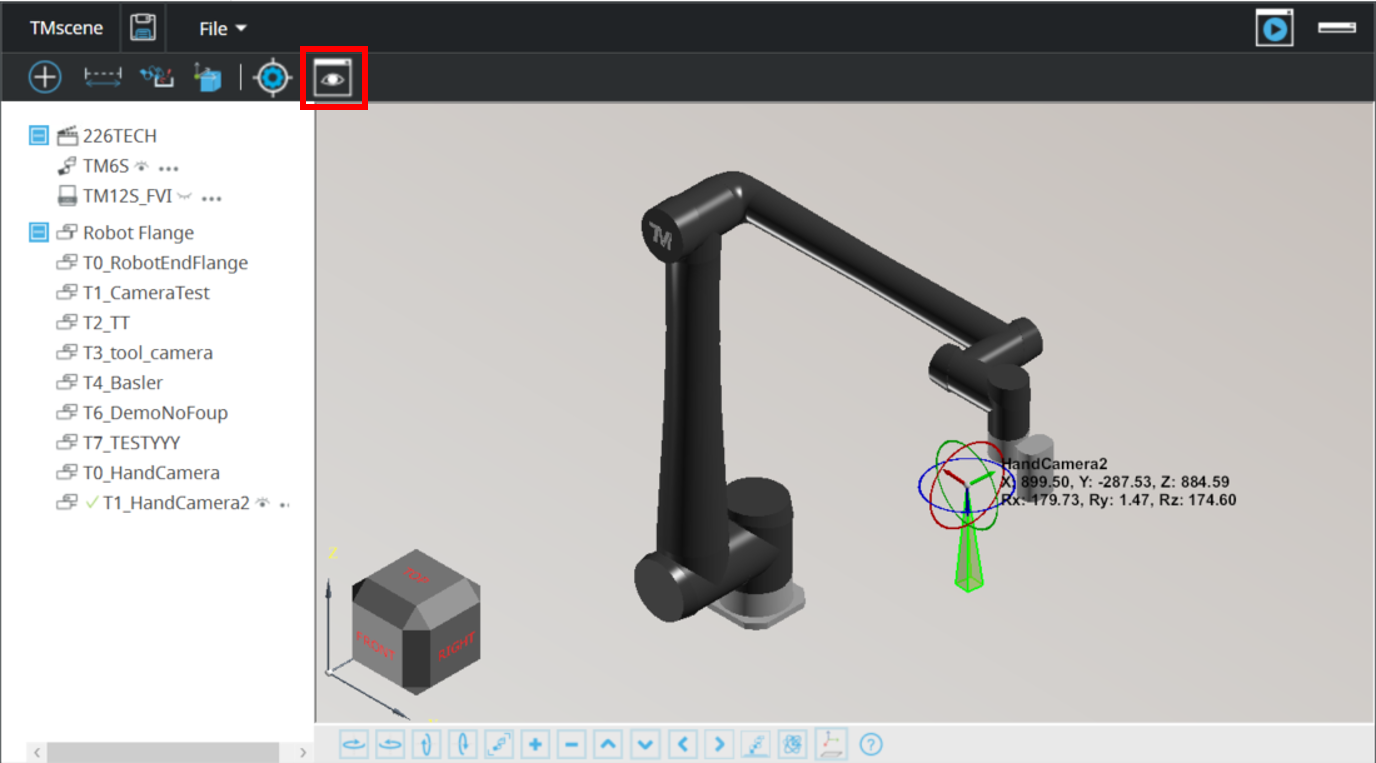
In this chapter, we are going to set the camera parameters to the virtual world. The following steps shows how does it works.a. Open TMscene and enter camera view setting
b. Select handcamera2 in the combo box or create it.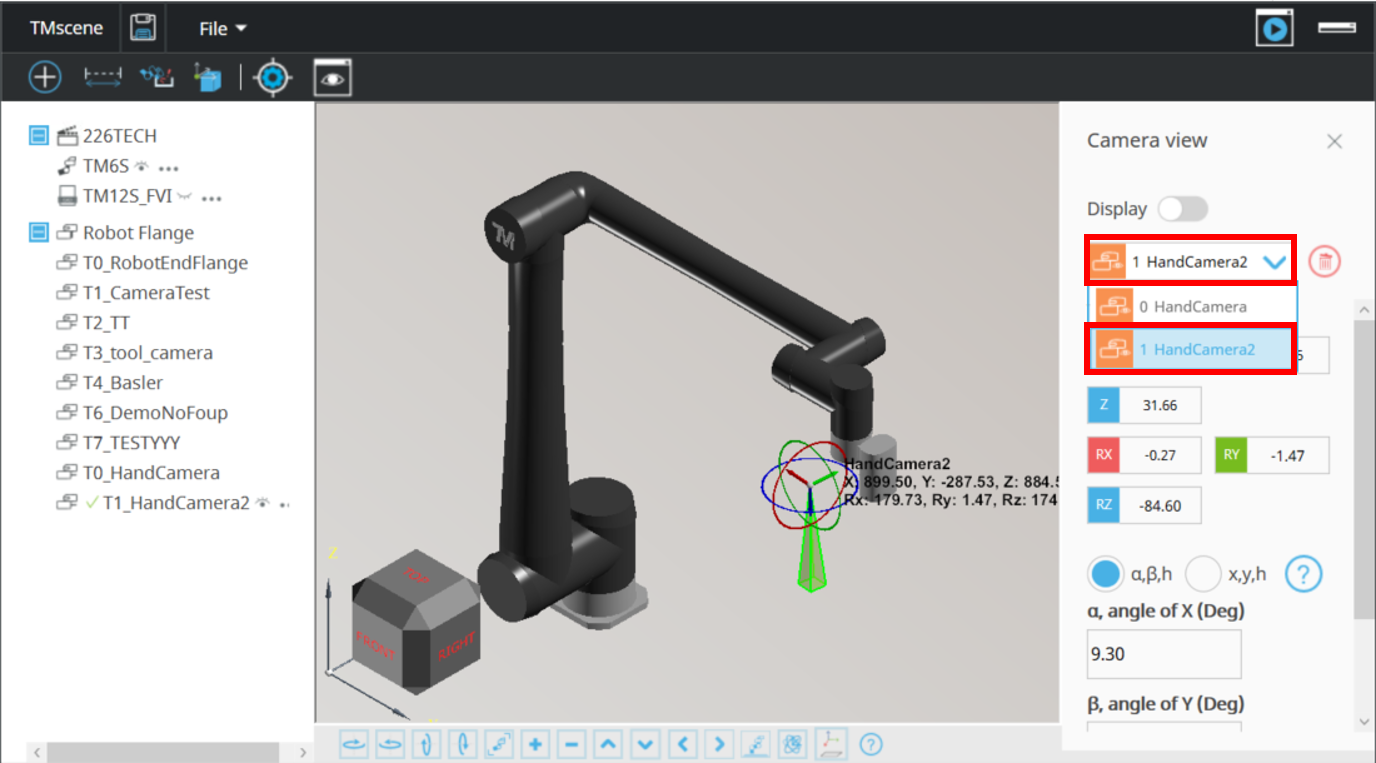
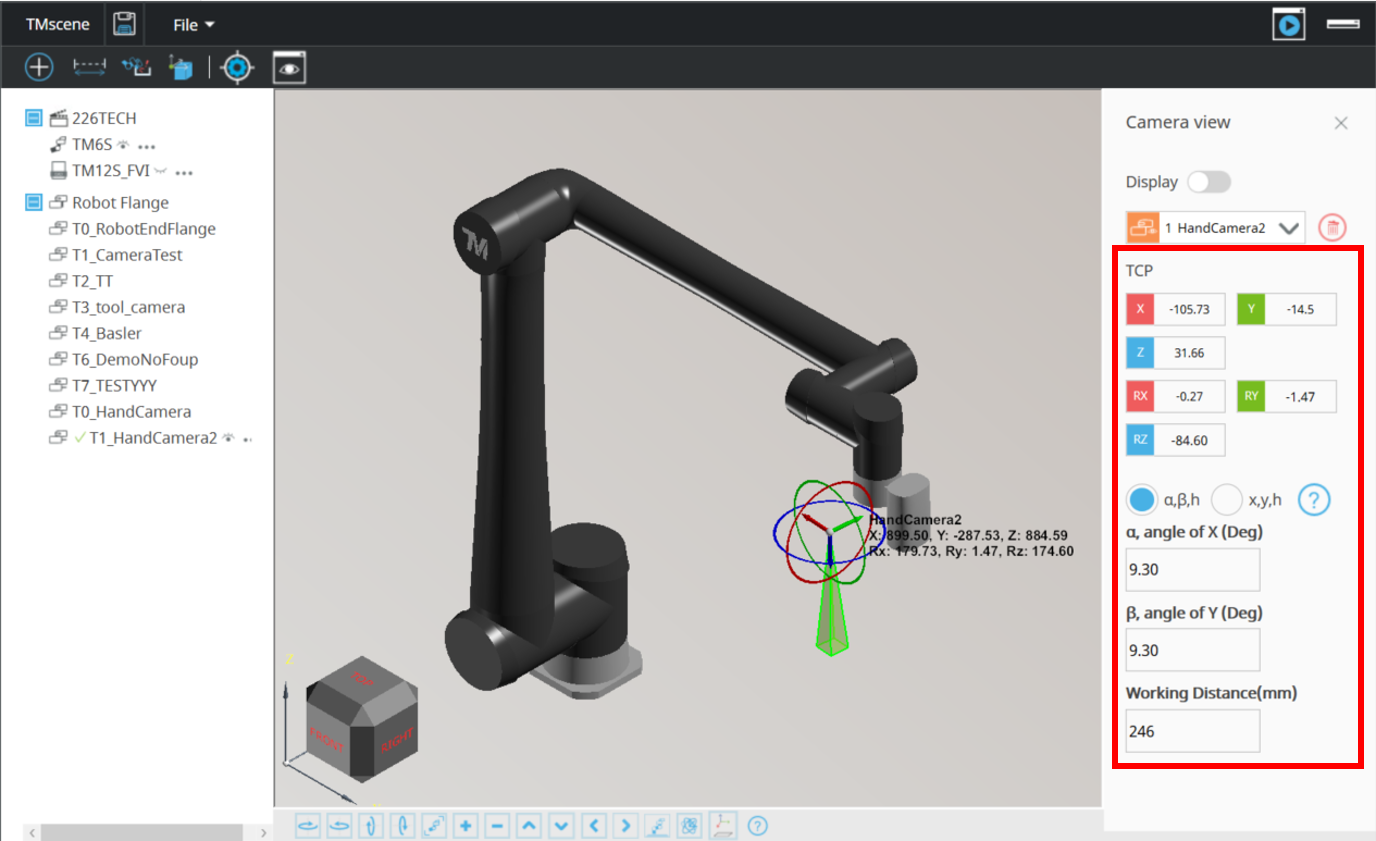
c. Key in the parameters of vision TCP and FOV
FOV can be visualized as the current tool changed to handcamera2.
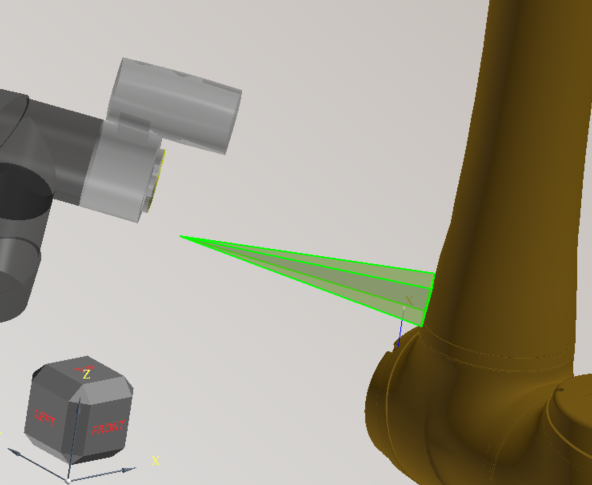
d. Determine your camera working distance
Since you have test the focus in the real world, move the virtual robot to the robot point taught. Tune the working distance to let FOV object slightly touch the surface. You can finish this step after your virtual layout is finished.
Note:
The vision TCP and FOV settings in the demo.
TCP:
X: -105.73, Y:-14.5, Z:31.66, RX: -0.27, RY: -1.47, RZ: -84.60
FOV:
x: 40.02, y: 40.02, Working Distance: 246
Set up Virtual Scene
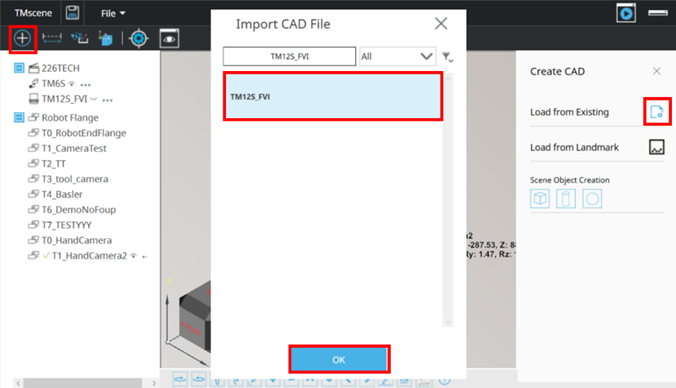
After setting camera parameters, we’re going to set up environment. Since we have defined where the calibration coordinate at and get the calibration coordinate during design, this step will demonstrate how we setup the virtual environment. To import the CAD file provided in the article, please refer to the technical document: How to Quickly Determine the Ideal Robot Model and Working Range.
a. Add CAD provided in this article into virtual scene.
b. Set Object's position
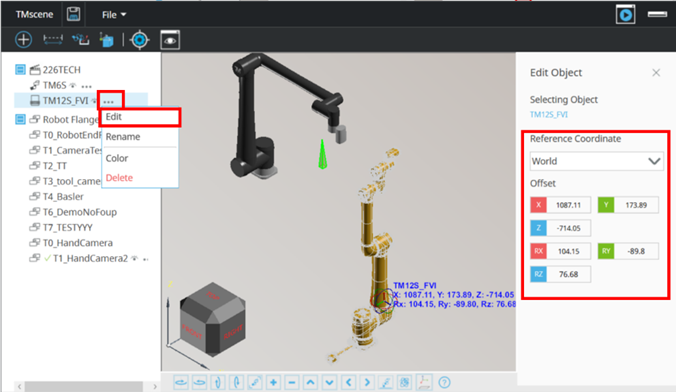
Note:
The position of the objects in the demo.
| Object | X | Y | Z | RX | RY | RZ |
| TM6S | 0 | 0 | 0 | 0 | 0 | 0 |
| TM12S_FVI | 1087.11 | 173.89 | -714.05 | 104.15 | -89.8 | 76.68 |
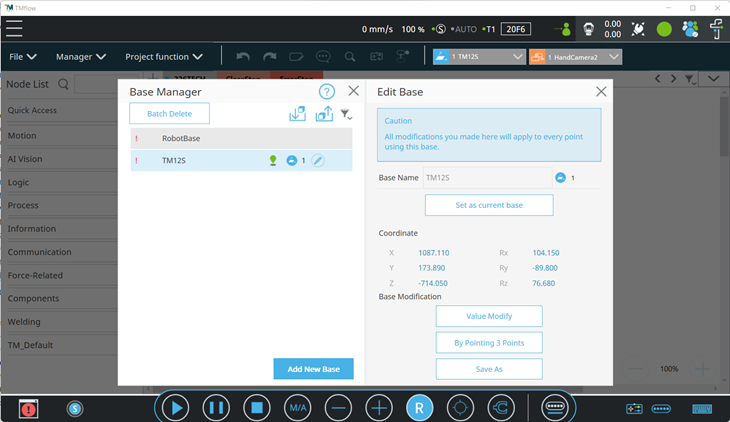
c. Create custom base in project
Since we had created the calibration coordinate, we can create corresponded base in project in order to use as the reference coordinate of the points in the later chapter. Base value is the same value mentioned previously and name the base to “TM12S”.
Teach snap Points
After finishing virtual environment and parameters are set, this step is going to show how we teach points quickly in the virtual world by clicking surface on the CAD object.
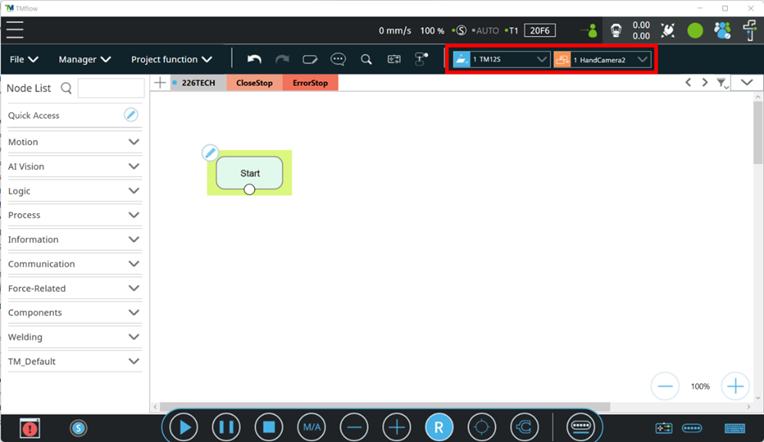
a. Switch current base and tool
As we’re about to start to teach point, the base and tool of the point must be set. Set the base to TM12S mentioned and set the tool to handcamera2.
b. Open Alignment Function in TMscene
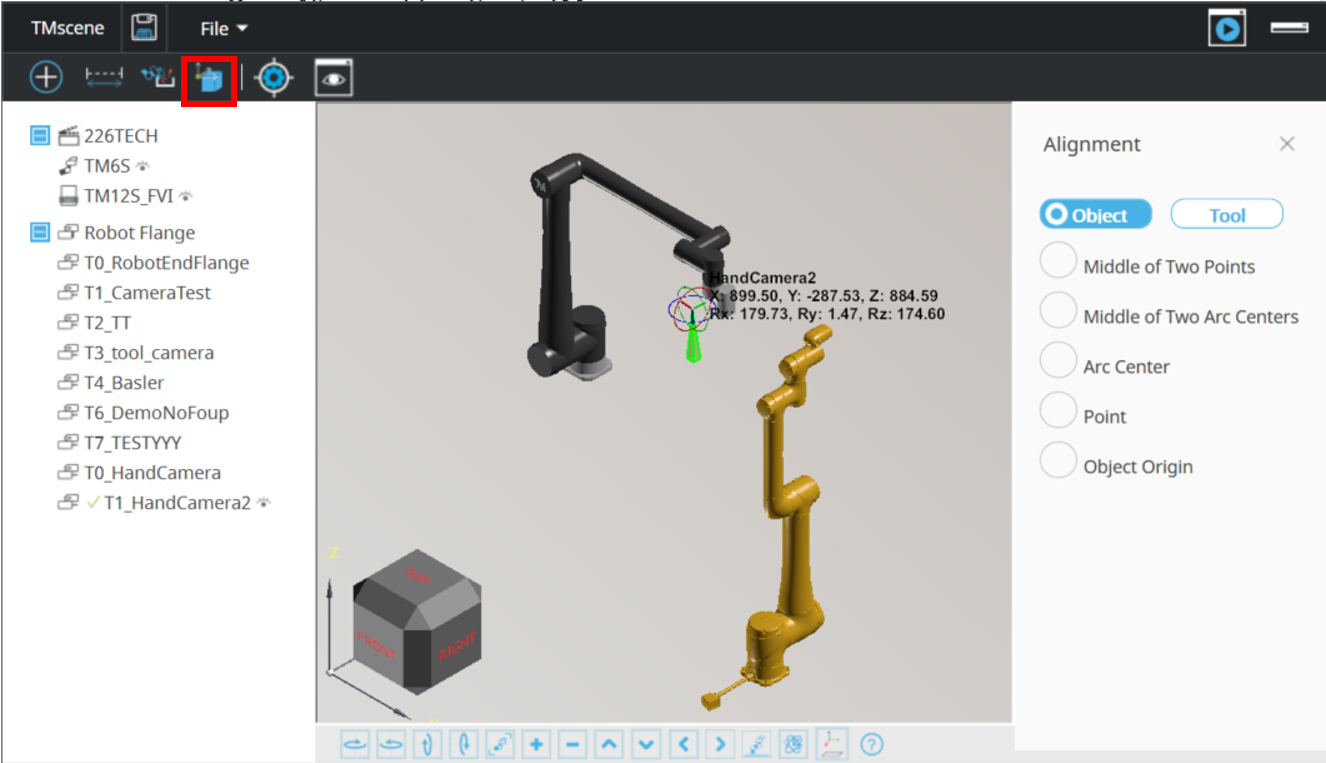
c. Select Tool and key in parameters
This application is going to show how to teach points that camera is right above to the surface with suitable focal length. Thus, the offset’s value is set to FOV value.
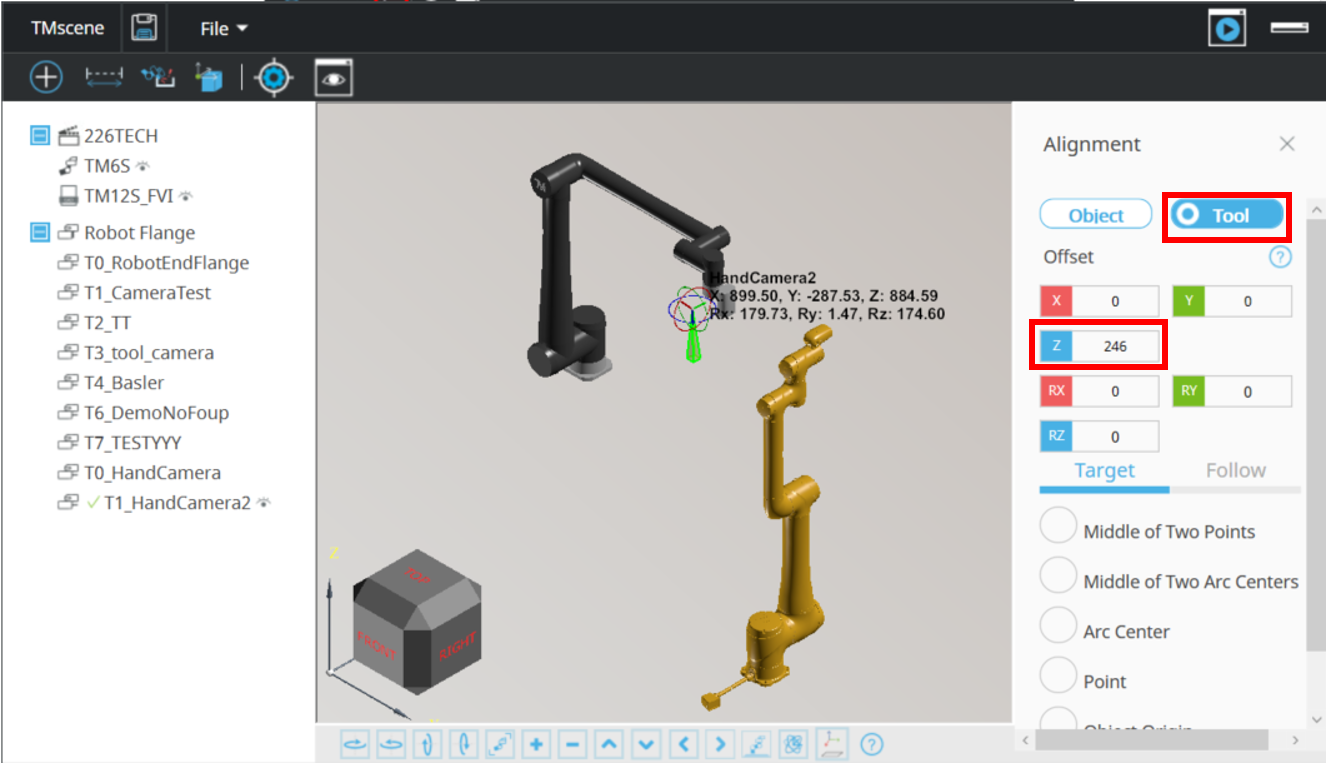
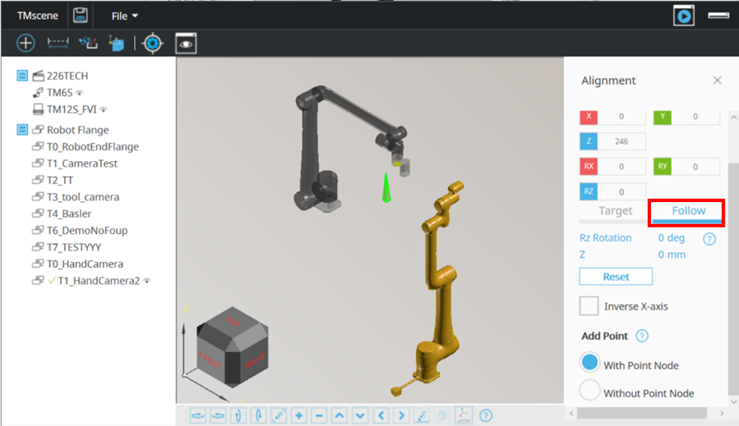
d. Select follow and how it works
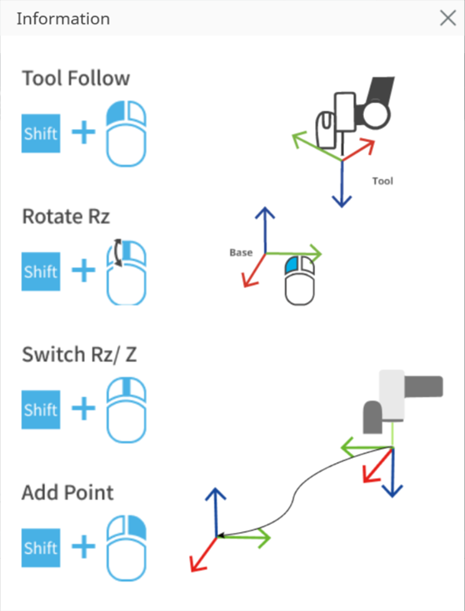
In this step, we are going to move the robot around the surface and teach point by mouse and keyboard operation.
The control method are shown on the picture below.
Switch from Target to Follow.
Start to move robot by pressing “shift” and Left mouse button
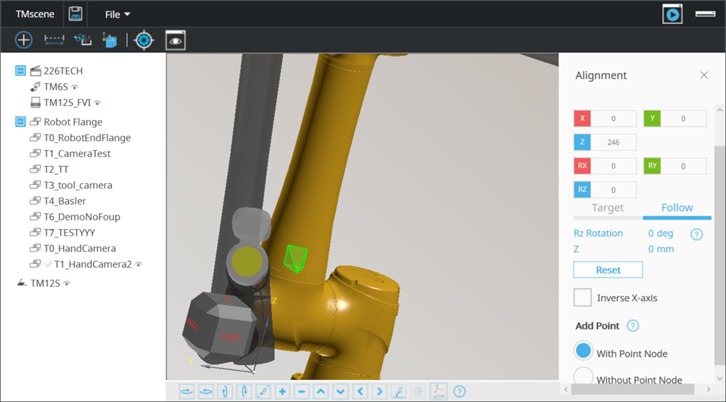
If you need any rotation in Rz or offset in Z, Pressing “shift” and Mouse wheel.
e. Teach Points
Add point by pressing “shift” and Right mouse button
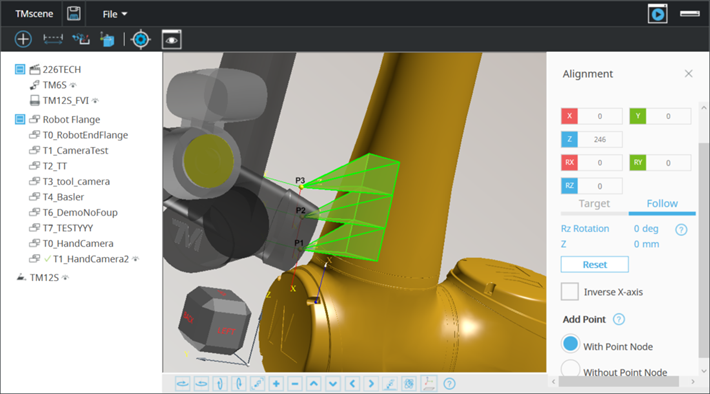
Note:
Using add point with point node, TMflow must stay in project page and without opening any setting page.
Using add point without point node, TMflow must stay out of point manager setting.
Import to flying trigger node and simulate
After teaching the points needed in the inspection application, the next step is to simulate those points.
a. Add a flying trigger node
Since the application is flying trigger inspection, using a flying trigger node is needed.
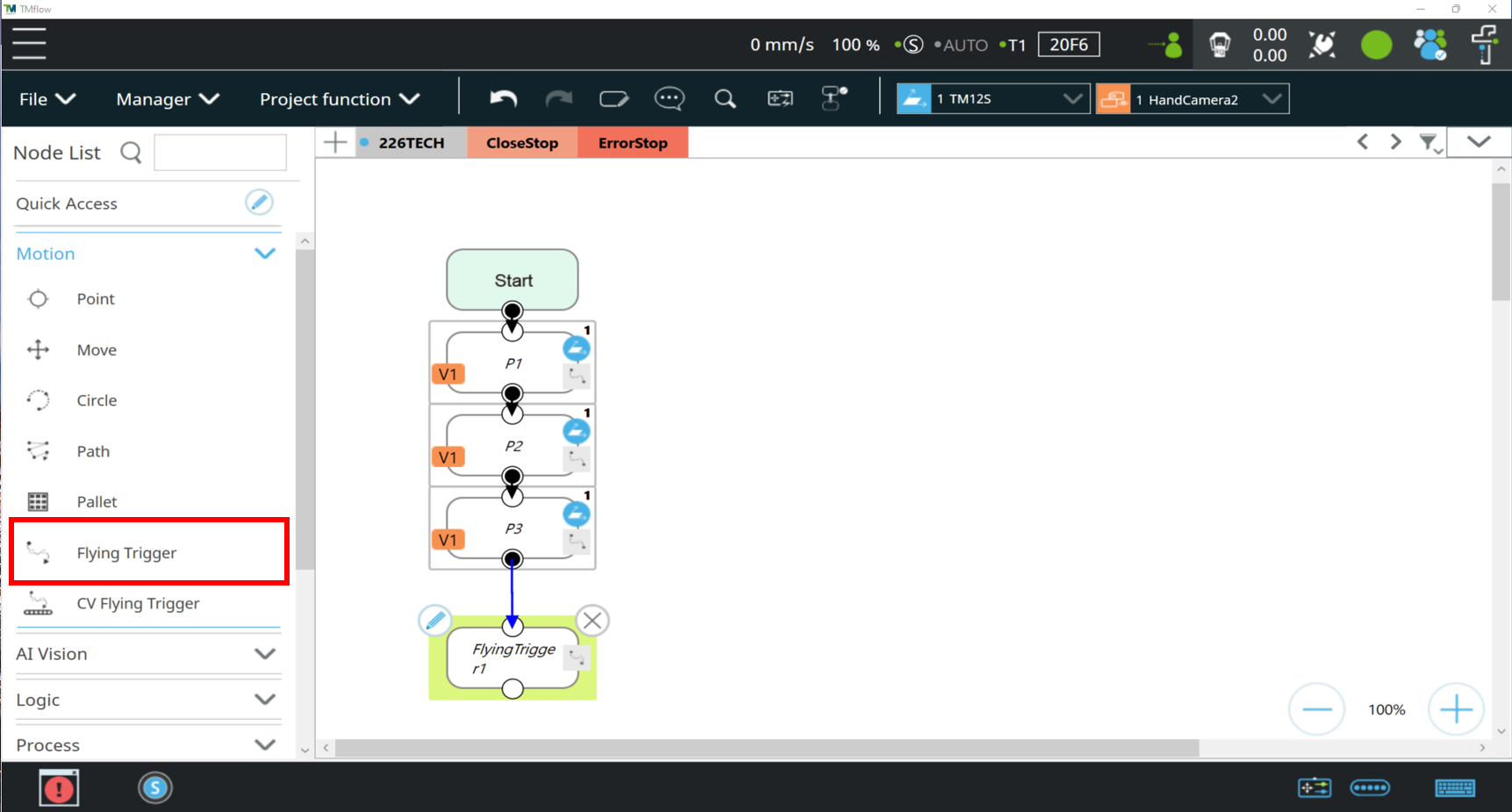
Note:
The base and tool of the flying trigger node must be set to the same as the inspection points.
b. Export point set
In order to import points into flying trigger node, we need to export point set first
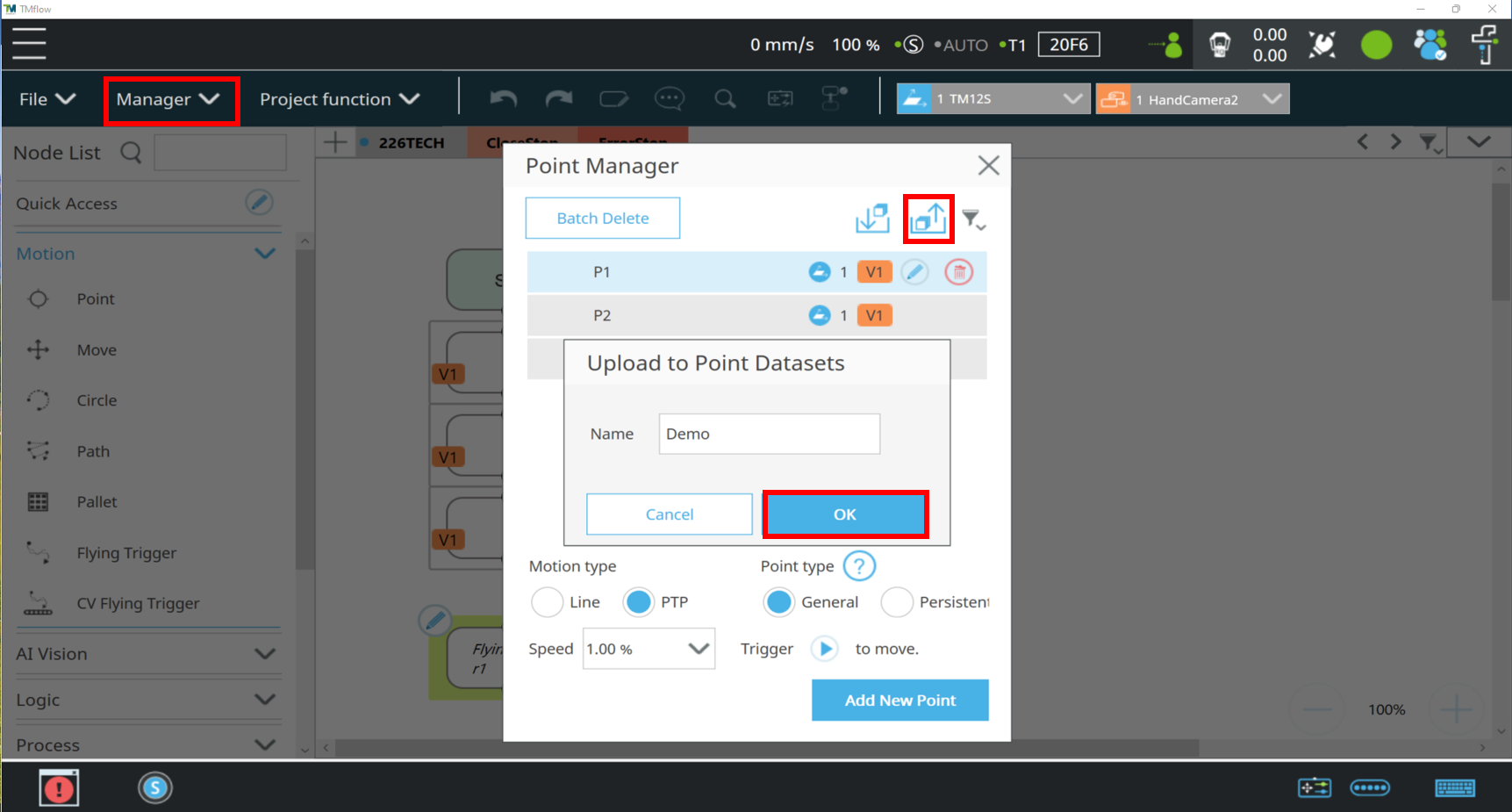
Import to flying trigger node
Open flying trigger node
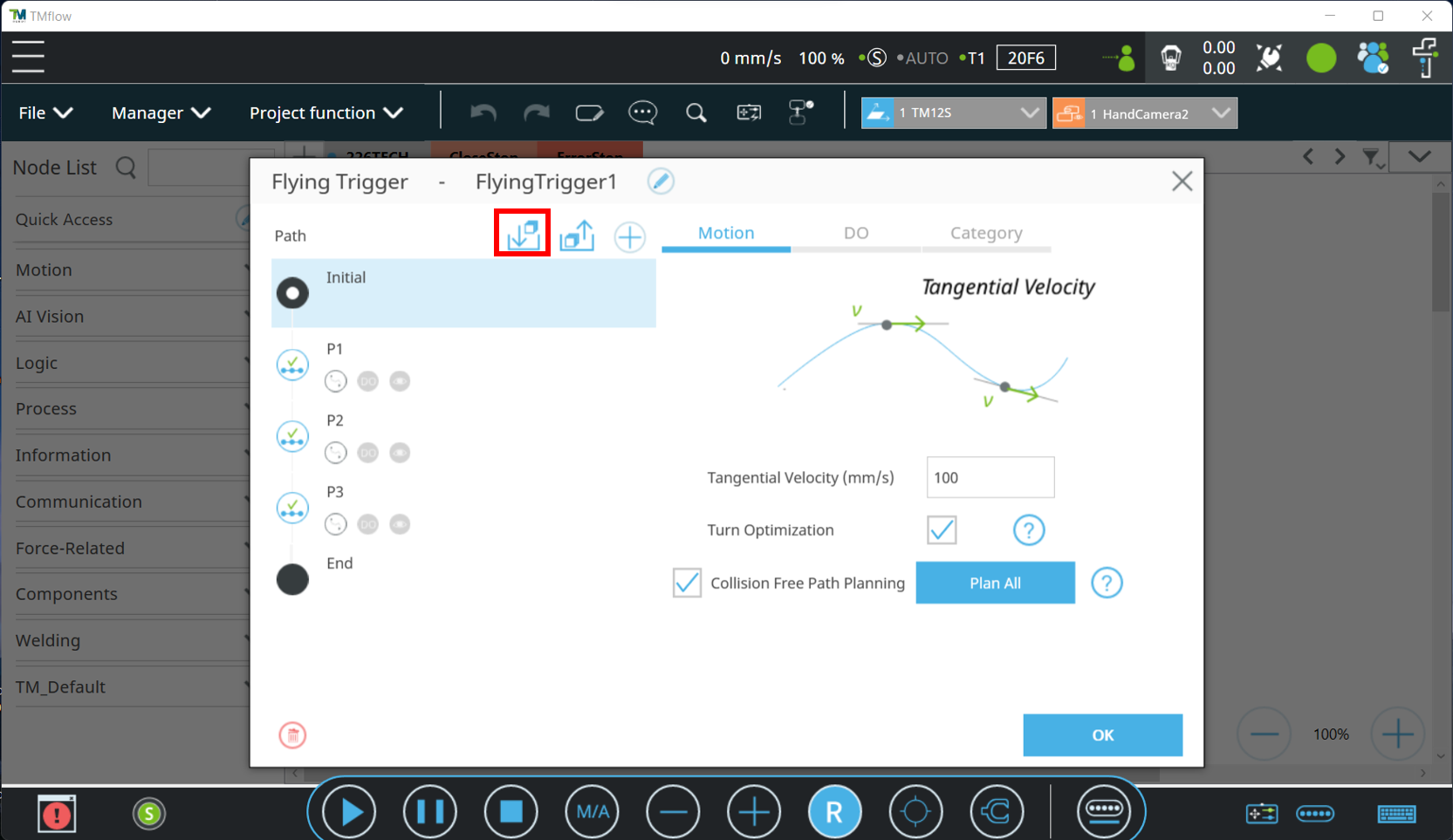
Click select to select point set
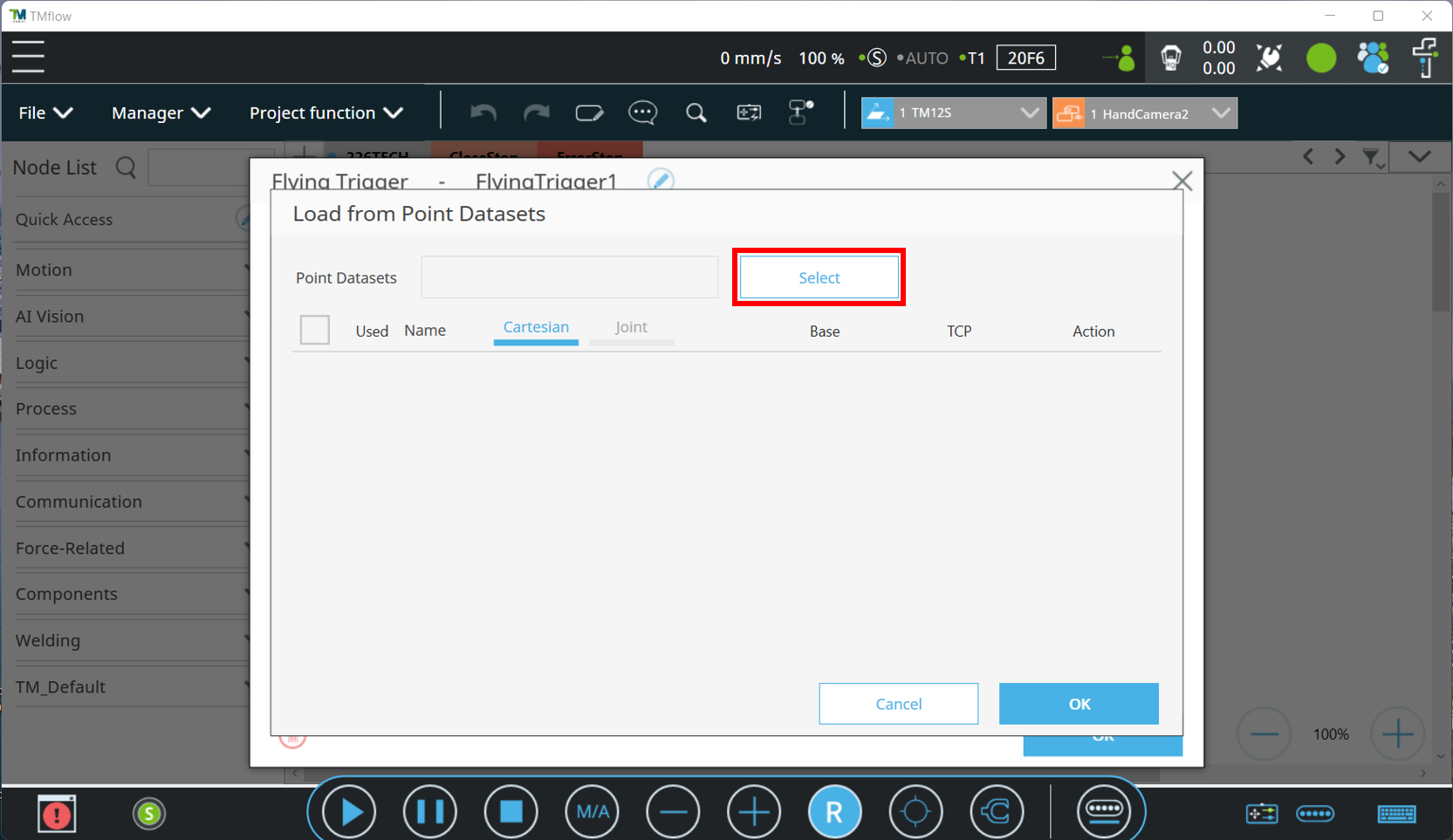
Select the point set
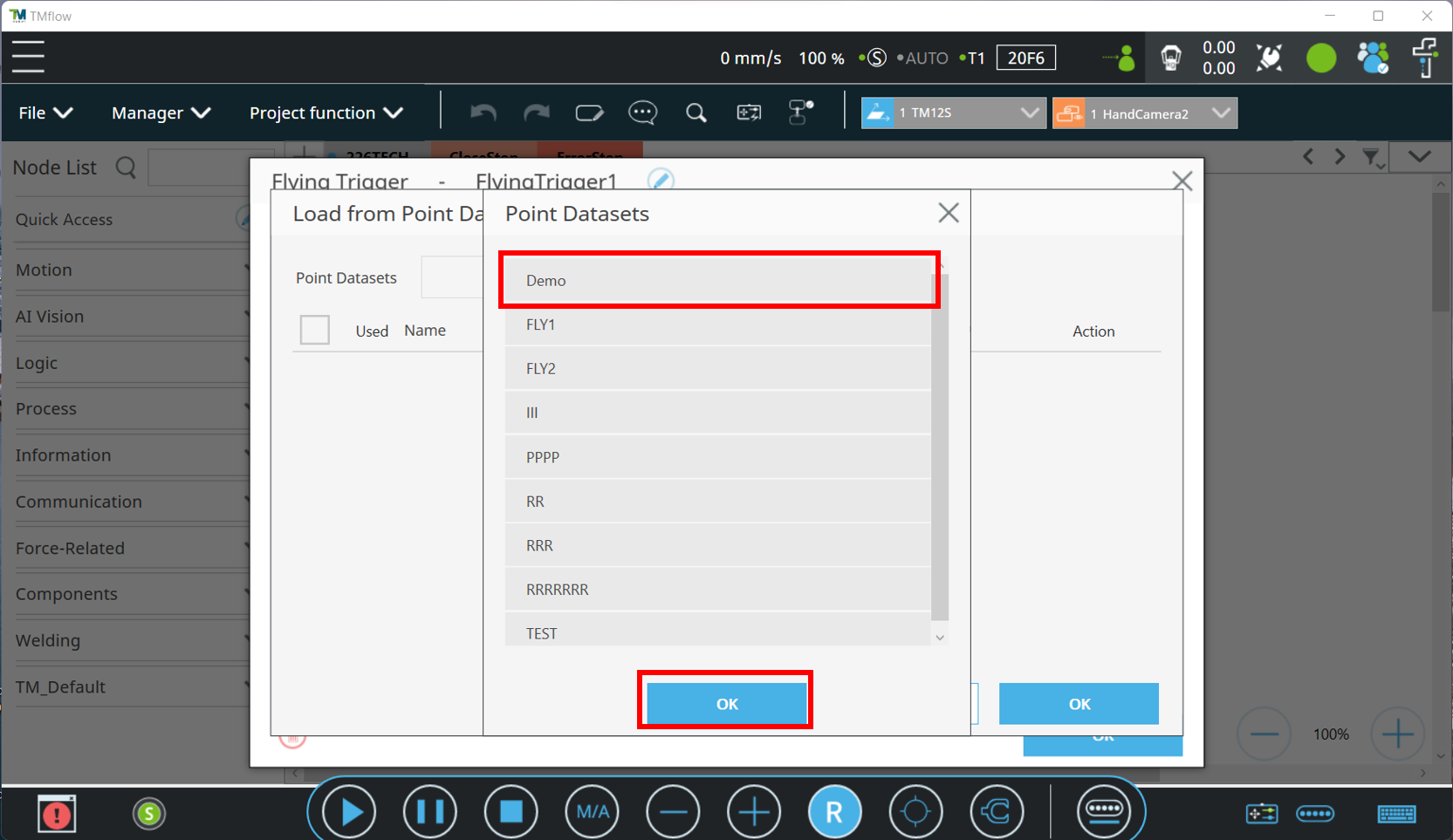
Select the import points
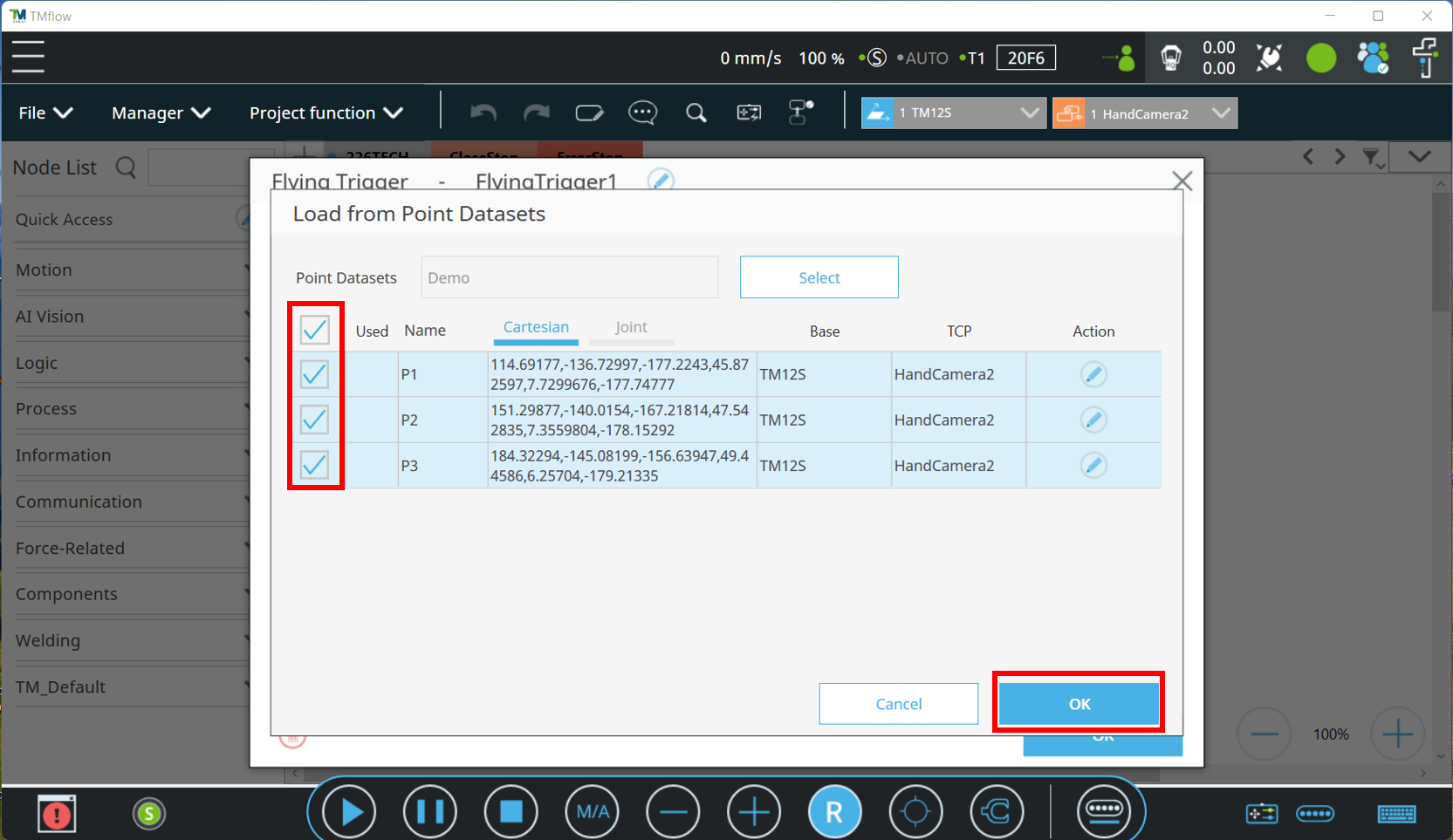
Finish Import
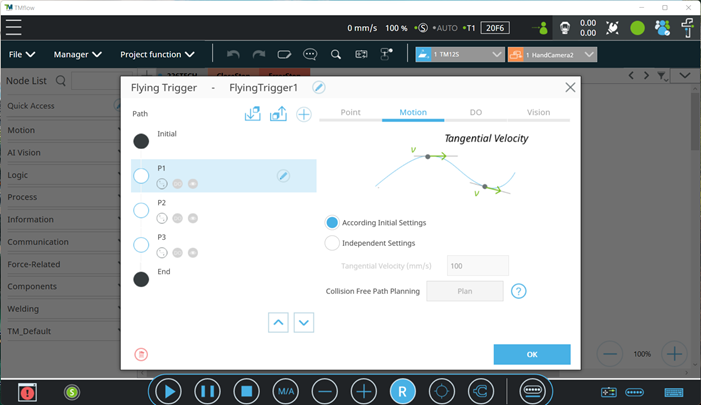
d. Path Planning
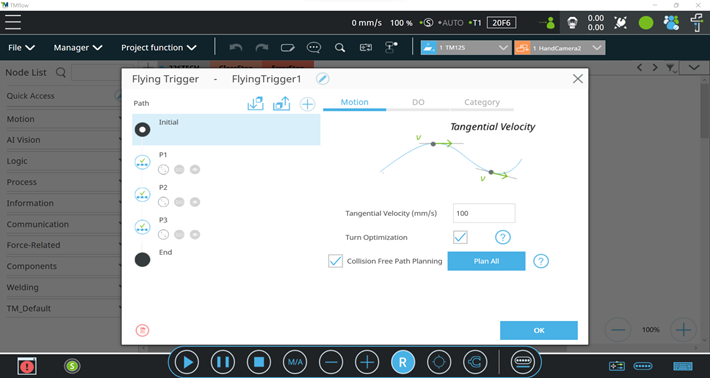
You can use path planning to avoid collisions in your virtual world. First, go to Initial-> Motion to enable Collision Free Path Planning. Then, you can select if you want to plan all points here or separately in specific point.
e. Simulation
Now you are all set to simulate. Press play to see if there’s anything need to be modify.
8. Export to real robot and set up vision jobs
The last step of the application would be set up the vision job. Please refer to How To Use Flying Trigger Node - Take server inspection as example.
Was this article helpful ?