[PROFINET] Read/Write Values to a PLC
Updated on 2026 / 08 / 27
Examples are valid for :
Profinet functions are applicable to:
TMflow Software version: v1.82.1000 or above
TM robot Hardware version: HW 3.0 or above
For hardware configuration of profinet, please refer to technical document
Functions
Read Functions
o profinet_read_input()
o profinet_read_input_int()
o profinet_read_input_float()
o profinet_read_input_string()
o profinet_read_input_bit()
o profinet_read_output()
o profinet_read_output_int()
o profinet_read_output_float()
o profinet_read_output_string()
o profinet_read_output_bit()- Write Functions
o profinet_write_output()
o profinet_write_output_bit()
Using TMflow to read/send value to a PLC
Step #1: Creating a blank TMflow project and create a project name.
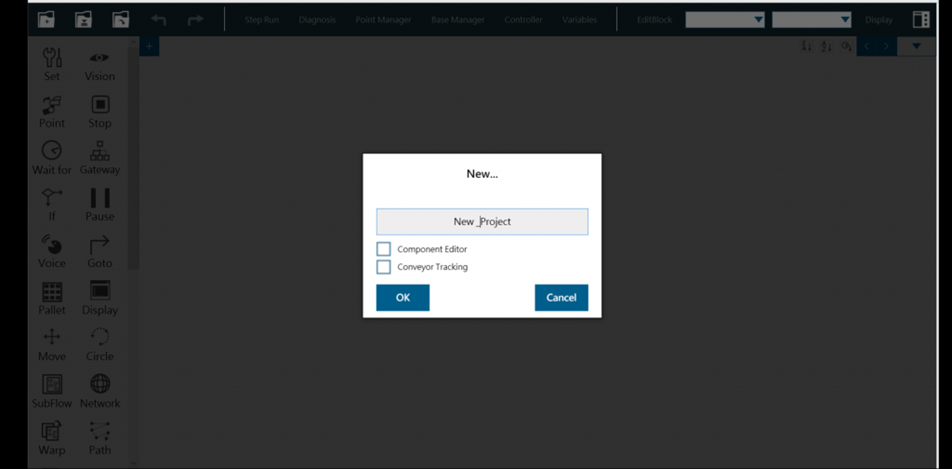
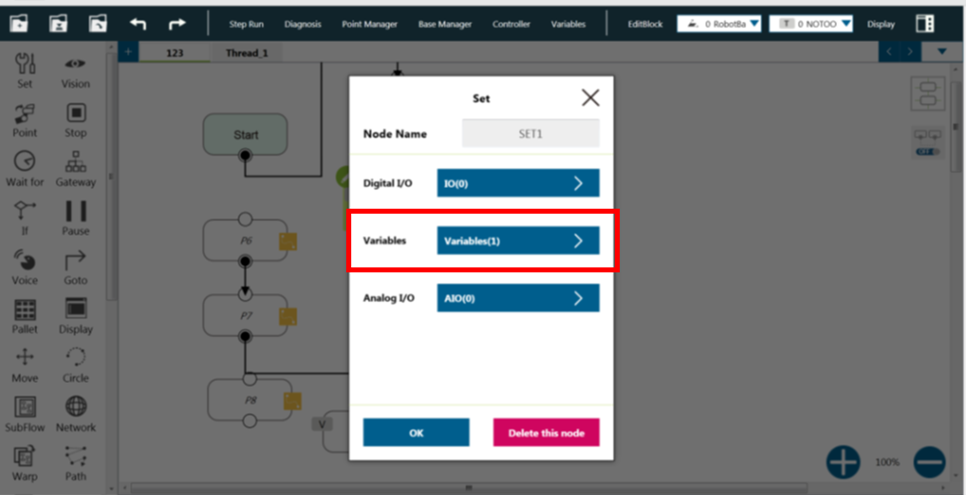
Step#2: Insert a 'SET' node from the left panel.
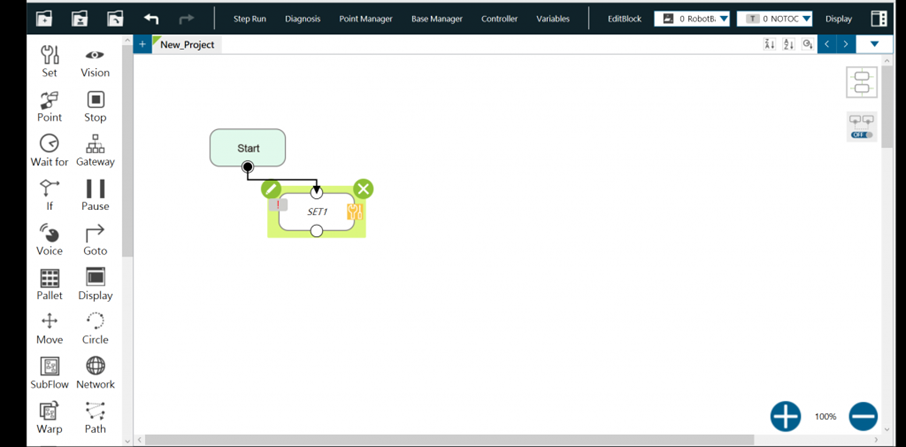
Step #3: Click the pencil icon on the upper left corner.
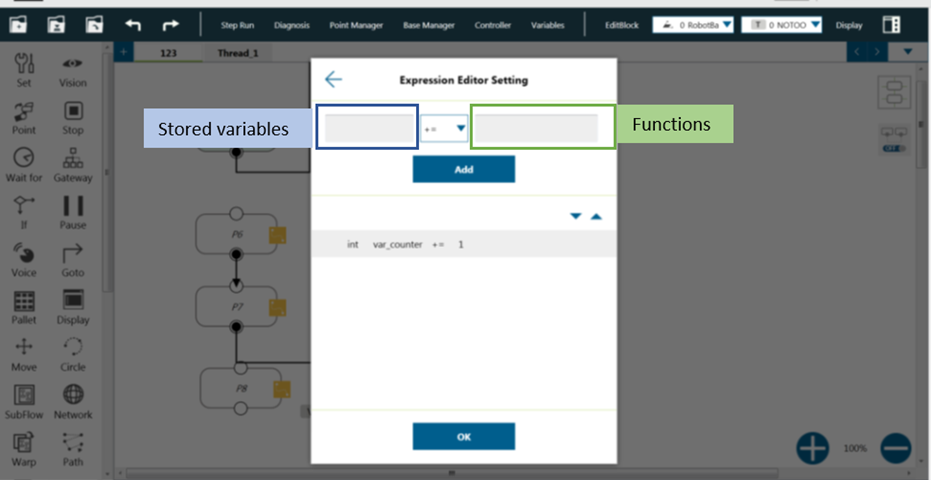
Step #3: Click on the right box (green area). A pop-up window is shown.
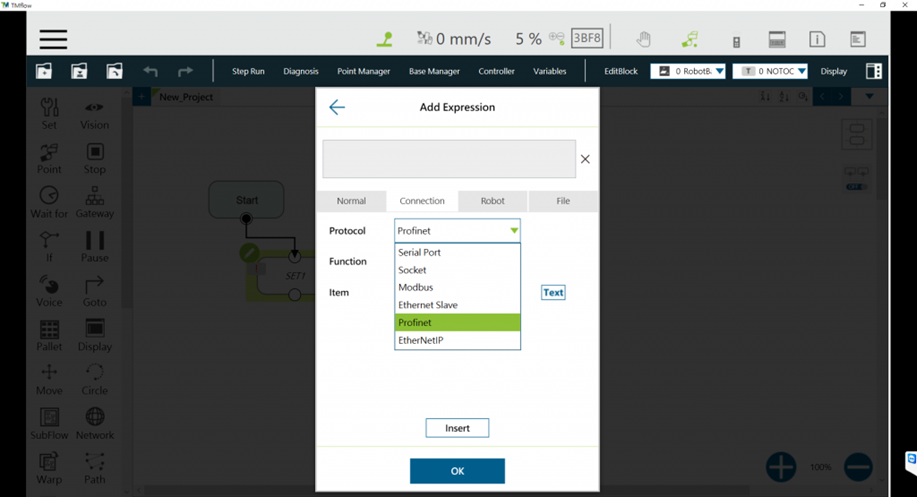
Step #4: Choose 'Connection', and select 'Profinet'
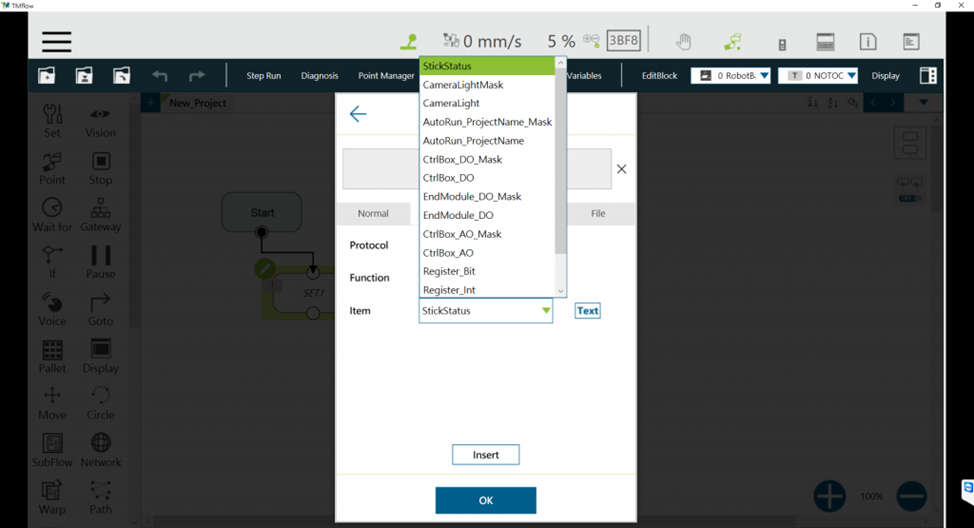
Step #5: Choose any function
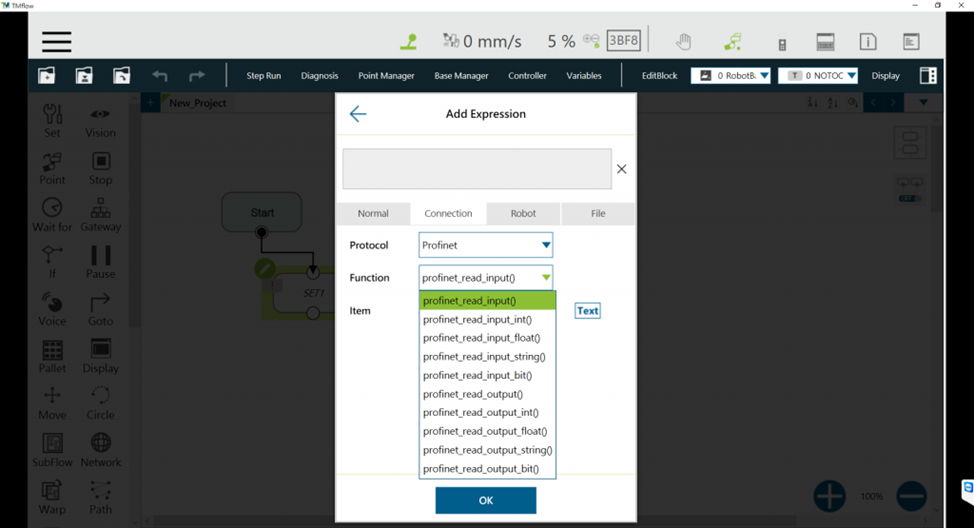
Step #6: Choose any item, and click 'ok'. Step #7: Click 'Insert' and click 'ok' then.
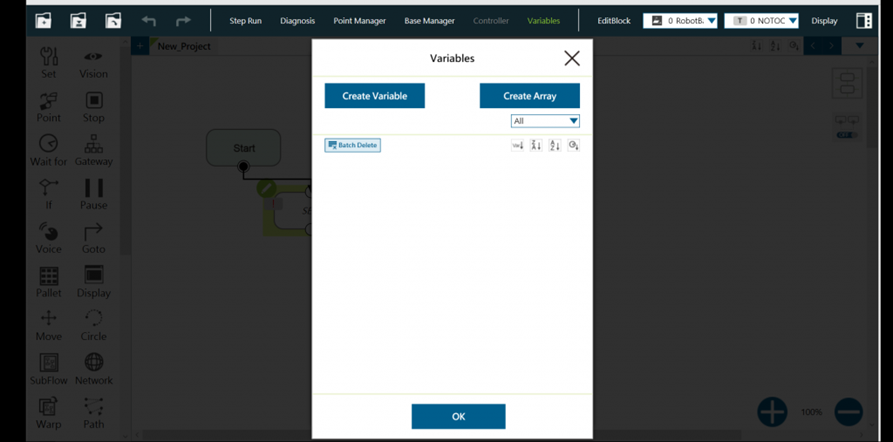
Step #8a: Create a variable to store the results. The data type must be compatible.
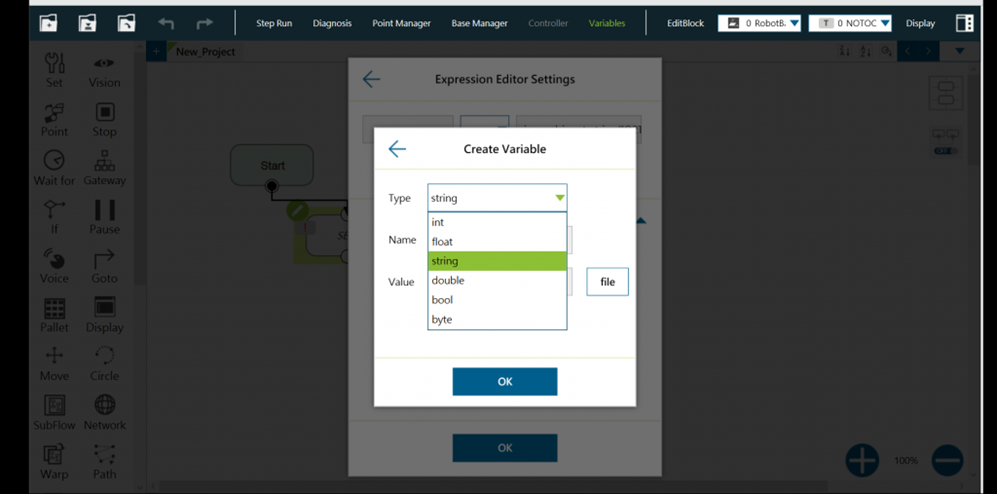
Step #8b: Select variable data type.
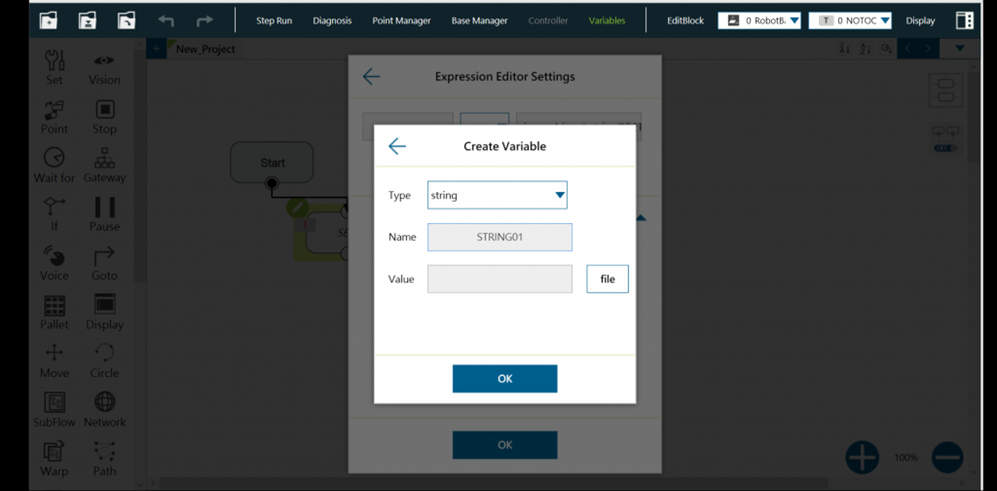
Step #8c: Create a variable name and click ‘ok’
Step #9: Click 'Add' to add one expression to the set node.
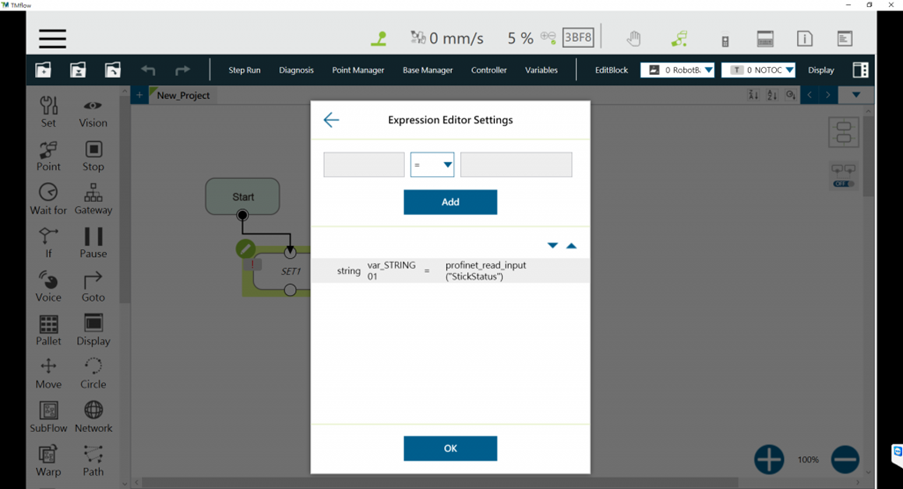
The Profinet function is set successfully.
Was this article helpful ?