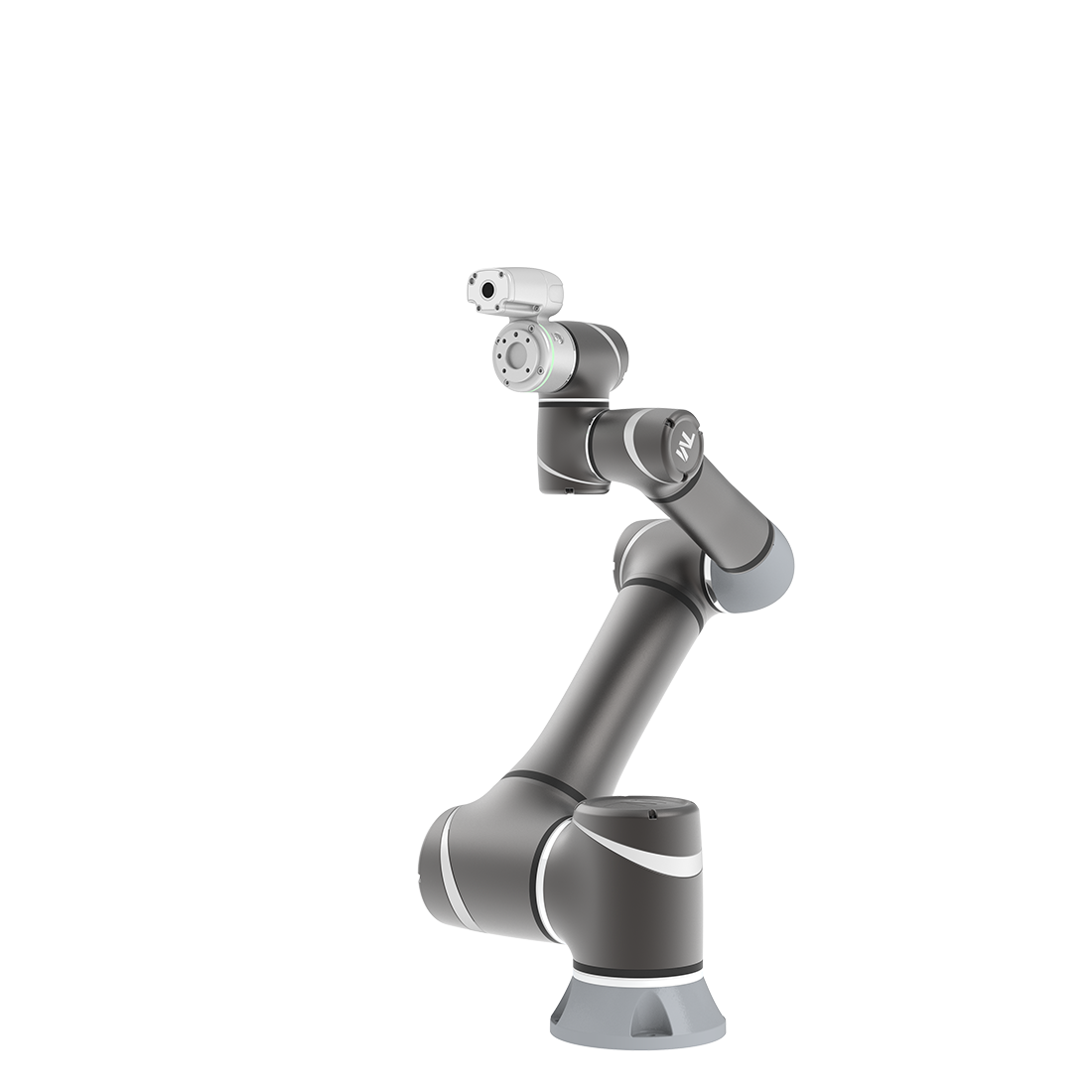
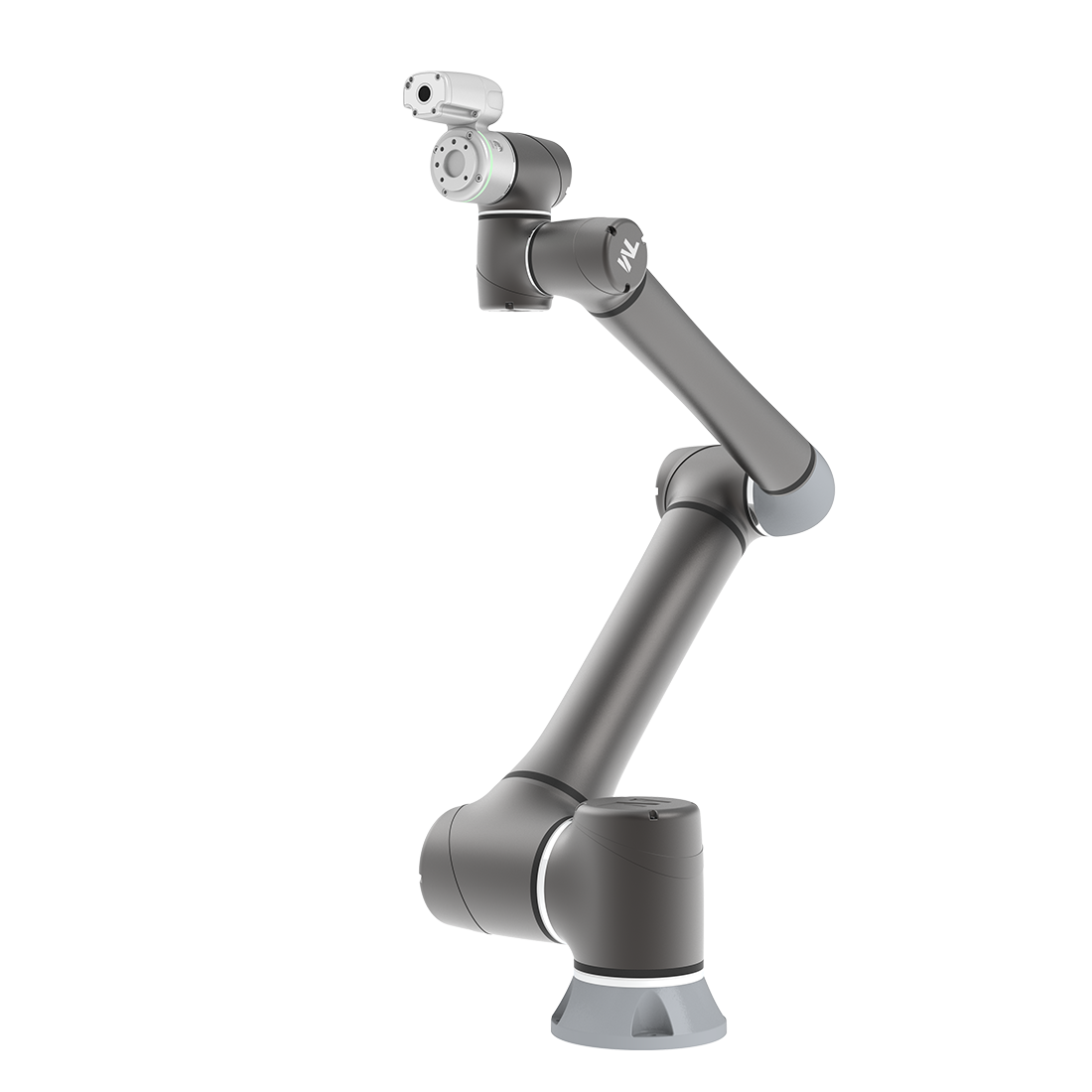
Create Visual Servoing Task
Updated on 2026 / 08 / 27
Examples are valid for:
TMflow Software version: 1.76.6300 or above.
TM Robot Hardware version: All
Other specific requirements: None
Note that older or newer software versions may have different results.
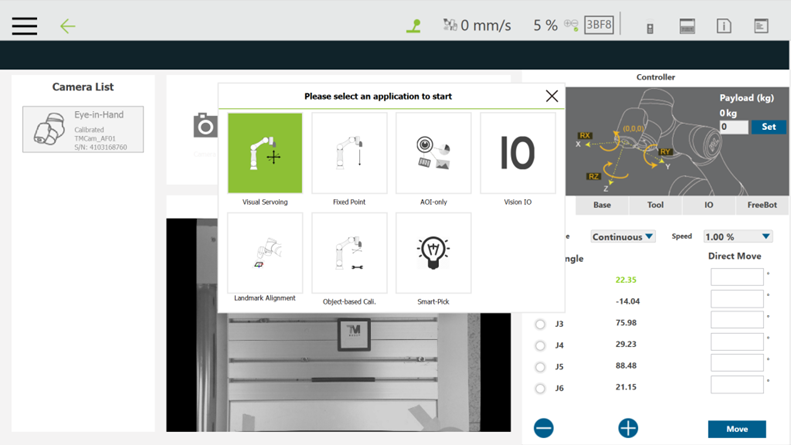
Step #1: Click Task Designer and select Visual Servoing

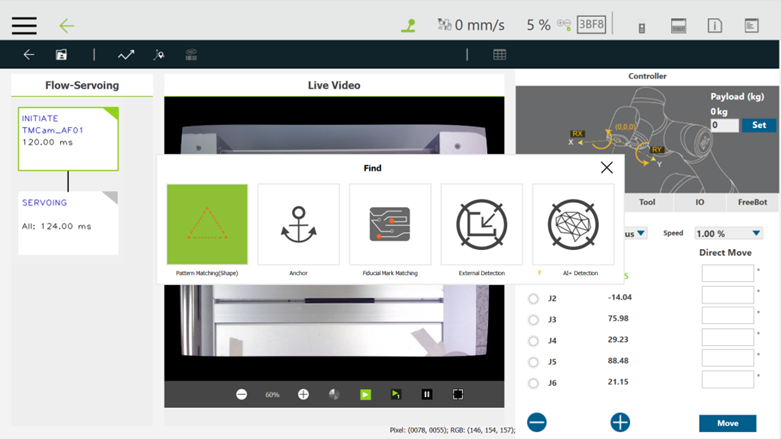
Step #2: Select Pattern Matching (Shape)
Step #3 : Click Select Pattern, crop the pattern and click Next.
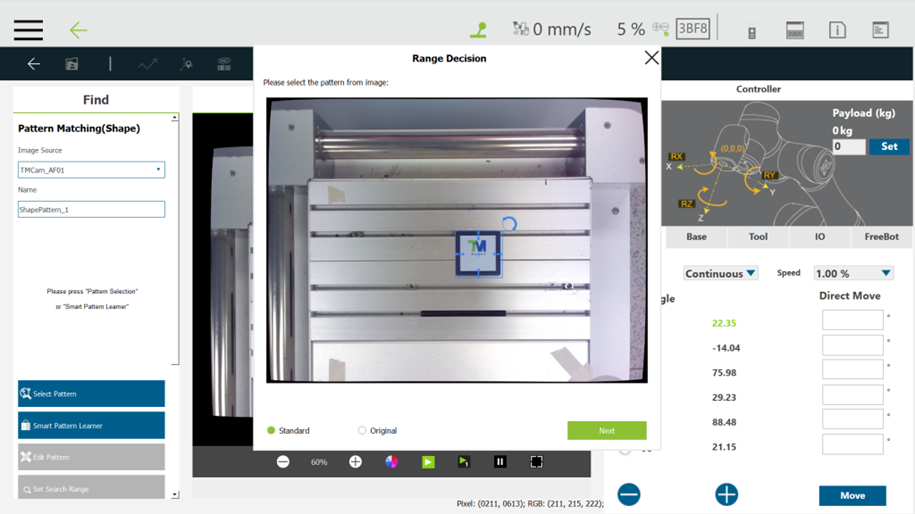
Step #4 : Double-click Visual Servo block and move to the robot to the initial position.
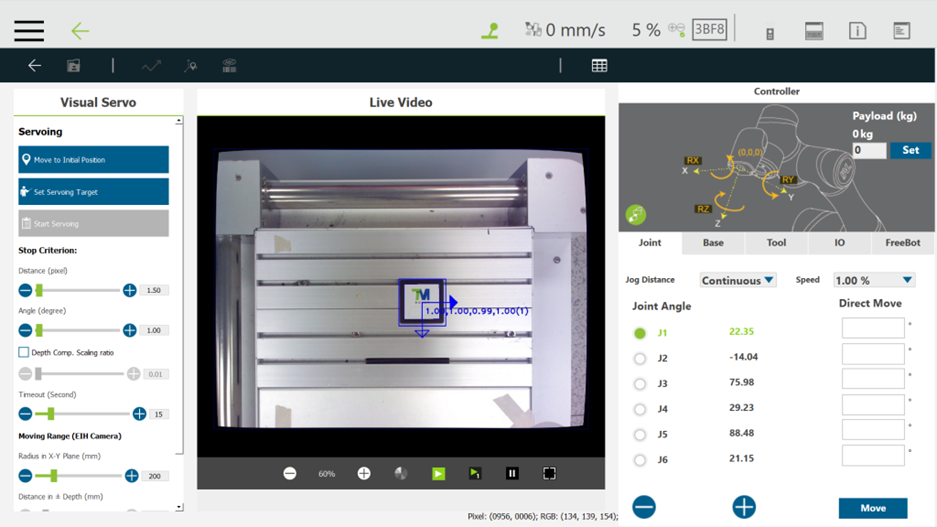
Step #5 : Click Set Servoing target
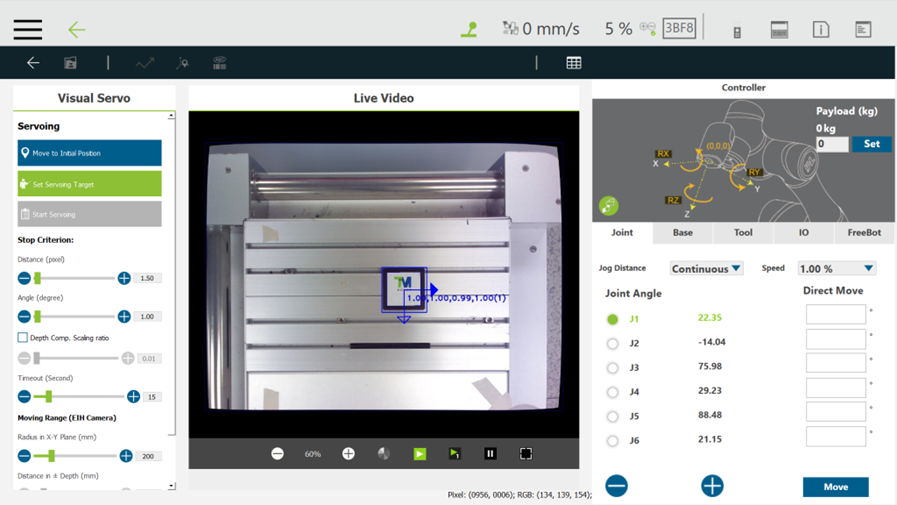
Step #6 : Choose Locate Target at Image Center and click Set
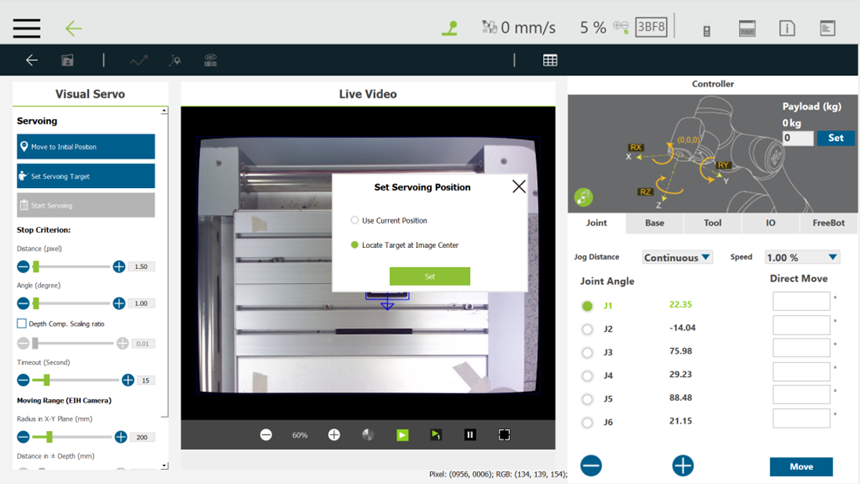
Step #7 : Click OK
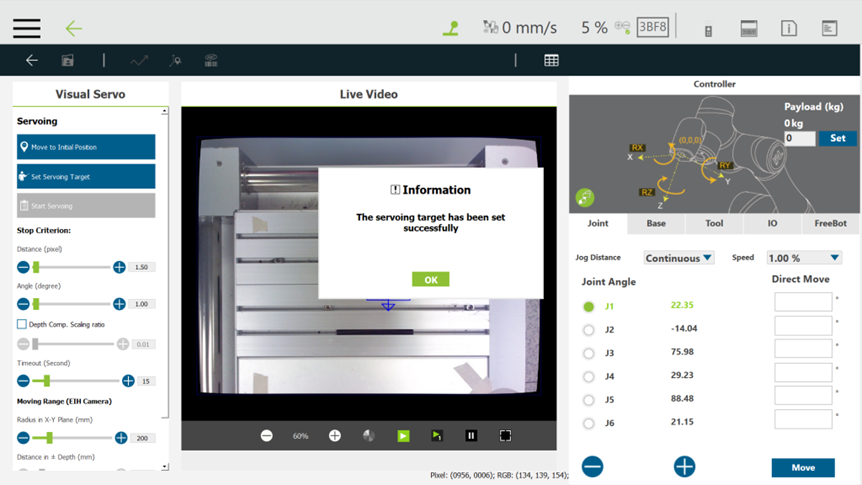
Step #8 : Click Start Servoing
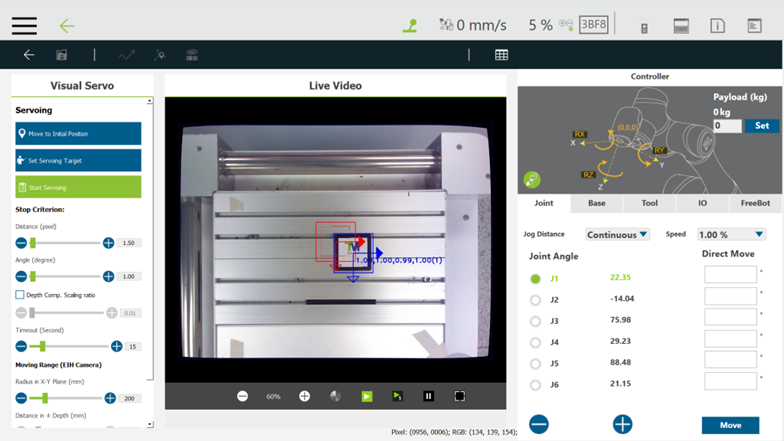
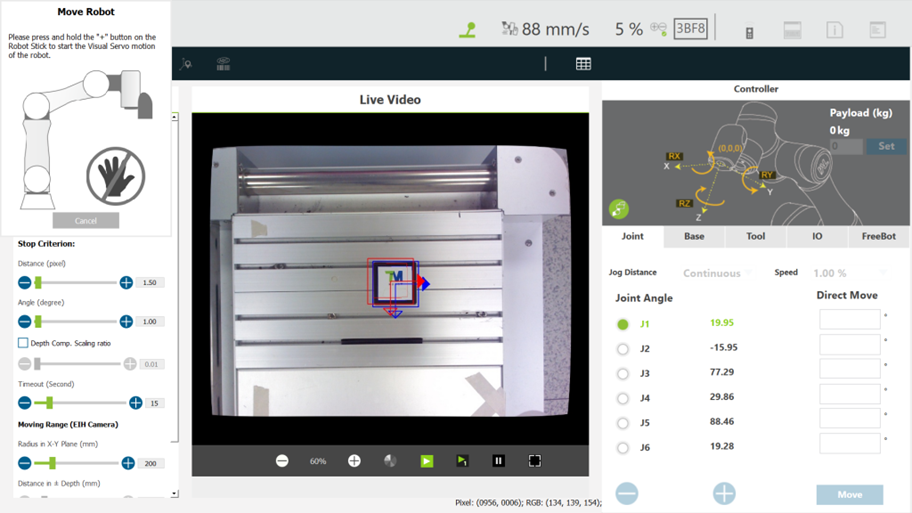
Step #9: Press and hold the plus button on the robot stick and start testing visual servoing.
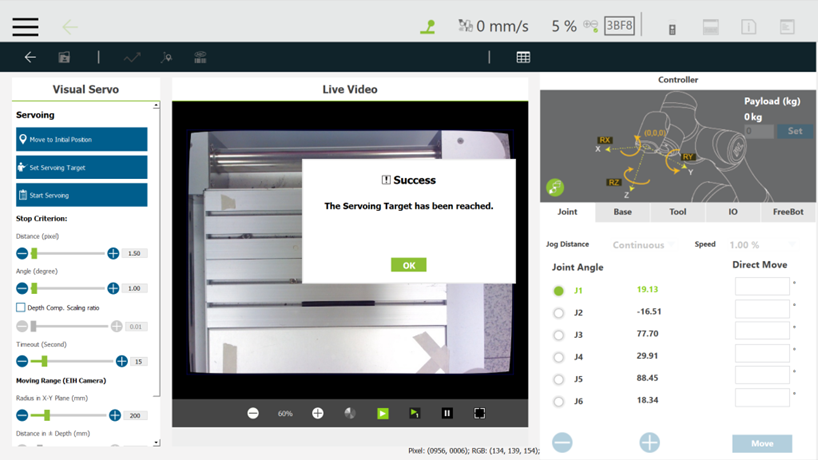
Step #10: Click OK and click save
Run the Project
Step #11: Play the project by pressing the Play/Pause button on the robot stick.
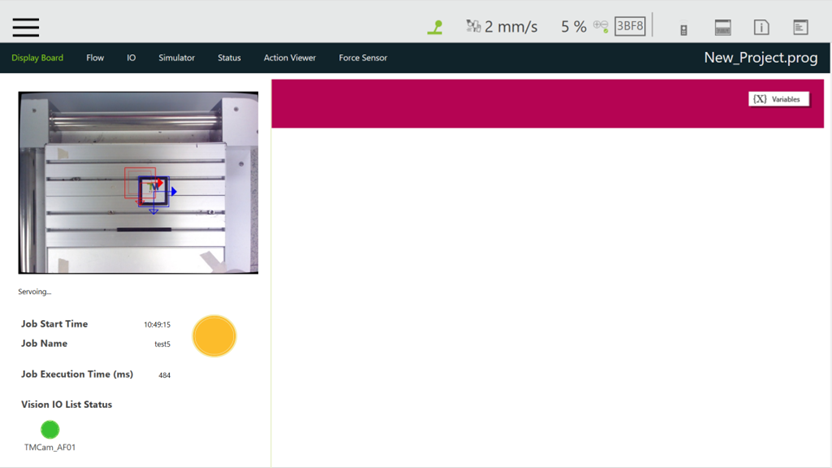
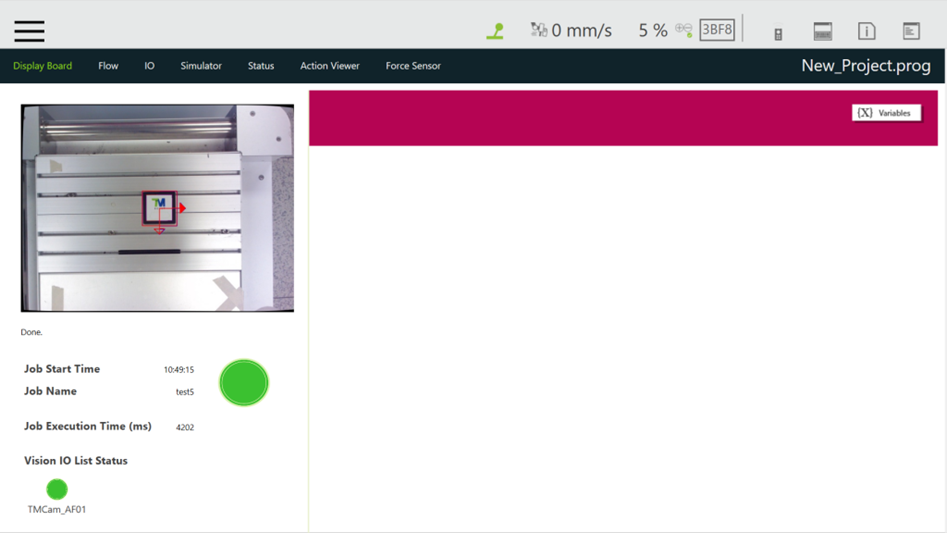
The visual servoing vision job is successfully executed. The robot has moved to the center's of the pattern.
Was this article helpful ?