How to Use Path Offset?
Updated on 2026 / 08 / 27
Examples are valid for:
TMflow Software version: 2.16.2200 or later
TM Robot Hardware version: HW3.2 / HW5.x
Other specific requirements: None
Note that older or newer software versions may have different results.
Goal
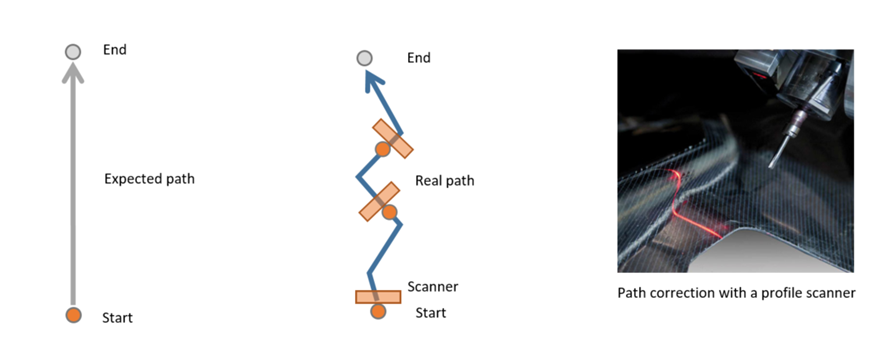
In applications such as deburring, welding, or gluing, you might need the robot to correct its path automatically based on an uncertain path.
You can teach the expected path in the TMflow Project and then make the real-time correction in TMflow Thread with Path Offset. For example, following a curve on a surface.
Path Offset is a new function set in standard TMscript in TMflow 2.16.
Preparation
TM robot with TMflow 2.16.2200 (or later)
External input device (laser scanner, analog input device, etc.)
Build communication between the robot and your device
Make sure you have the correct TCP and Base
Related Manual
TMflow Software Manual - for basic operation of TM robot. Available at Download Center.
Programming Language TMscript (for TMflow 2.16 and later) - manual to use Path Offset. Available at Download Center.
Path Offset
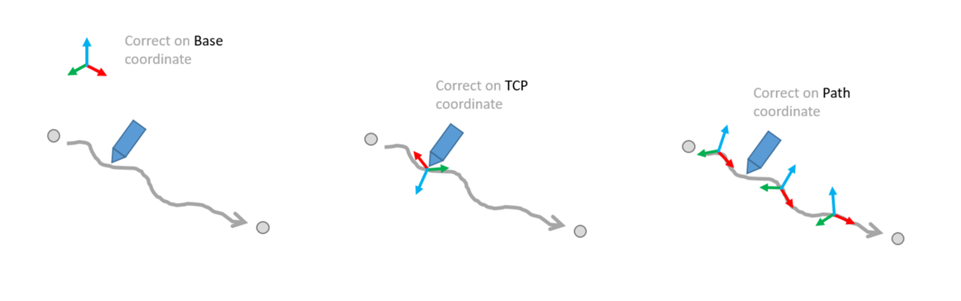
The concept of Path Offset is to correct the path in real-time with given data in 6 degrees, that is [x, y, z, Rx, Ry, Rz] :
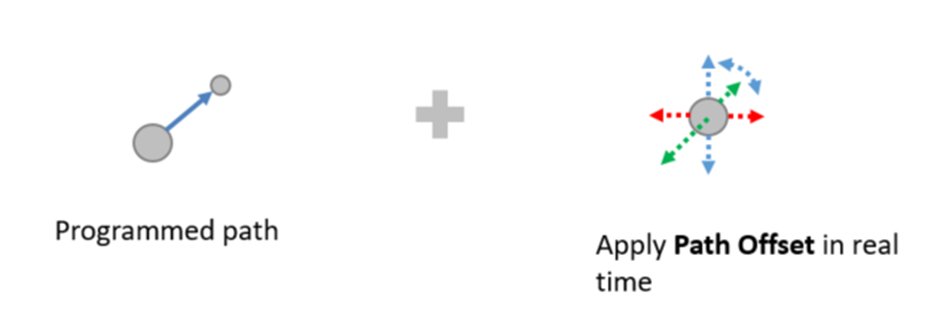
In addition, you can assign different coordinate systems with the TMscript function PathOffset_Set() :
Example 1: Path Tracking System
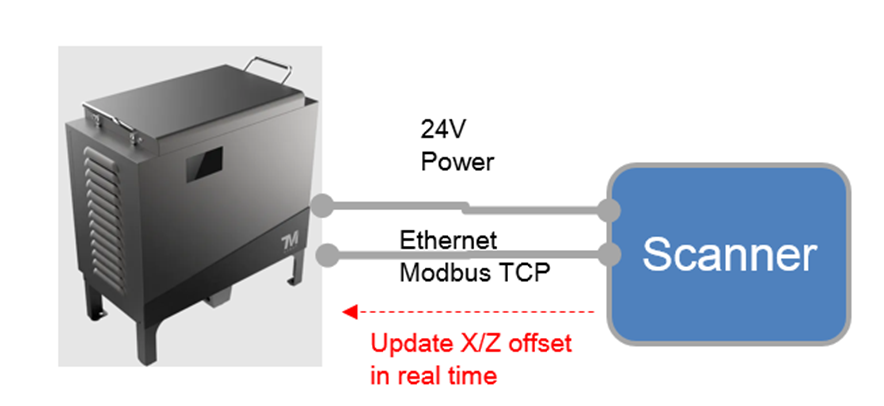
In this example, a 3rd-party laser scanner MicroEpsilon scanCONTROL 3060 is connected to the robot. It measures the path offset in advance and then sends it to the robot for correction.
Robot follows a given path from p1 to p2, then applies path correction in real-time.
Path correction is NOT limited to the laser scanner used in this example. The feedback data can be retrieved from any device that communicates with the robot, such as an analog button, a force sensor, etc.
Here is the system diagram:
What can a laser scanner do?
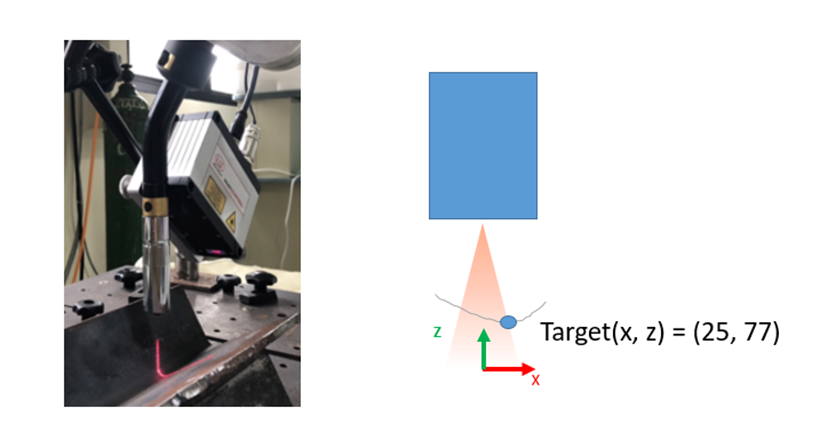
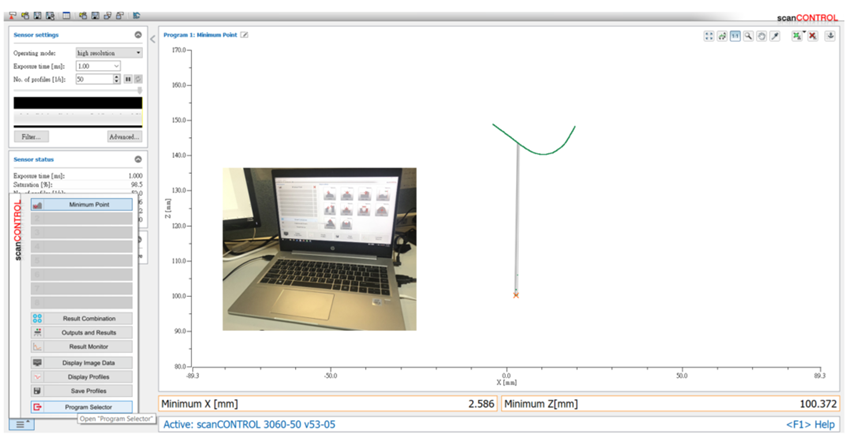
A typical 2D laser scanner can measure a profile on a surface, and send out the continuous profile data as a array in real time. It might also calculate the interesting point(such as the position of lowest point as shown below) and send to robot directly.
To configure the scanner, you will need the tool scanCONTROL from MicroEpsilon. Please contact them for more information.
Programming
Create a new TMflow project with a main flow and a thread as below:
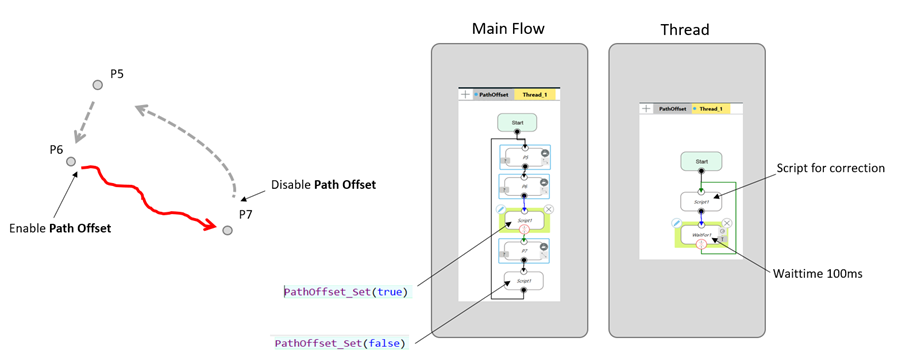
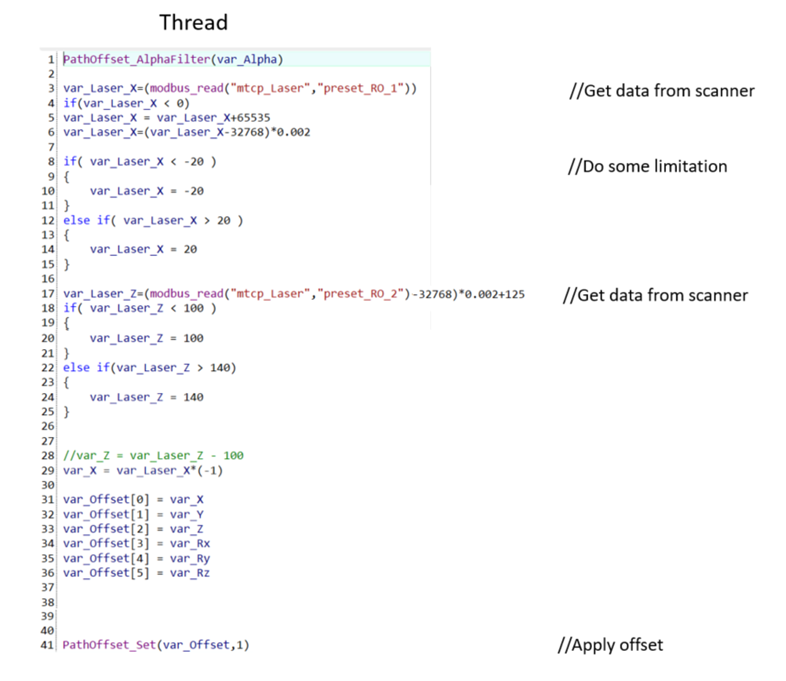
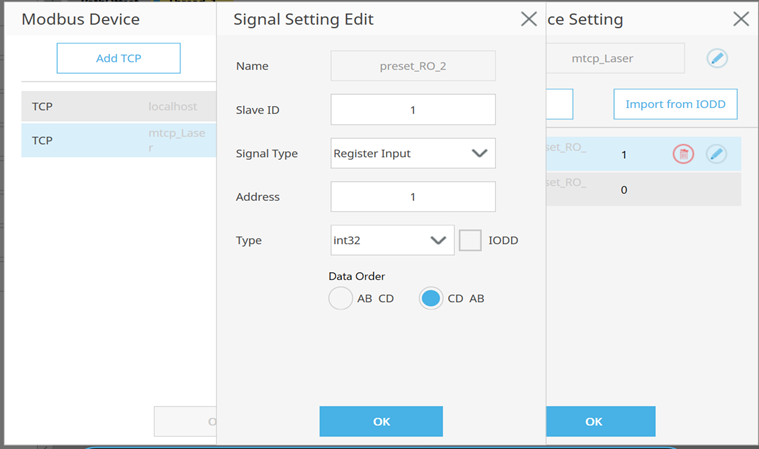
Modbus setting in this example, two signals for offset_x and offset_z from the scanner:
Then you can run this program; it will try to follow the path.
Example 2 : Surface Tracking System
With the same laser scanner in Example 1, the robot can keep the distance between the target and TCP. It might be useful in continuous processes such as gluing or dispensing on variant targets. The function of Path Offset could be used even when the robot is stationary.
Example3 : How fast It Can Track ?
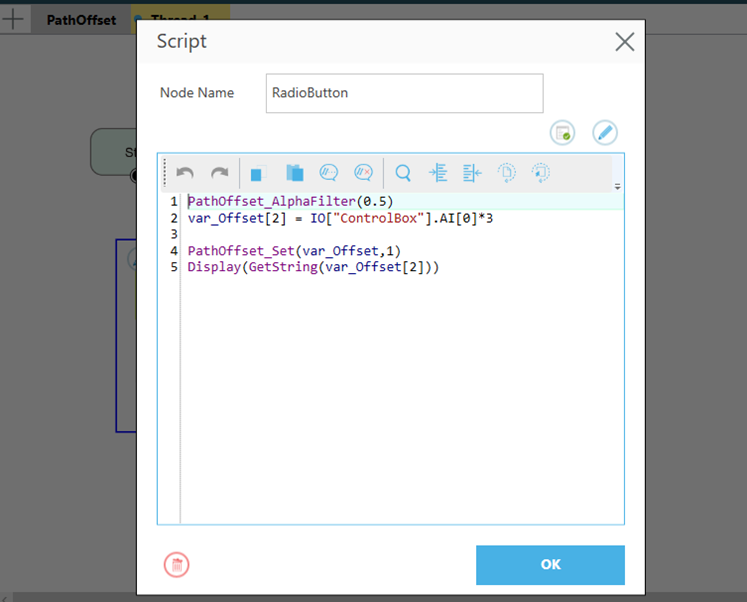
In this example, we connect an analog variable resistor (output: 0-10V) to an analog input channel on the robot. The robot will try to track the target while rotating the button.
The programming in this example is relatively simple:
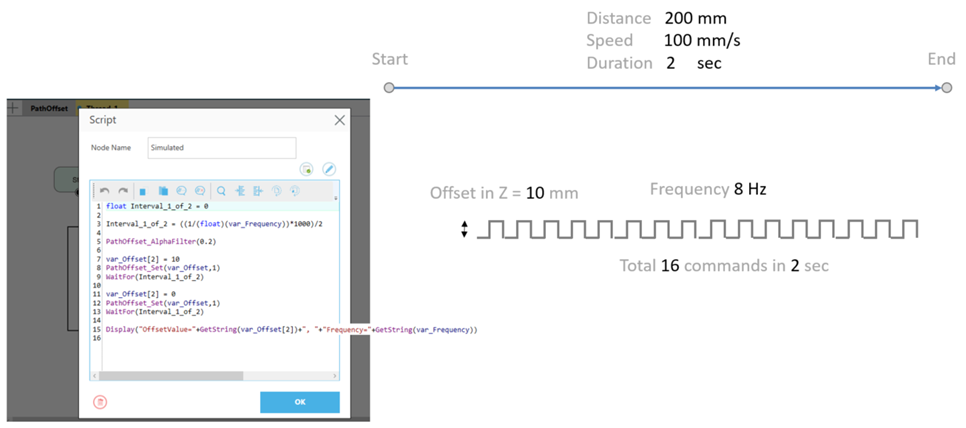
Simulated Command
To make it more data-driven, we create a command generator in Thread. It will generate 16 commands within 2 seconds when the robot travels from the start point to the end point.
Command frequency: 8 Hz
AlphaFilter: 0.2
Distance of each offset: 10mm
If the incoming command is faster than this frequency, the robot won't be able to track it.
Was this article helpful ?