How to Use MicroQRCode Service on External Classification
Updated on 2026 / 08 / 27
Examples are valid for :
TMflow Software version : TMflow 2.20 or above versions
TM Robot Hardware version : HW3.2 or above versions
Other specific requirements : None
Note that older or newer software versions may have different results.
MicroQRCode Server : Download ExternalClassification_MicroQRCode Service (attached file)
Specific Limit :
- Minimum Resolution : 4x4 pixels for each module (the smallest black square)
- Supported barcode types : MicroQRCode
- Only one MicroQRCode can be recognized at the same time
- When there are multiple MicroQRCodes in the ROI at the same time, only one of the identification results will be returned
- When no MicroQRCode is recognized, the result will be returned as "null"
- When 1 or 0 MicroQRCode is recognized, the score will be 1; when more than 2 MicroQRCode is recognized, the score will be 0.5
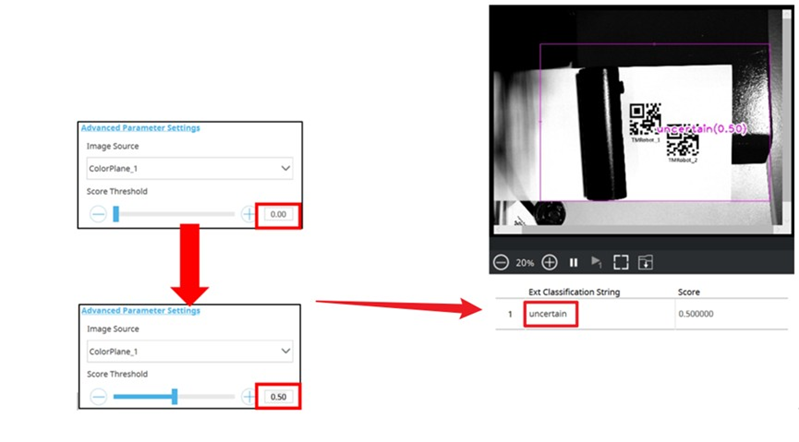
- When adjusting the Score Threshold value to >=0.5, if more than 2 MicroQRCodes are identified in the ROI at the same time, the result will be returned as "uncertain"
Note :
- Older or newer software versions may have different results.
Import ExternalClassification_MicroQRCode Service
This version of MicroQRCode Server is suitable for TMFlow 2.12.1000 and later versions
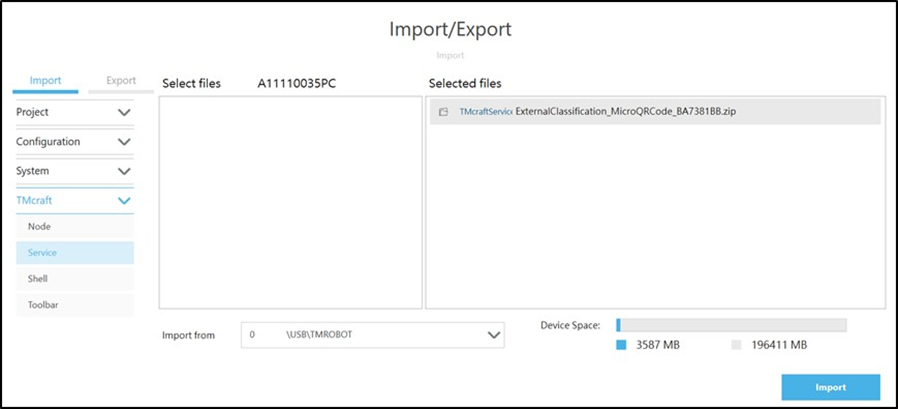
- Place the designated file into the specified folder within the Techman SSD for a USB storage device named "TMROBOT"
TM_Export/[your_computer]/ TMcraft/Service : ExternalClassification_MicroQRCode_[checksum].zip

- If the “TMcraft/Service” folders do not exist, you will need to create them manually.
TMflow->System->Import/Export: Select TMcraft->Service
Open ExternalClassification_MicroQRCode
TMCraft Service
- TMflow->Configure->TMcraft Management : Select Service
Enable ExternalClassification_MicroQRCode TMCraft Service and check if the light turns green after restarting TMflow

Use the Get function of HTTP Setting in External Classification to test whether the connection is successful
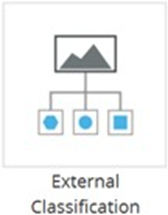
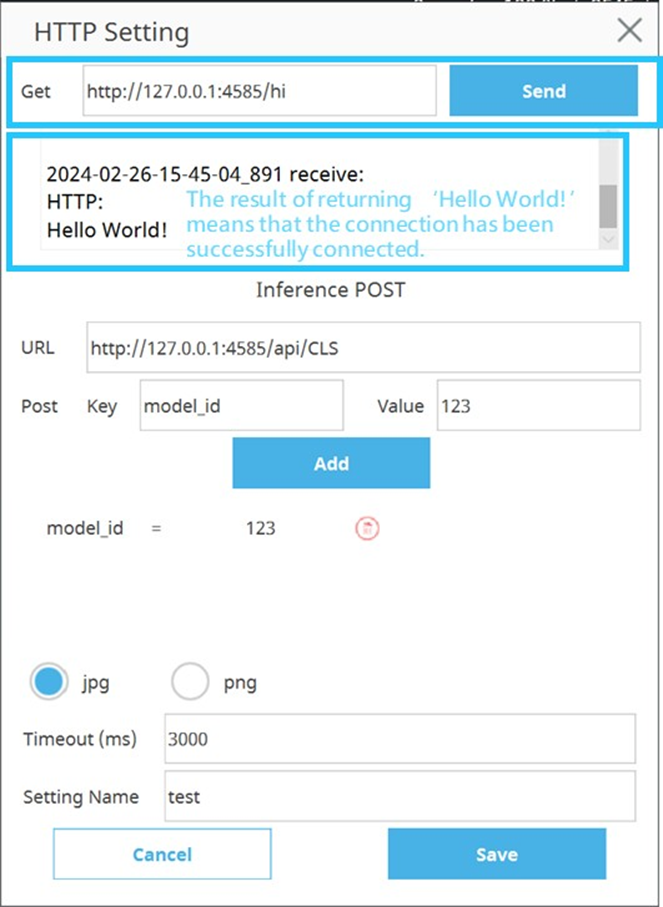
Set Post Parameter
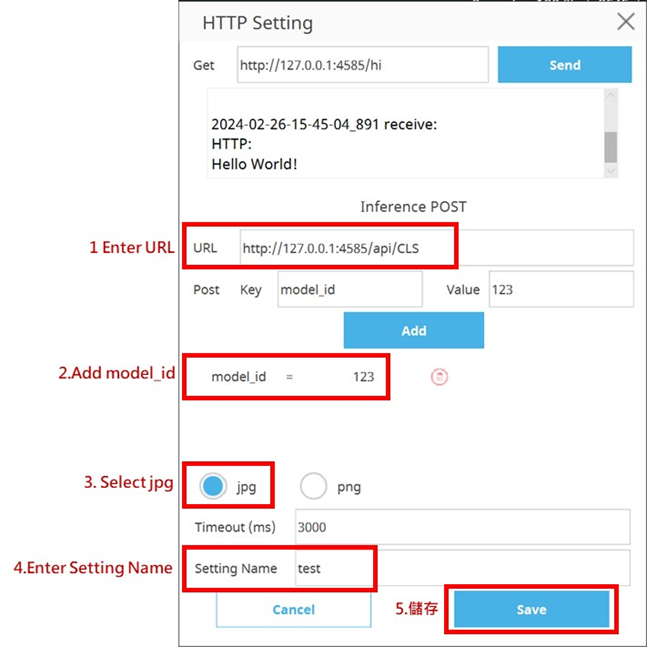
Set the ExternalClassification_MicroQRCode server connection in the HTTP Setting of External Classification
Set ROI
- The ROI must be set to a range of only one graphic code
The results will be returned and displayed in the ROI graph and in the lower field
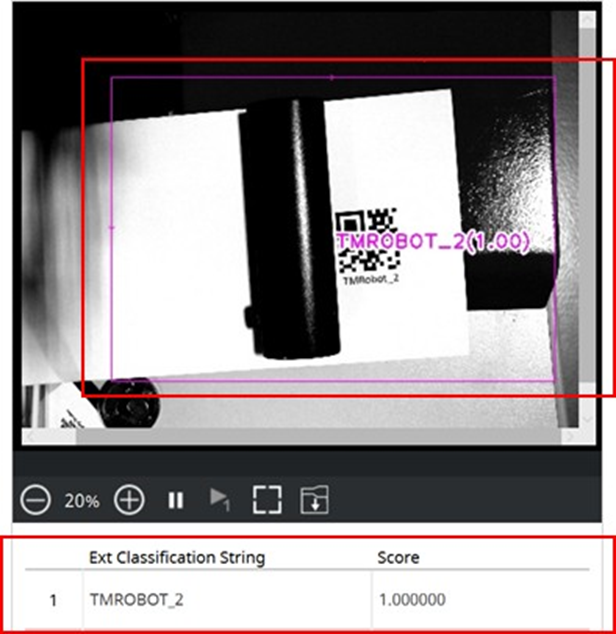
1. MicroQRCode identified in ROI, return result value & score = 1
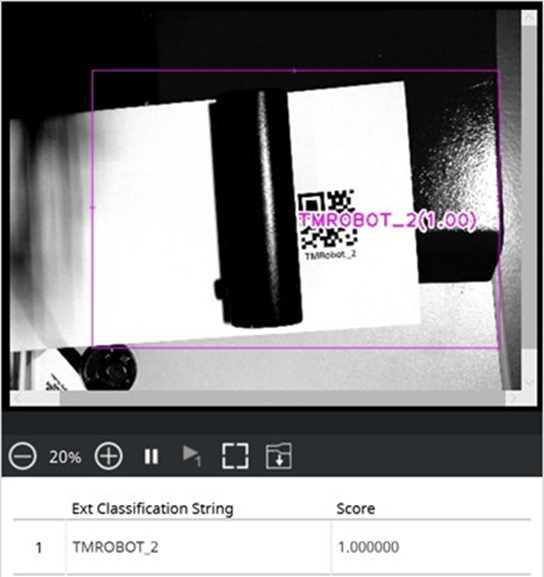
0 MicroQRCode identified in ROI, return 'null' & score = 1
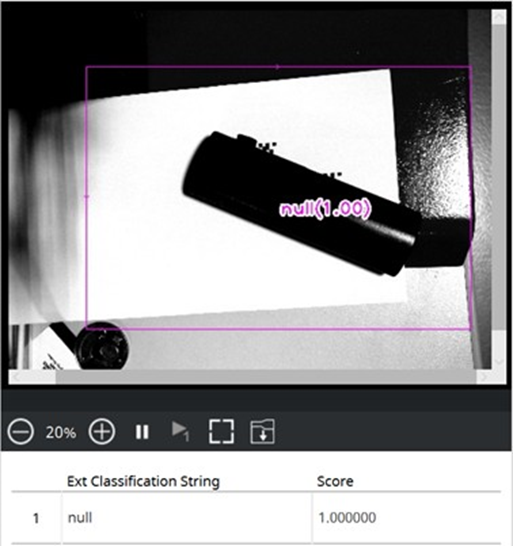
- Only one MicroQRCode can be recognized at the same time
When there are multiple MicroQRCodes identified in the ROI simultaneously, only one recognition result will be randomly returned, and the score will be 0.5
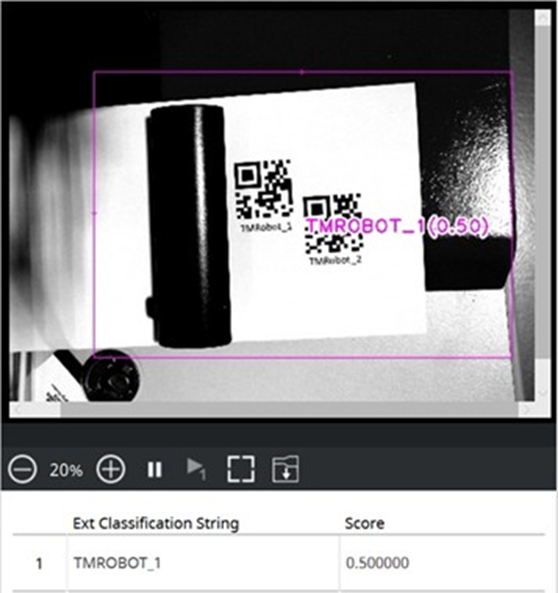
- Adjusting the Score Threshold value to >= 0.5, if there are 2 or more MicroQRCodes simultaneously identified in the ROI, the result will be returned as 'uncertain'
Was this article helpful ?