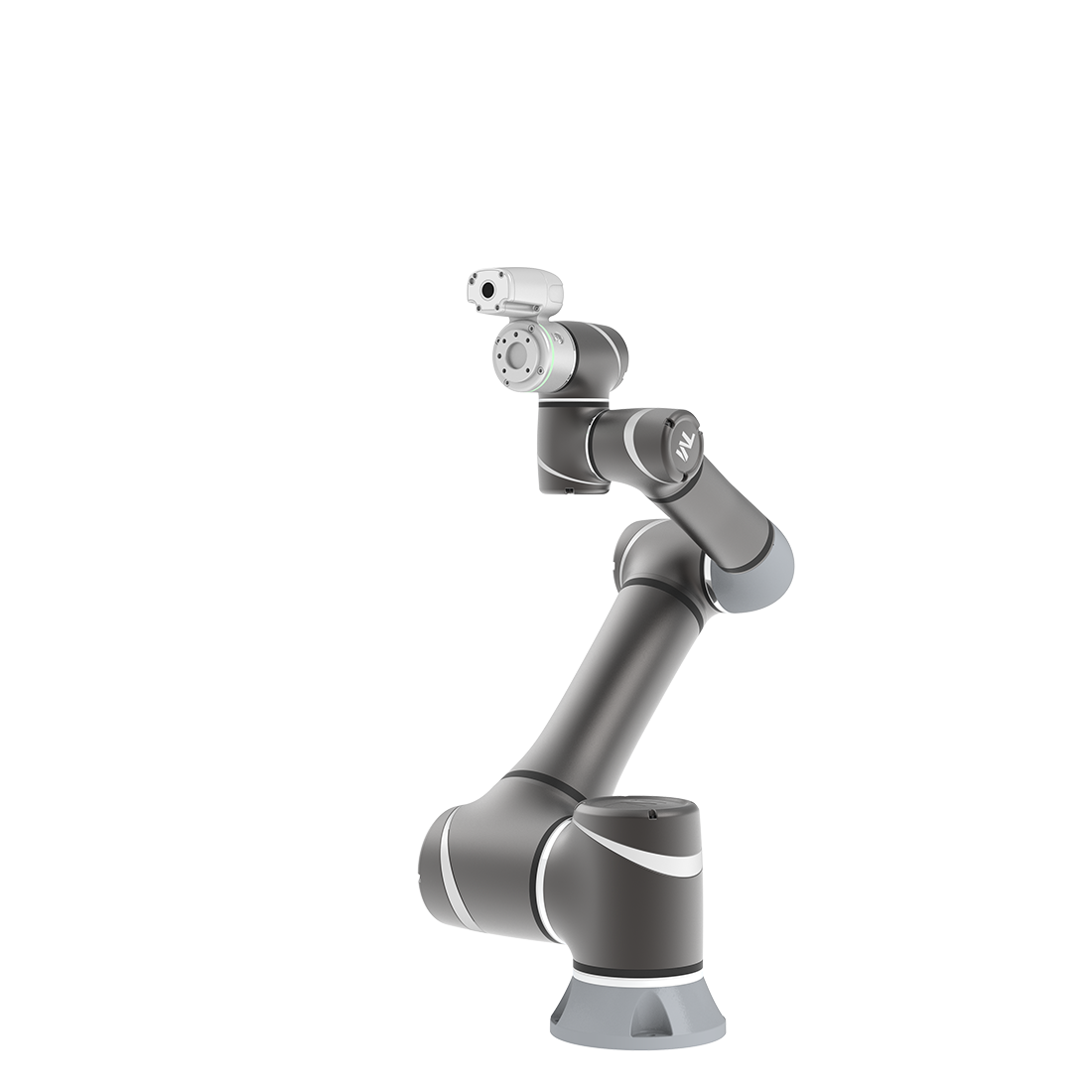
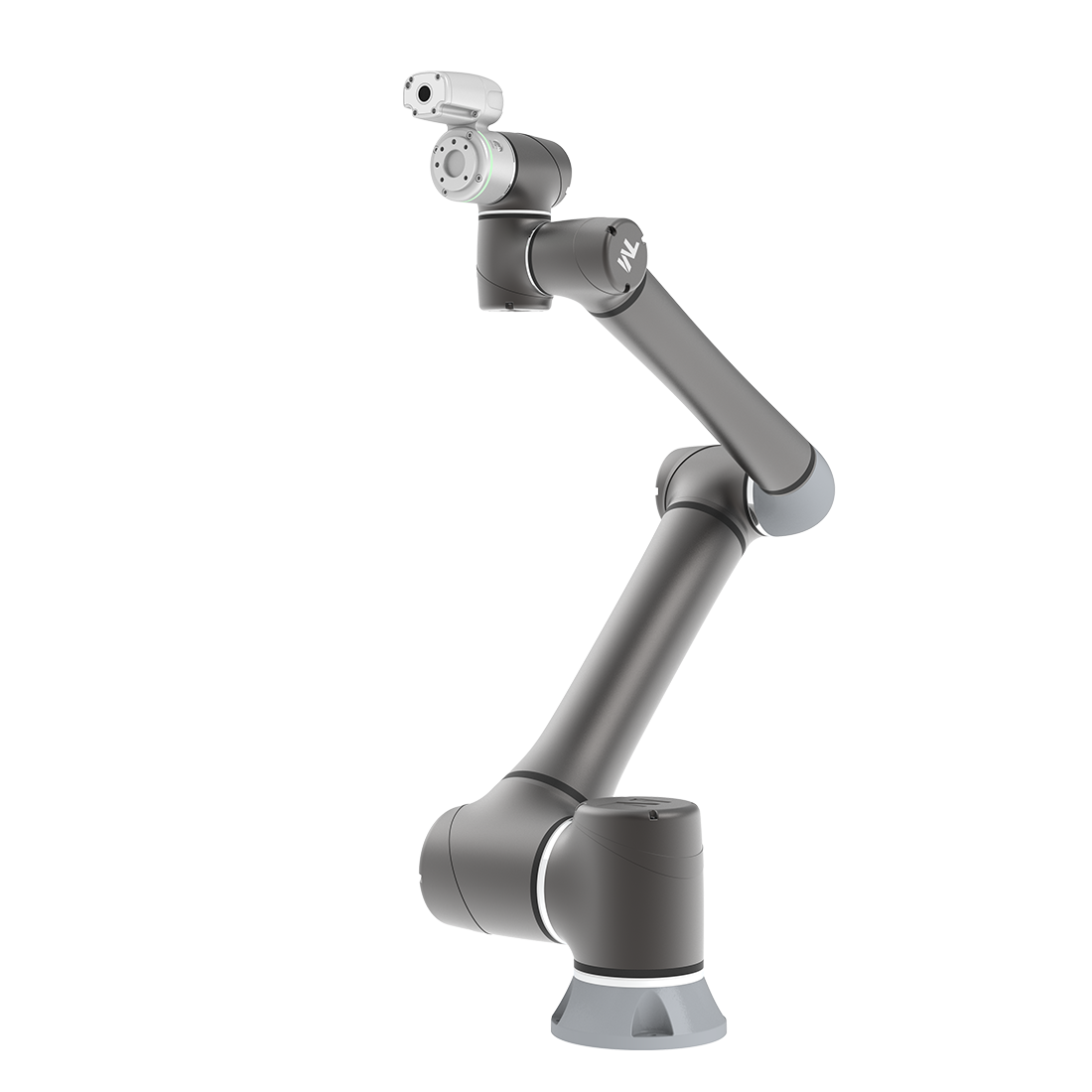
How to Use DH Inspection Project
Updated on 2026 / 05 / 15
TMflow Software version: TMflow 2.14 or above versions.
TM Robot Hardware version: HW3.2 or above versions
Project example: DH_inspection_project
Note: Older or newer software versions may have different results.
Purpose
Long-term use, collisions, or overloading of the robot can cause small changes in link length or joint angles.
This may lead to incorrect DH parameters and affect the robot’s accuracy.
In this article, the built-in camera is used to detect pixel shifts of the Landmark, allowing for the detection and rough estimation of robot’s accuracy.
Environment Setting
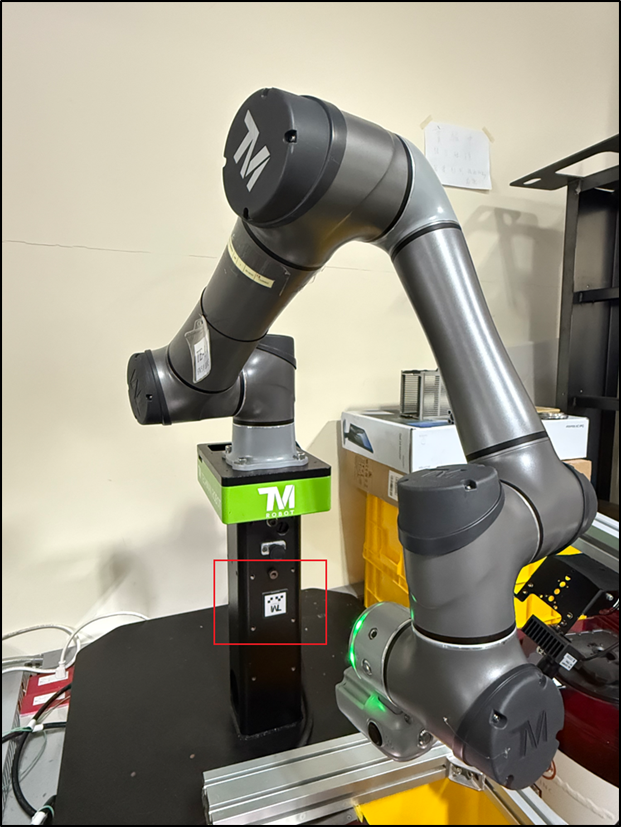
Place the Landmark in a fixed position relative to the robot, ensuring that the built-in camera can capture the Landmark without being affected by any tools attached to the robot flange.
Import Project and Global Variable
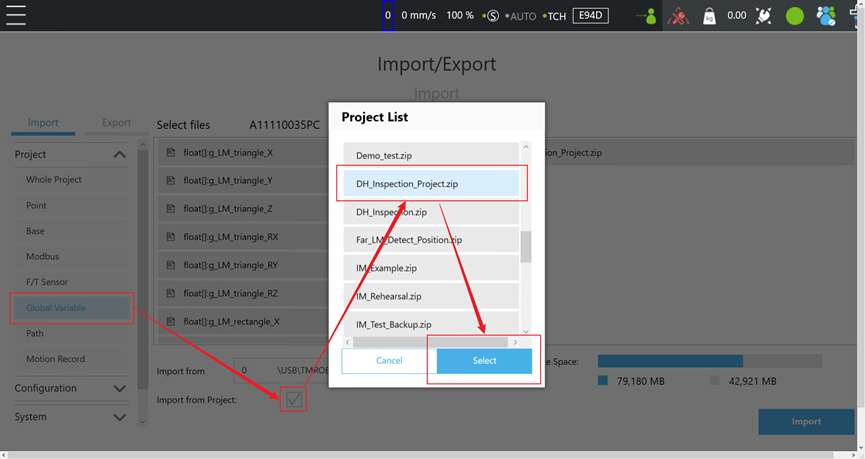
Import project “DH_Inspection_Project”.
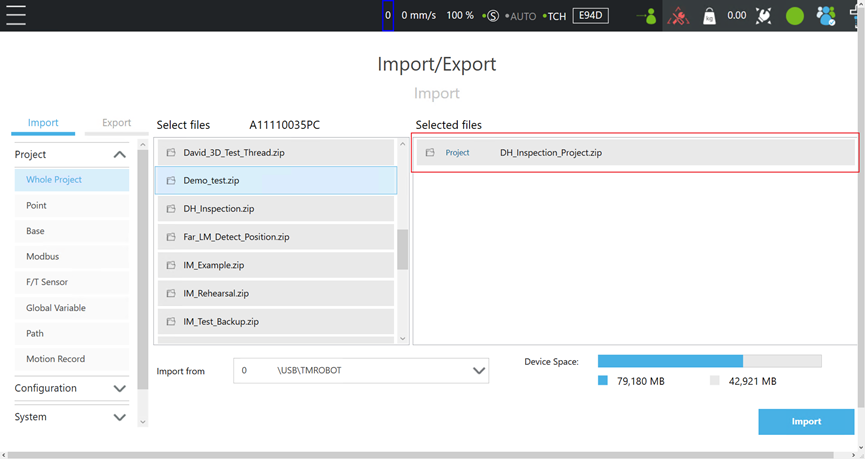
Import Global Variable, select import from project and choose this project
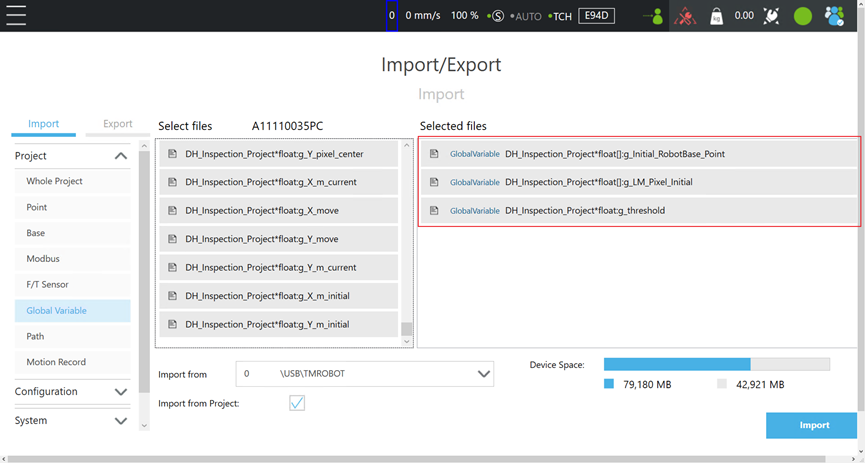
Import variable “g_Initial_RobotBase_Point”,”g_LM_Pixel_Initial” and “g_threshold”.
TMflow Setting
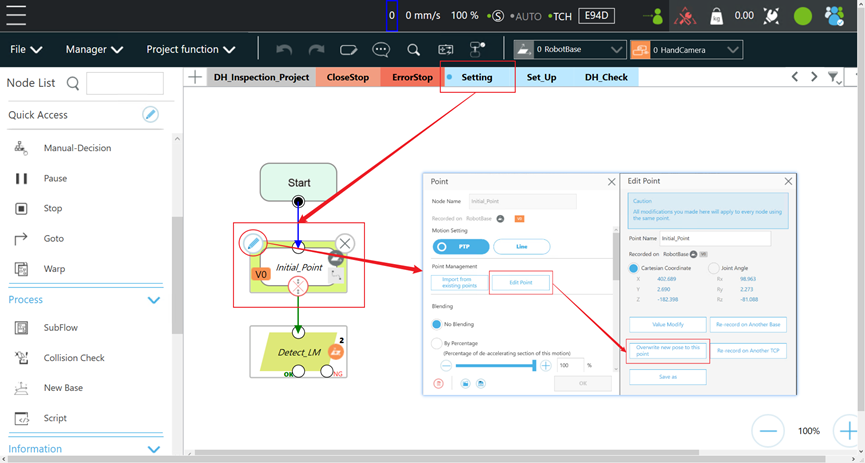
Define a camera position to locate the Landmark and ensure clear detection. The position can be adjusted as needed based on tool length or environmental constrains, as long as the Landmark’s pixel coordinates can be reliably detected.
Enter Setting and edit “Initial_Point”, overwrite this point with Landmark capture position.
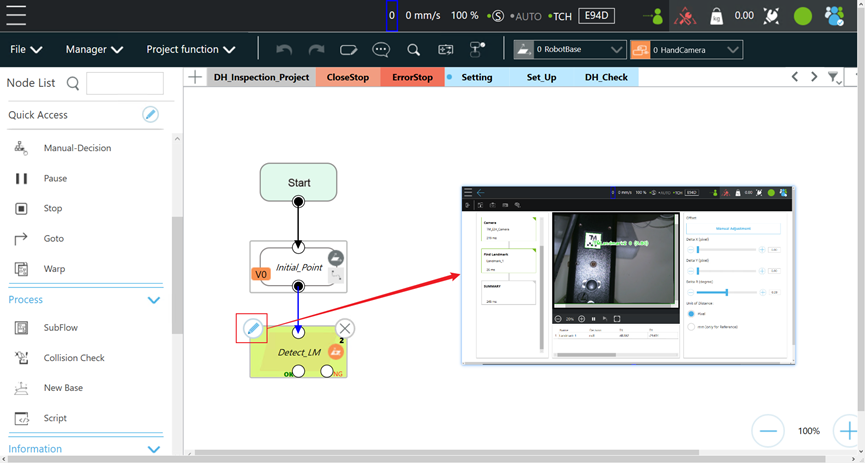
Edit inspection vision job ”Detect_LM” to detect the Landmark, ensuring that the Landmark is clearly visible and stable.
Run Project
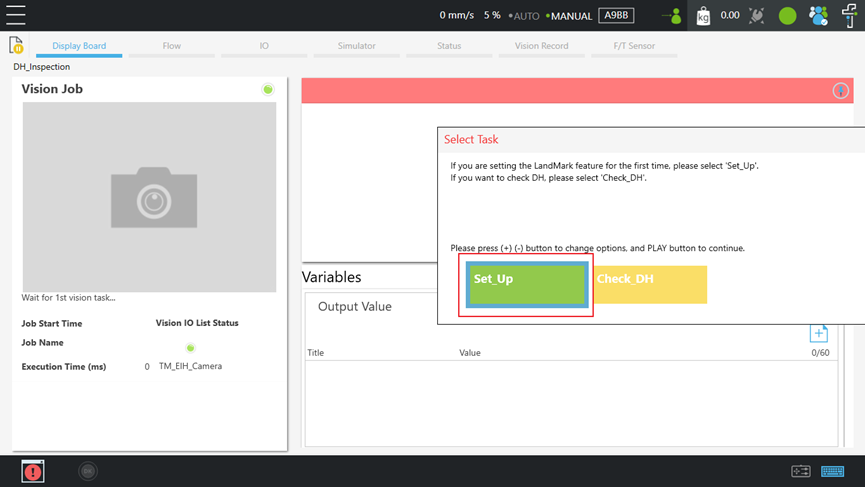
Next, run the project and execute Set_Up as the initial configuration.
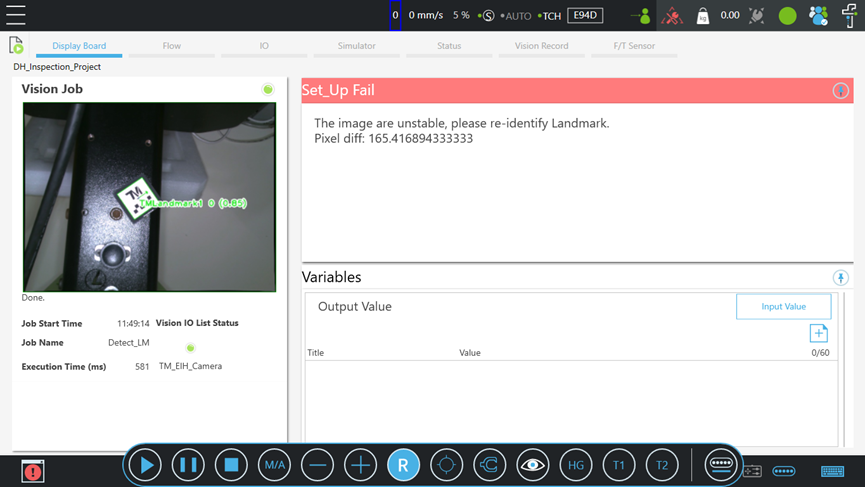
If Set_Up Fail occurs, it indicates that the Landmark detection is unstable. Please re-identify the Landmark and perform Set_Up again.
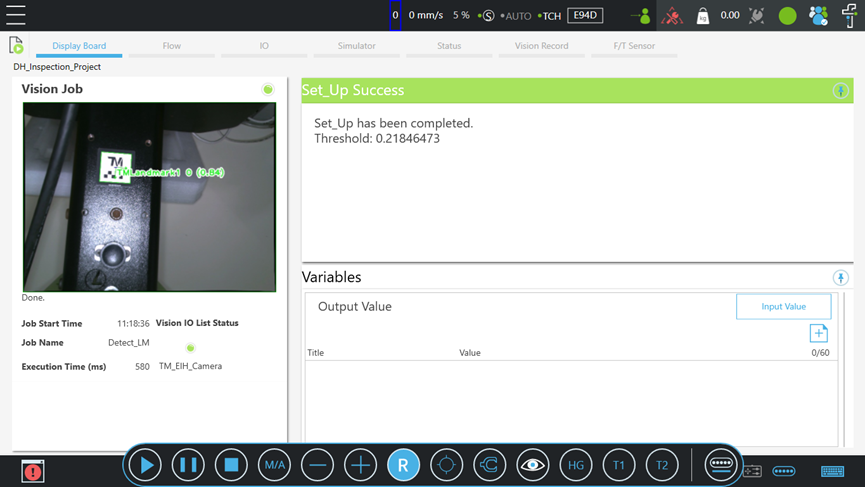
If Set_Up Success appears, it indicates that the setup is complete and a threshold value has been generated to serve as the reference for DH checking.
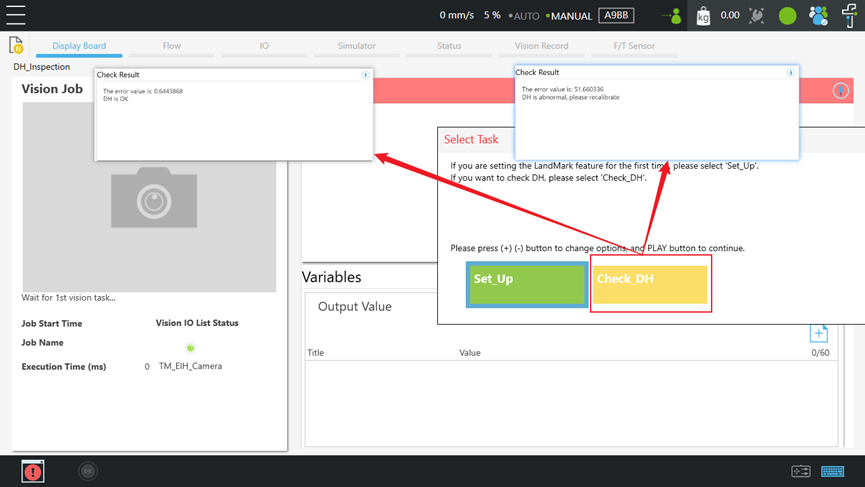
If a decrease in the robot positioning accuracy is observed, and a collision or DH inaccuracy is suspected, run the Check_DH process in this project to verify whether the error exceeds threshold 0.5 pixels. If the exceeds 0.5 pixels, it indicates an abnormal detection. Please contact the manufacturer or distributor to proceed with the robot verification process.
Was this article helpful ?