How to do Object-Based Calibration
Updated on 2026 / 08 / 27
This article is applicable under the following conditions:
TMflow version: 1.76.6300 or later
TM Robot hardware version: All
Please note that, depending on the TMflow version, the user interface and the operation procedure may differ.
HOW TO DO OBJECT-BASED CALIBRATION
When to do calibration
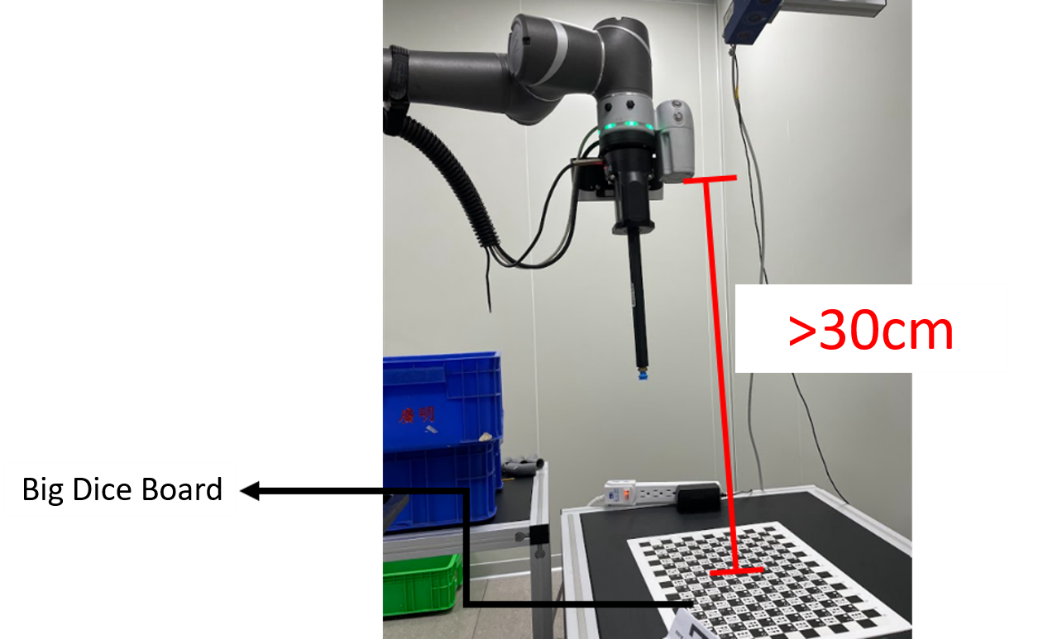
- Large and small calibration plates are both used to create a workspace during fixed positioning. If any of the calibration plates is > 30 cm away from the camera, causing the camera to produce a low-resolution image of the plate, then the plate cannot be clearly identified. This prevents the user from calibrating the workspace correctly.
- Object-based calibration is applicable to the eye-in-hand (EIH) setup only, which employs the difference in the robot servoing movement to calculate the relative relationship between the object and the TM Robot, eliminating the need to create a workspace.
An object for calibration that has a definite shape and lacks symmetry is easier to position accurately.
Causes of failure to create a workspace
The working distance is > 30 cm.
- If the camera’s resolutions are set to 1280×920, it produces low-resolution images.
If the TM Robot cannot find all points on the calibration plate, click the video link below to check out how this problem can be solved through object-based calibration.
Tilt correction
- Setup:
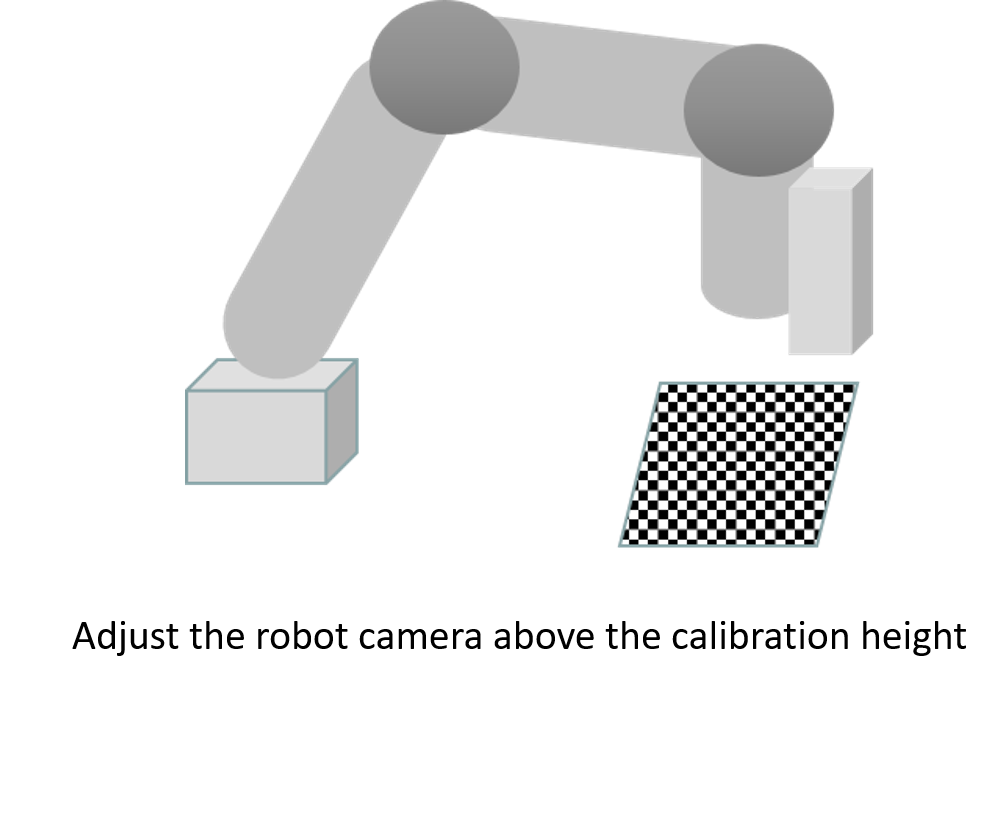
- If the working distance is large, the TM Robot cannot find the calibration plate when calibrating a workspace.
- In this case, manipulate the robot to a distance where it can find the calibration plate.
- Create a vision job
- Select the EIH 2D camera of the robot
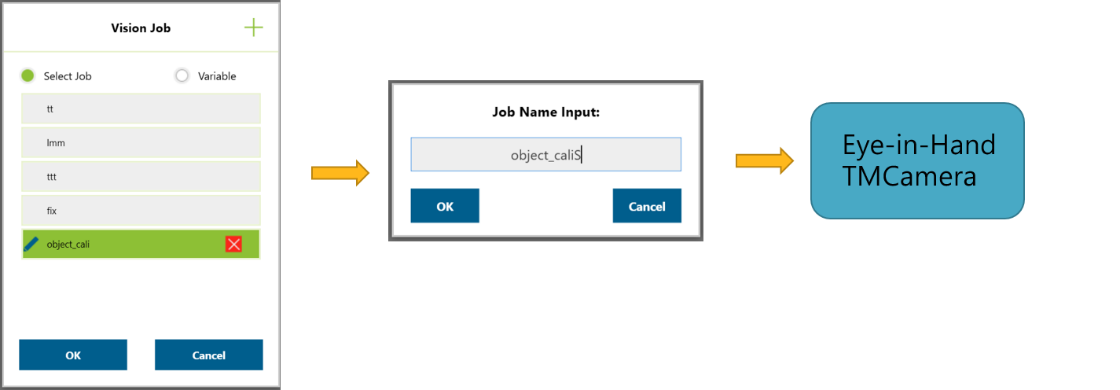
- Open Camera Kit.
- Set the camera’s parameters and select an appropriate focus value.
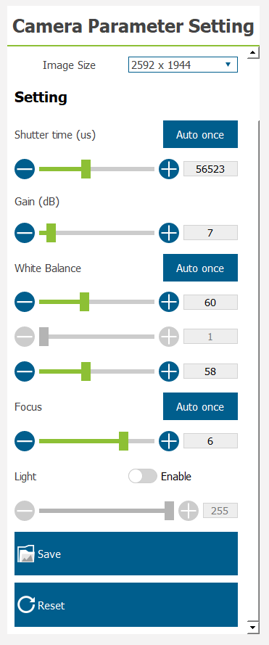
- Click Tilt Correction
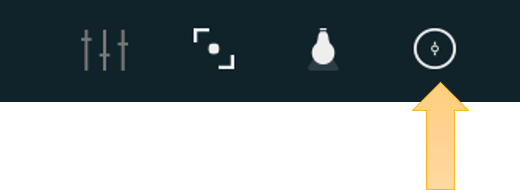
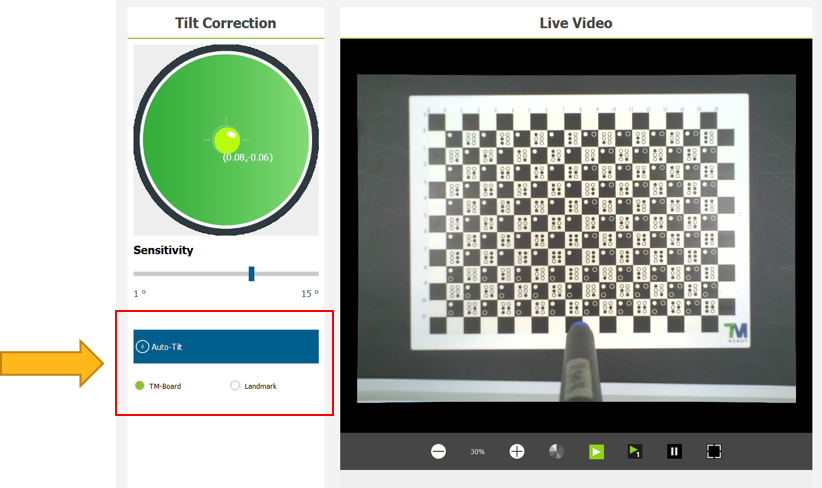
- Enter the UI for Tilt Correction
- Make sure the camera and the workspace are aligned
- Execute tilt correction using a supplied calibration plate.
- Select TM-Board and click Auto-Tilt.
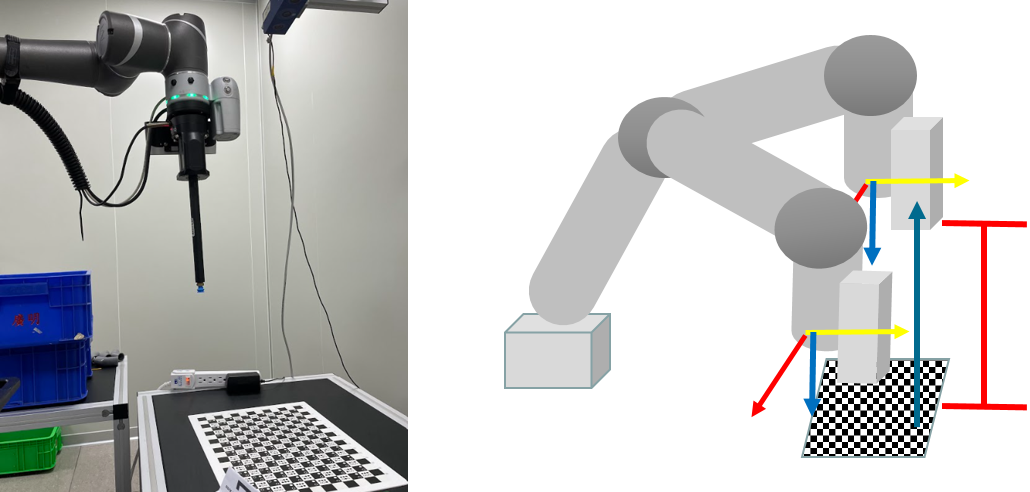
- Lifting the robot to the working distance
- Manipulate the robot along the z-axis direction of the tool base to the working distance.
Editing the vision flow
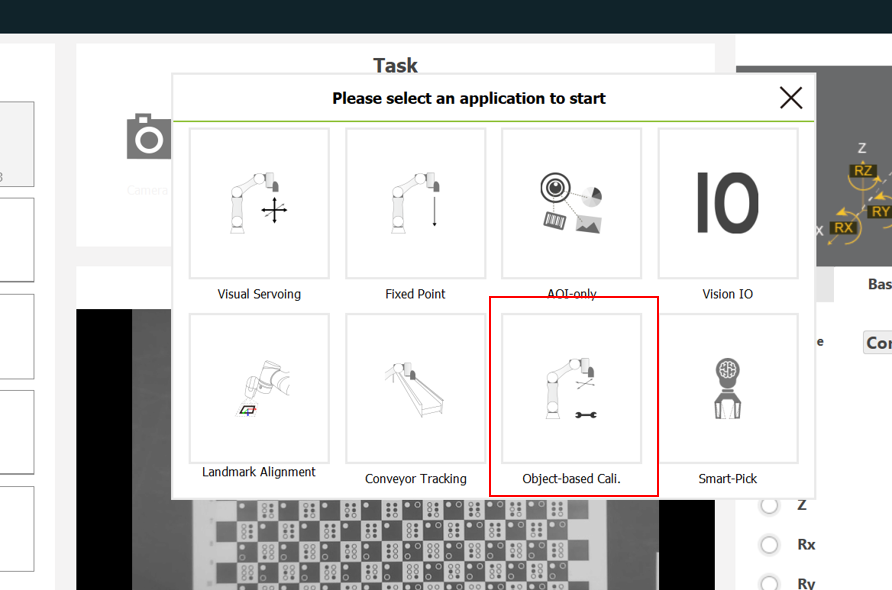
- Select Object-based Cali.
- Enter the editing process for the vision flow.
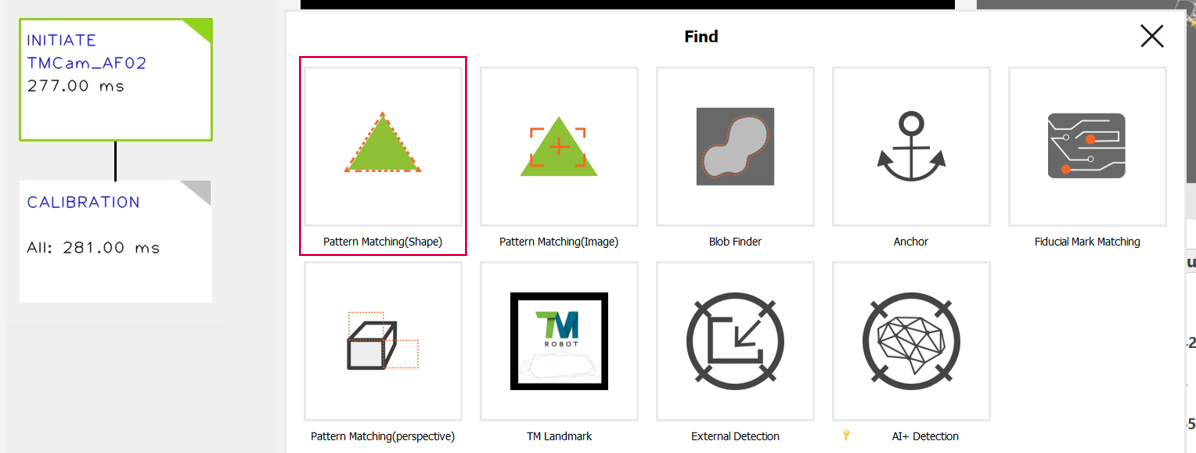
- Pattern matching (shape):
- Click Find > Pattern Matching(shape).
- Place distinguishable and target objects at the same height as the same workspace.
- The distinguishable object should be matched with objects with visible shapes; the features obtained through this matching are directional.
- The example below displays a magnified TM Landmark as a distinguishable object.
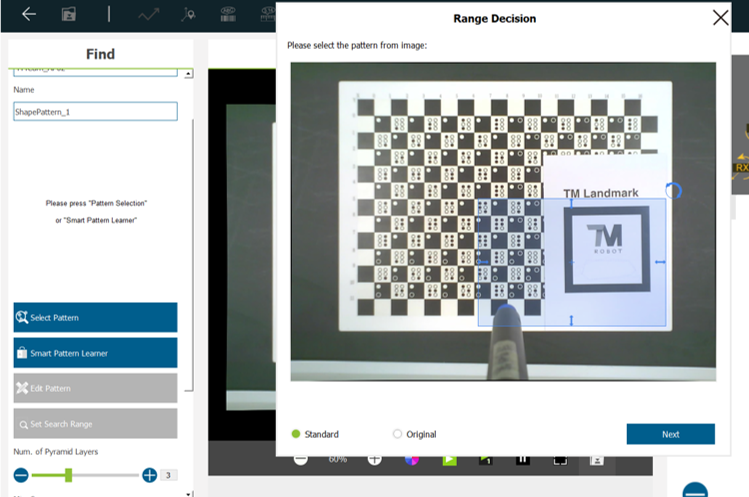
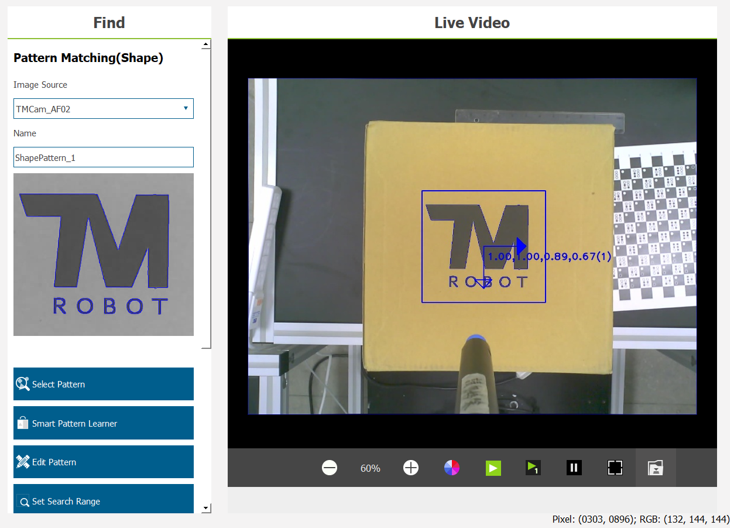
- Acquire the edges of TM Landmark and the characters printed on the landmark, and ensure its directionality.
- Calibration:
- Finish the Find process and go to Calibration.
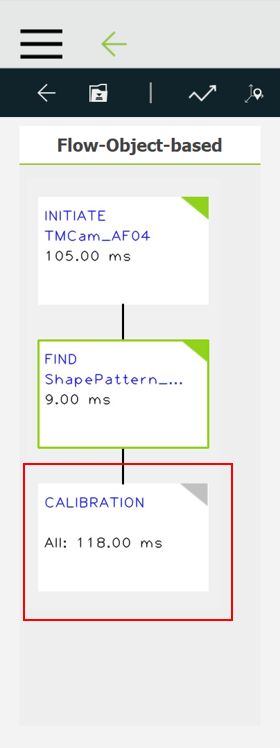
- Select an appropriate movement range.
- If the movement range is too small, the system may send a warning “Over the servoing limit.”
- After the settings are completed, move the TM Robot to its initial position. Then click Start Calibration.
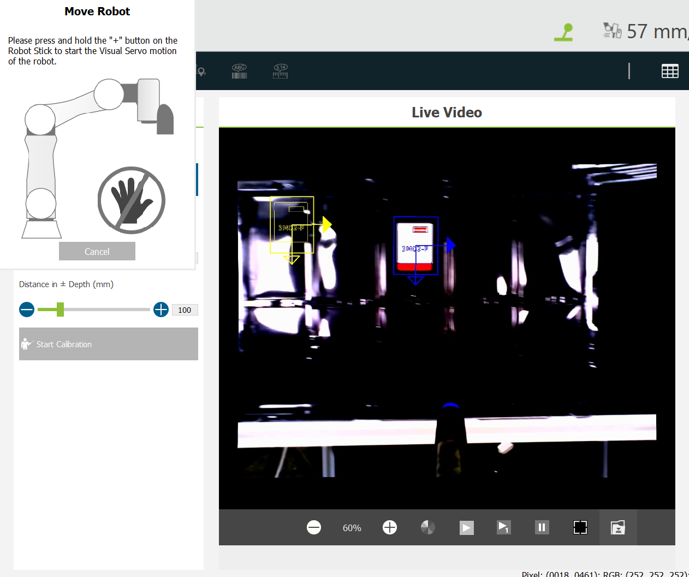
- The robot moves to five different positions during calibration.
- Hold the + button on the robot stick until the calibration is finished. This prevents the robot from colliding with any obstacles while on the move.
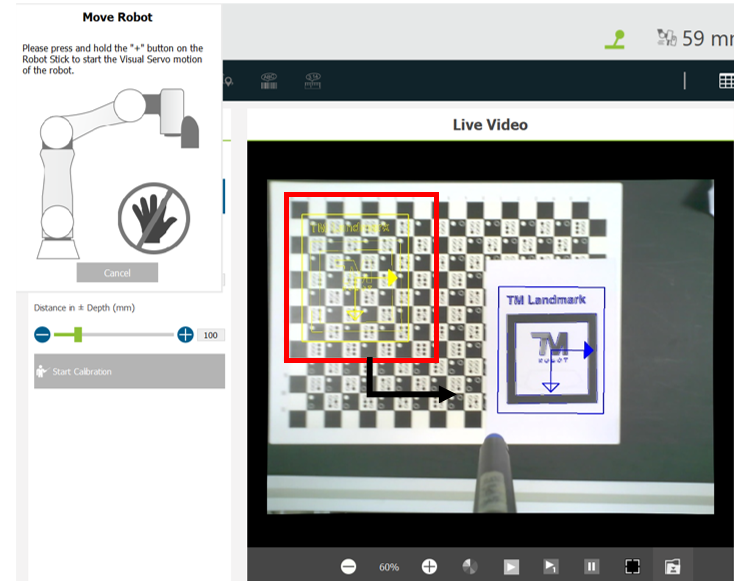
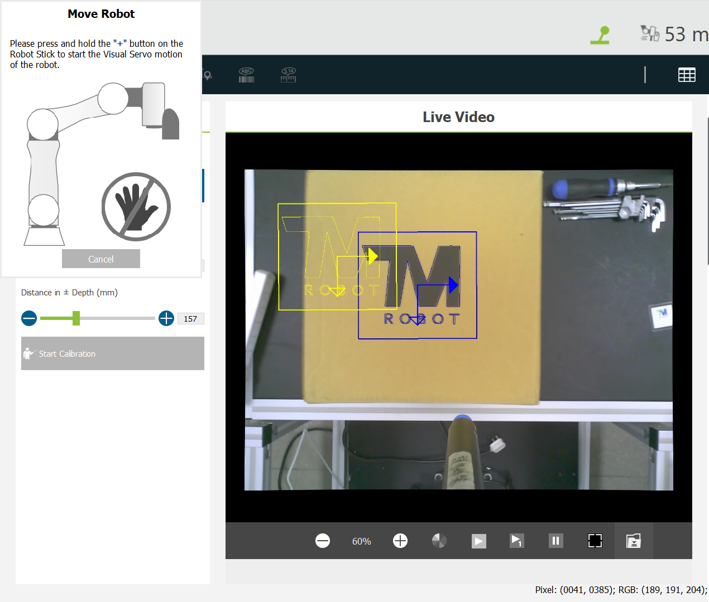
- If the features matched are not clear enough, the yellow-colored scope of the actual object sampled becomes inaccurate, as shown in the image below. In this case, make necessary changes in the Find module.
- Acquire the object’s base:
- After the vision flow is edited, execute the flow to obtain the robot base relative to the object—that is, the workspace of the target object.
Go back to the Find module, check the target object, and edit the flow for the object.
Troubleshooting
- Issue
- If the TM Robot keeps failing to match an object’s features while it is servoing the object during calibration, a dialog box will appear as follows:
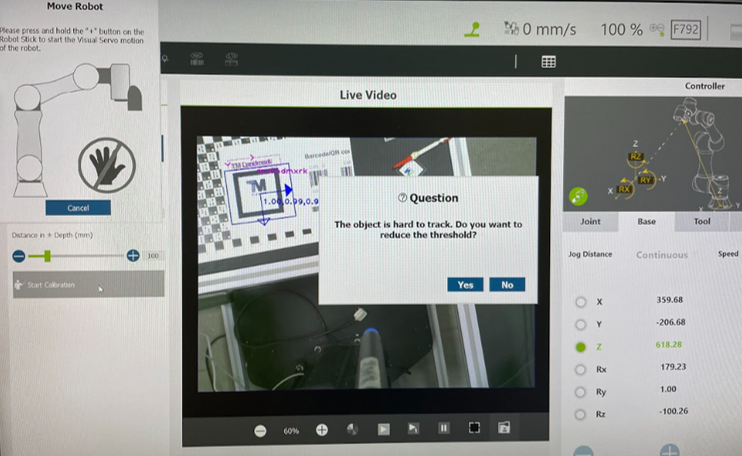
- Solutions:
- Check whether the features matched are too sophisticated. Then go back to the Pattern Matching process and remove any feature that is difficult to match on the pattern matched.
- Use an Enhance module to make any to-be-matched feature more visible and easier to find.
Set a lower score in the Find module. If the pattern is symmetrical, impose a limit on the angle for finding the pattern.
Demo with cardboard
- Setup:
- Object-based calibration is performed using the logo “TMROBOT” printed on the top of a piece of cardboard. Then a flow is edited in ways that manipulate the TM Robot to use a suction nozzle to pick up the cardboard.
- Tools:
Cardboard with a “TMROBOT” logo printed on it

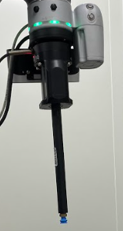
ROBOTIQ Epick Gripper

- Workspace:
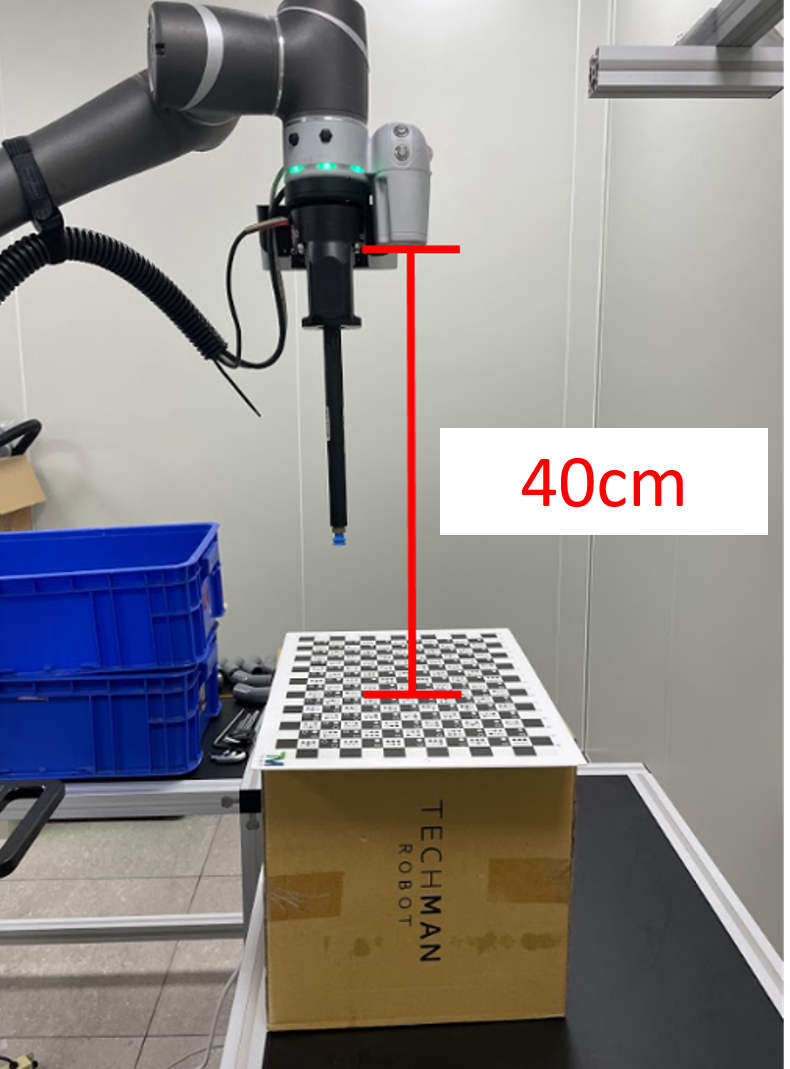
- Decide the distance between the camera and cardboard
- The distance between the camera and cardboard is about 40 cm.
- The workspace cannot be calibrated through fixed positioning.
- Execute object-based calibration to obtain the position of the cardboard.
- Editing the vision flow:
- Open Camera Kit.
- Set the camera’s parameters and focus.
- Place a calibration plate and do tilt correction.
- Select Pattern Matching(shape).
- Circle the TMROBOT logo at the center of the cardboard and the shape of the cardboard.
- Open Camera Kit.
- Do calibration:
- Set the movement range
- start calibration.
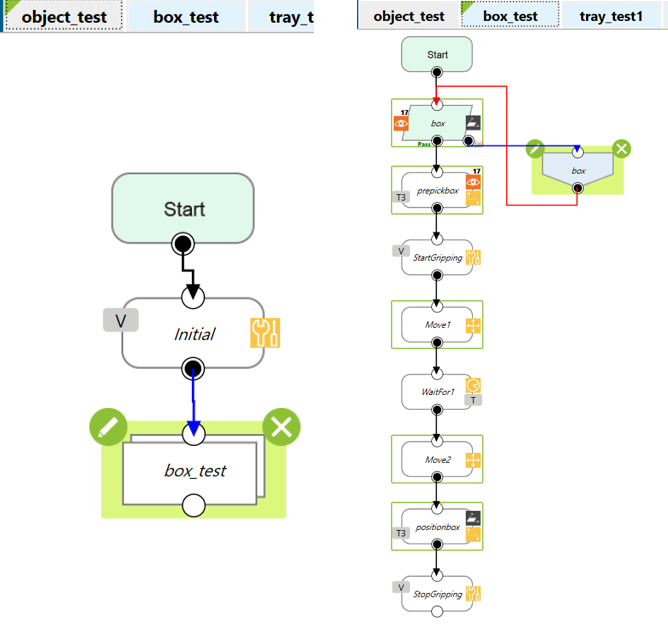
- Editing the flow:
- Use a vision job to find the cardboard.
- Teach the robot where to pick up the cardboard and install a suction nozzle for the robot to fetch the object.
- Results:
- The robot finds the cardboard and arrives at its center.
- The robot uses the suction nozzle to pick up the cardboard.
Demo with SSDs
Setup: Several SSD are placed on their respective trays, object-based calibration performed using the words printed on the top of the SSDs and the shape of the drives, and the TM Robot is manipulated to use a suction nozzle to pick up the drives.
Tools:
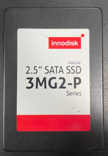
- SSD
ROBOTIQ Epick Gripper
- Workspace:
- Set up a workspace for the SSDs.
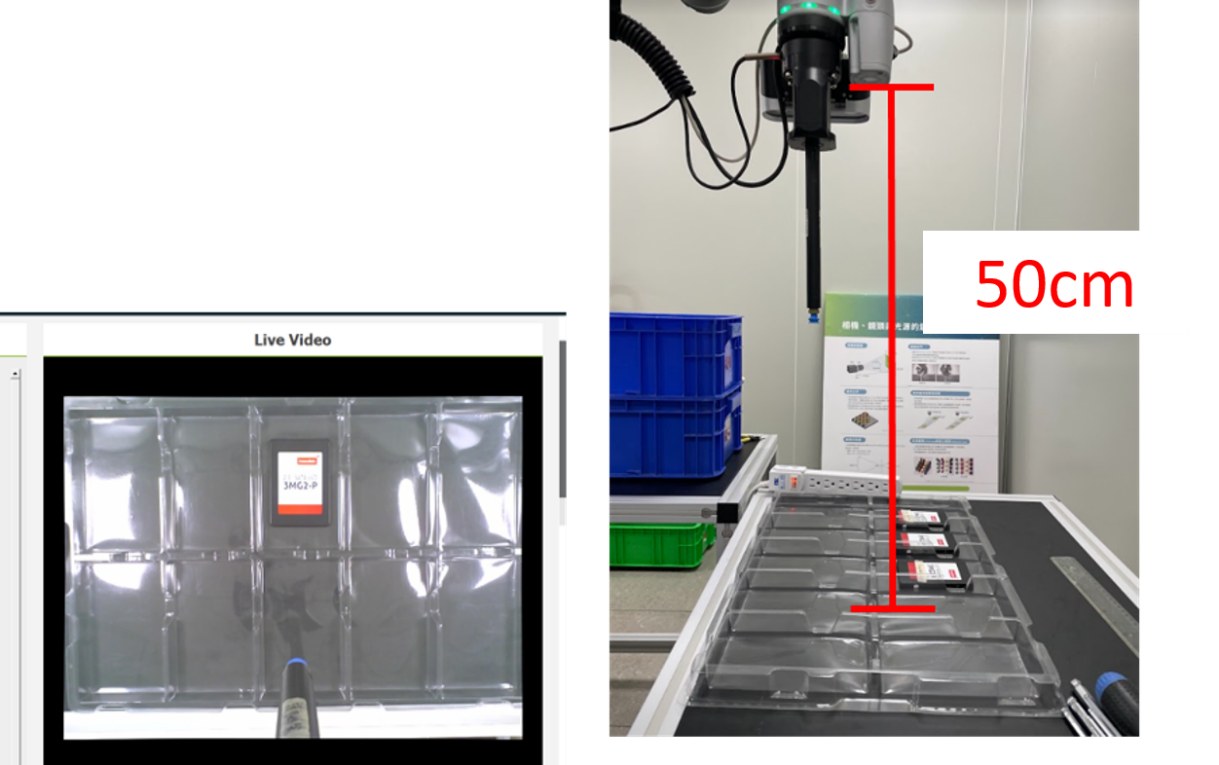
- The distance between the camera and trays is about 50 cm, so the trays can be entirely seen by the camera.
- The workspace cannot be calibrated through fixed positioning.
- Execute object-based calibration to obtain the positions of the SSDs.
- Editing the vision flow:
- Open Camera Kit.
- Set the camera’s parameters and focus.
- Place a calibration plate and execute tilt correction.
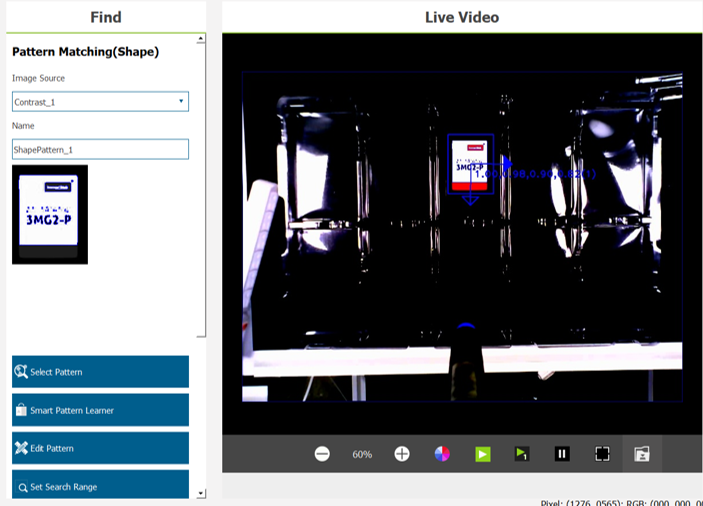
- Use an Enhance module to make the SSDs more identifiable.
- Use Pattern Matching(shape) to circle the words printed on their center and the shape of the drives.
- Open Camera Kit.
- Do calibration:
- Set the movement range
- start calibration.
- Editing the flow:
- Use a vision job to find the SSDs.
- Teach the robot where to pick up the SSDs and install a suction nozzle for the robot to fetch the objects.
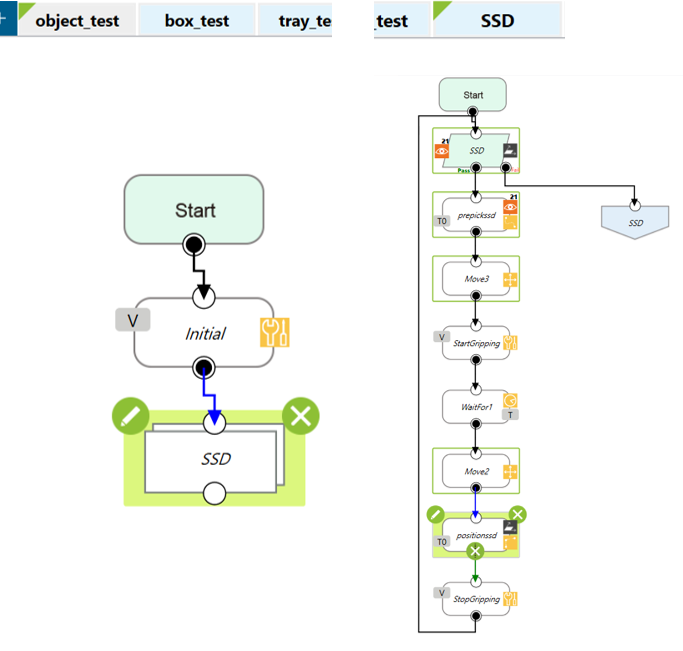
- Results:
- The robot finds the SSDs and arrives at their center.
- The robot uses the suction nozzle to pick up the SSDs one after another from the trays.
- Demo Video
Was this article helpful ?