[EtherNet/IP] Configuring Devices
Updated on 2026 / 08 / 27
Examples are valid for :
TMflow Software version : All versions
TM Robot Hardware version : All versions
Other specific requirements : None
Note that older or newer software versions may have different results.
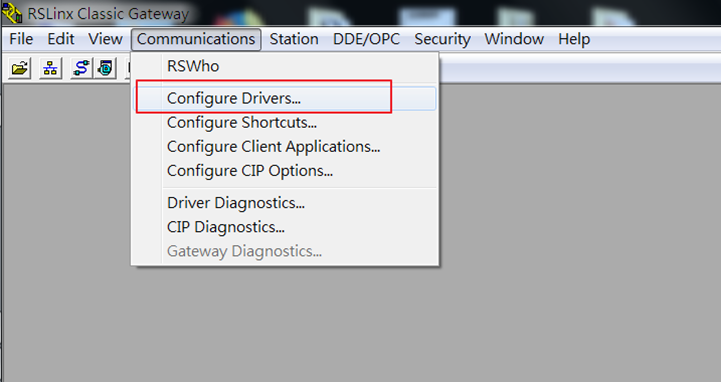
Step #1: Configure the driver after plugging in all the EtherNet/IP devices. Users need to use an additional software - RSLinx Classic - which is also including in Studio 5000 Logix Designer.
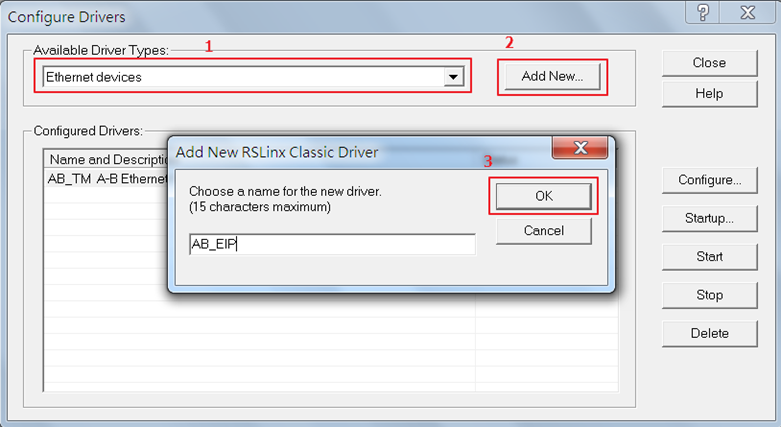
Step #2: Select 'Driver Types' and click 'Add New'. Create a name for the driver.
Step #3: Check All IP addresses of different hardware.
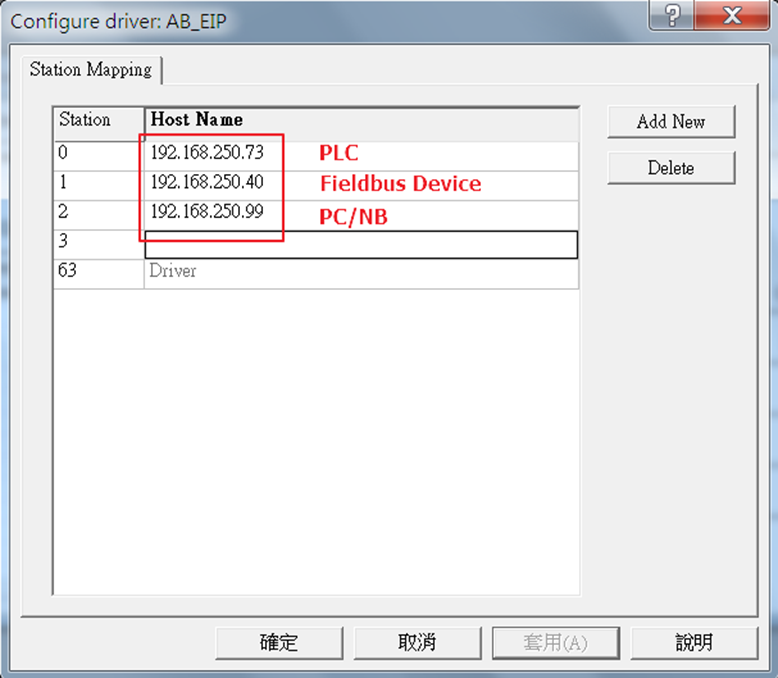
Step #4: Click 'Communication' → 'RSWho' to search for existing drivers. Click the driver and all devices will show on the right-side panel.
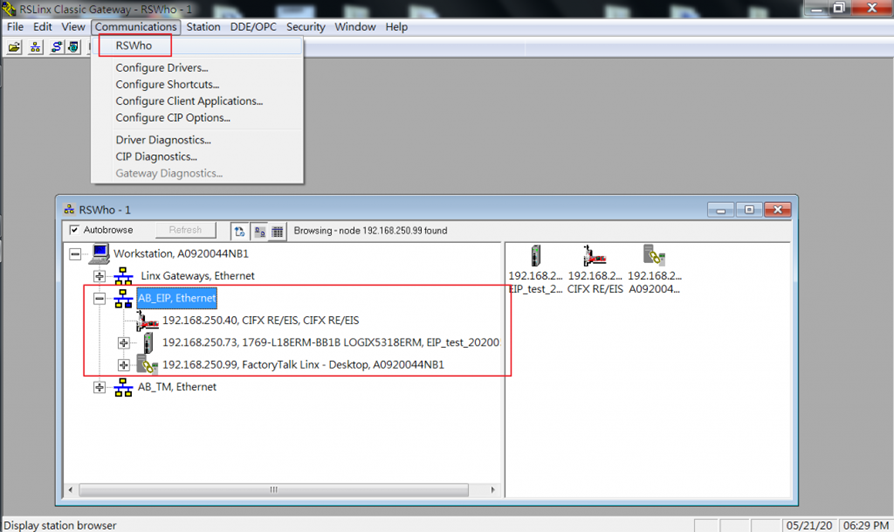
Step #5: After configuring, users will get the IP address of those EtherNet/IP devices. Later, users need to use the address in Studio 5000 Logix Designer, setting IP address can be found in article title : [EtherNet/IP] Change IP Address of TM Robot by Using RSLinx Classic Tool
Was this article helpful ?